Description: The purpose of this article is to provide an overview of the MeetUpComm App.
Overview of the App
The MeetUpComm app functions as a mobile version of the Meetings feature in the DesktopComm app.
To learn more about the Meetings feature of the DesktopComm app, please refer to this article.
The MeetUpComm app provides users with a platform for organizing and managing video meetings, allowing them to easily schedule, join, and participate in virtual sessions.
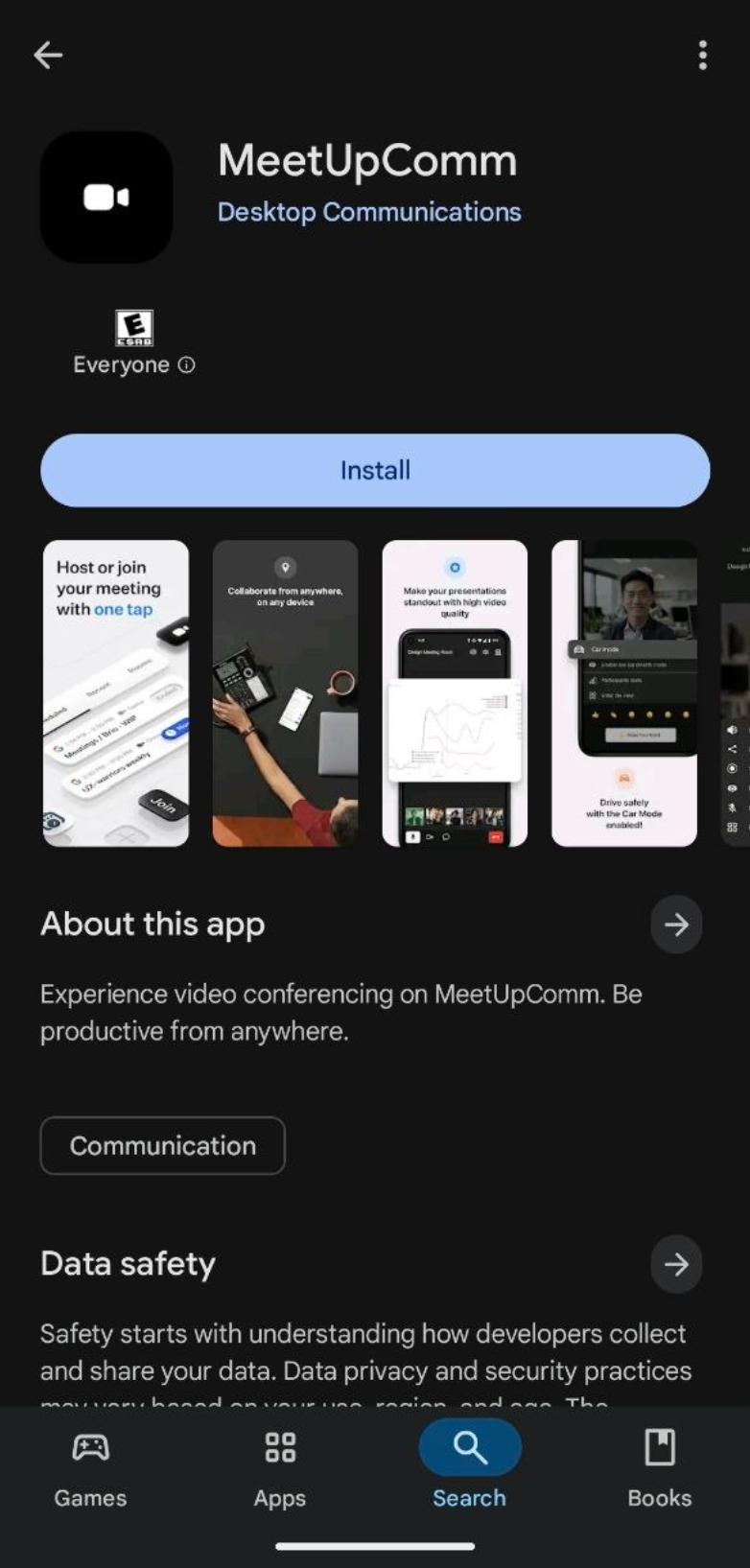
Downloading the App
To download the MeetUpComm app on your smartphone, use the Play Store or App Store, depending on whether you have an Android or an iPhone device. Search for the MeetUpComm app and install it, as it is officially available on both platforms.
Logging In
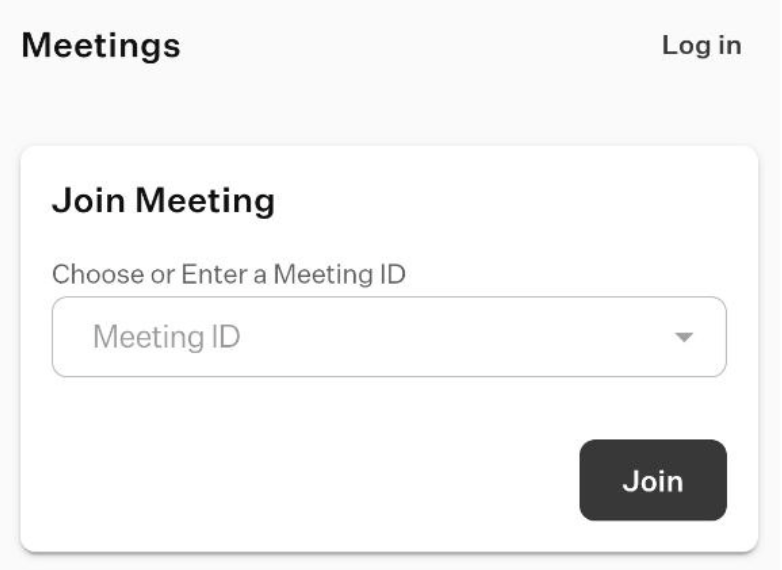
During app launch, if you are not logged in, you can still join a meeting using the meeting ID. To do this, enter the meeting ID and tap the “Join” button.
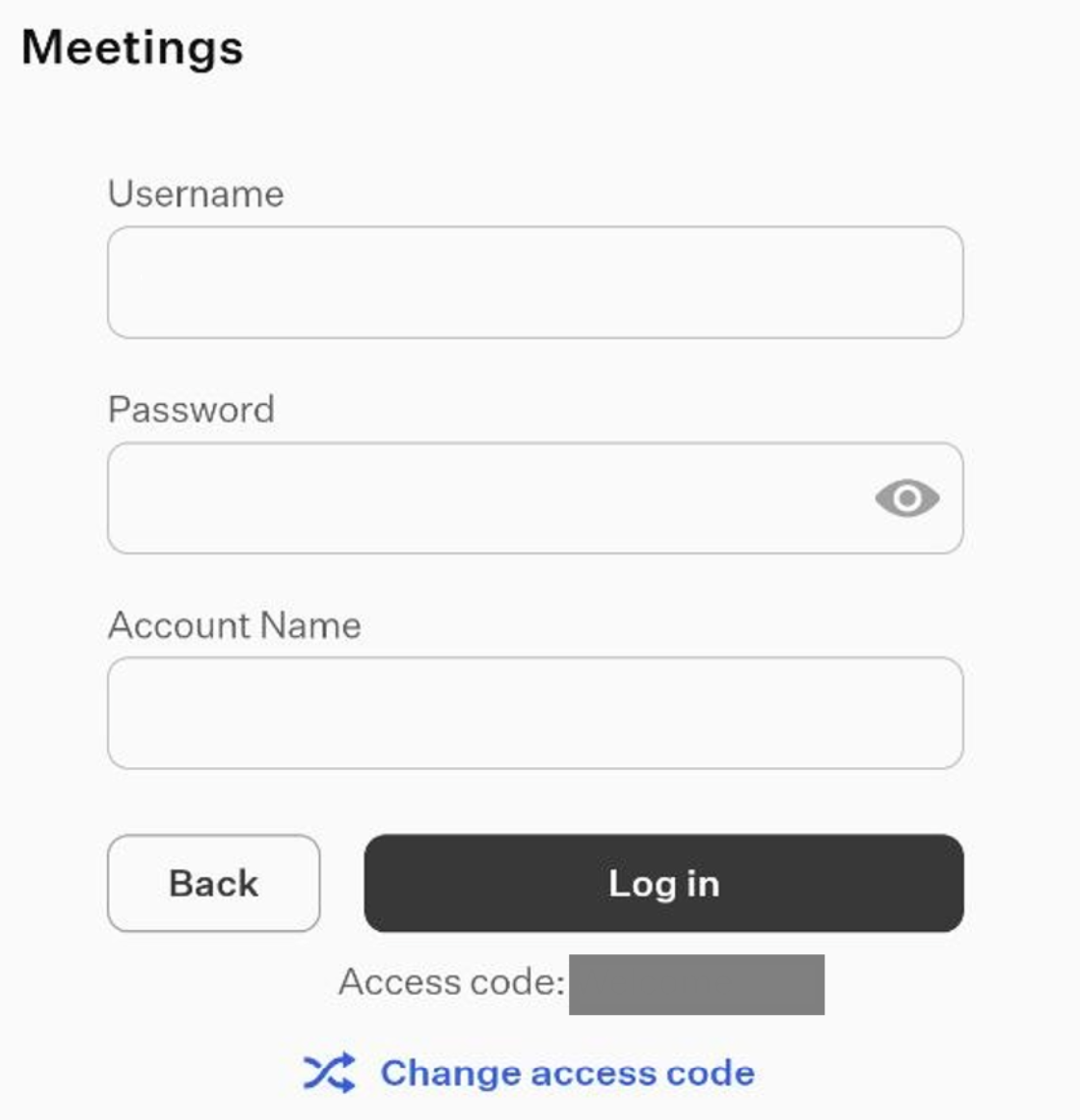
If you prefer to log in instead, tap the “Log In” button. During the first login to the MeetUpComm app, you will be prompted to enter an access code that should have been provided to you by your system administrator.
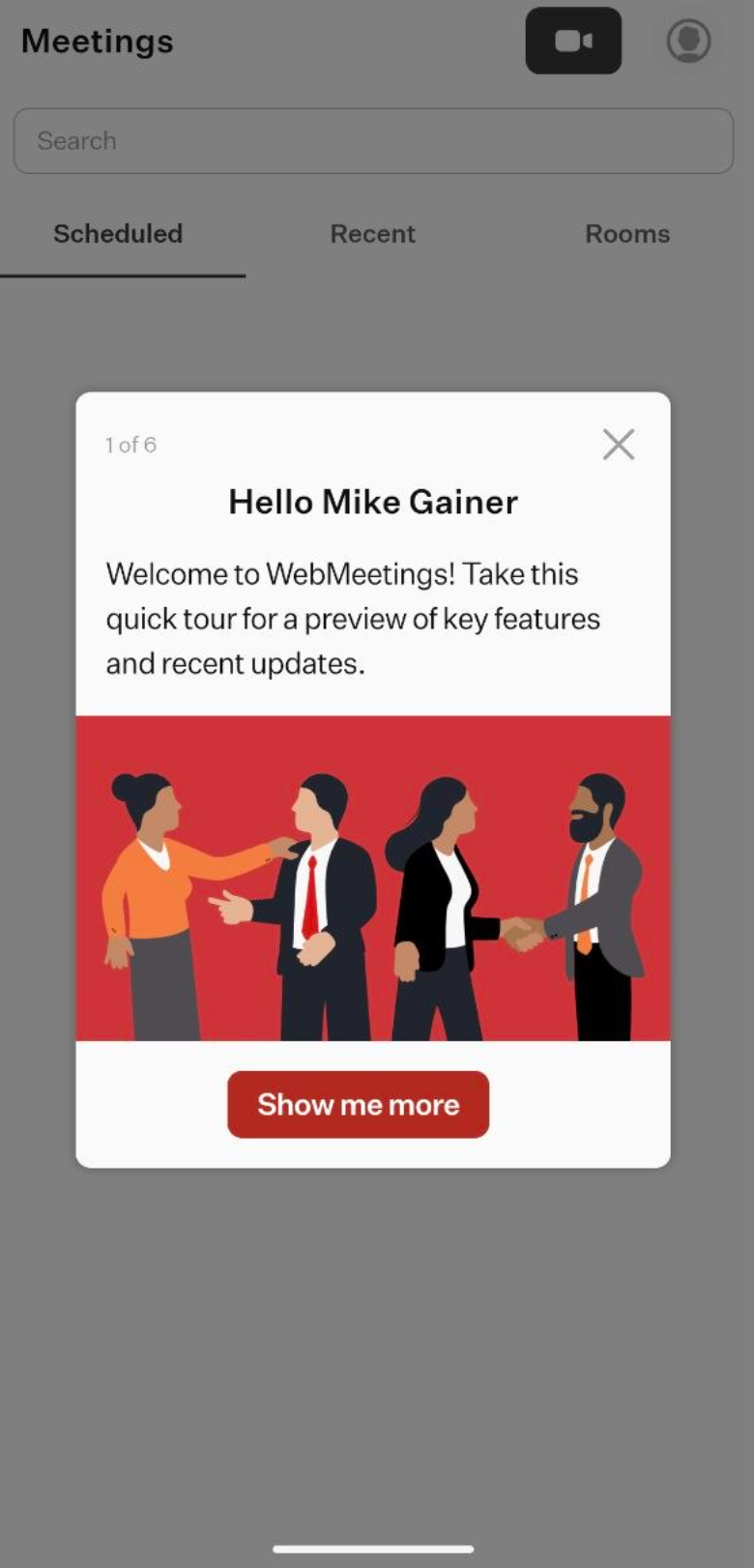
During the first login, you will see a pop-up window offering a quick tour of the app’s key features. To proceed with the tour, click the “Show Me More” button. If you prefer to skip it, click the “X” button.
Interface of the App
The app interface consists of two main elements:
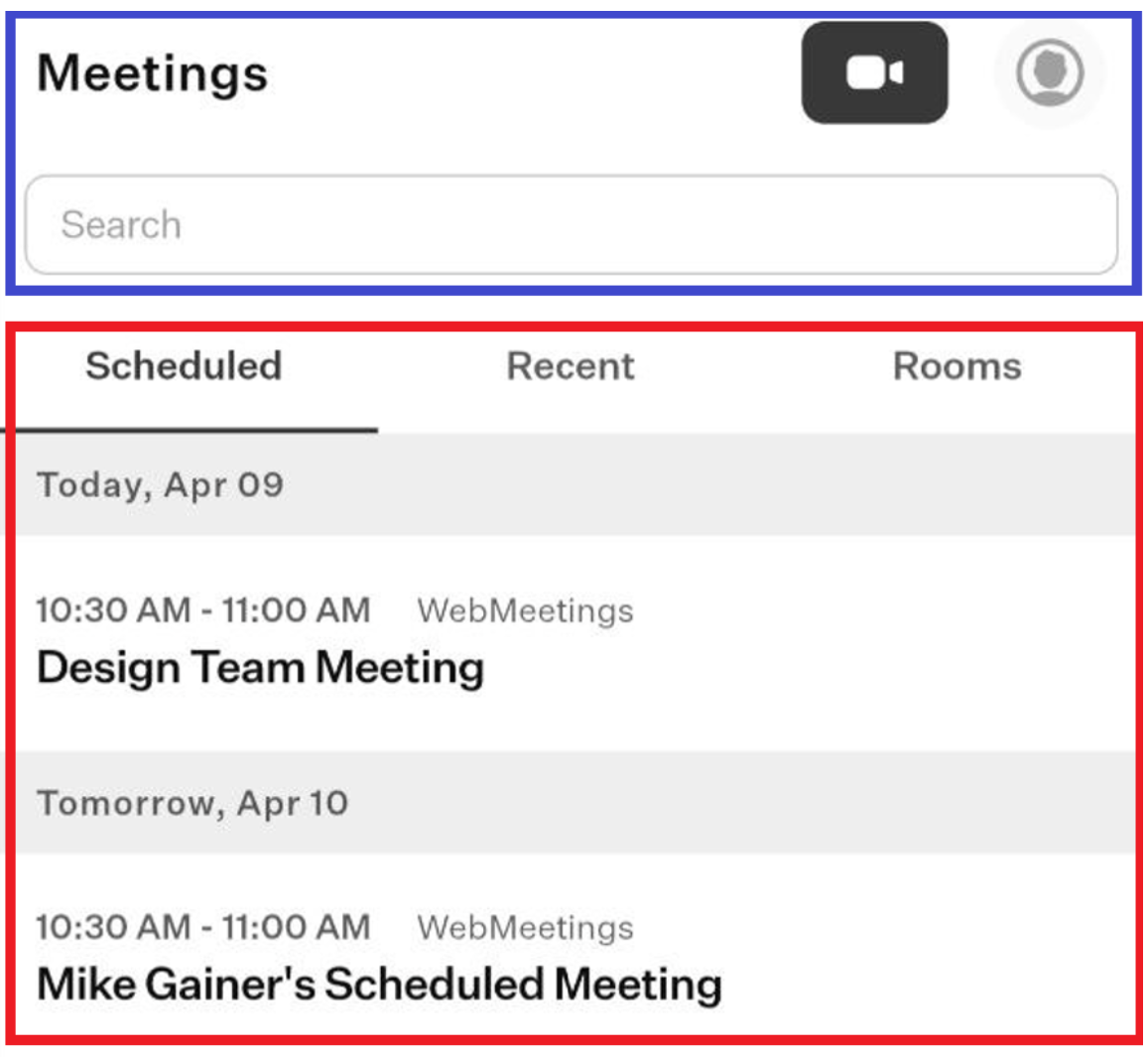
- top horizontal menu (blue rectangle)
- tabs (red rectangle)
Since each of these interface elements includes a lot of details, let’s explore them separately.
Top Horizontal Menu
The top horizontal menu consists of three main elements:
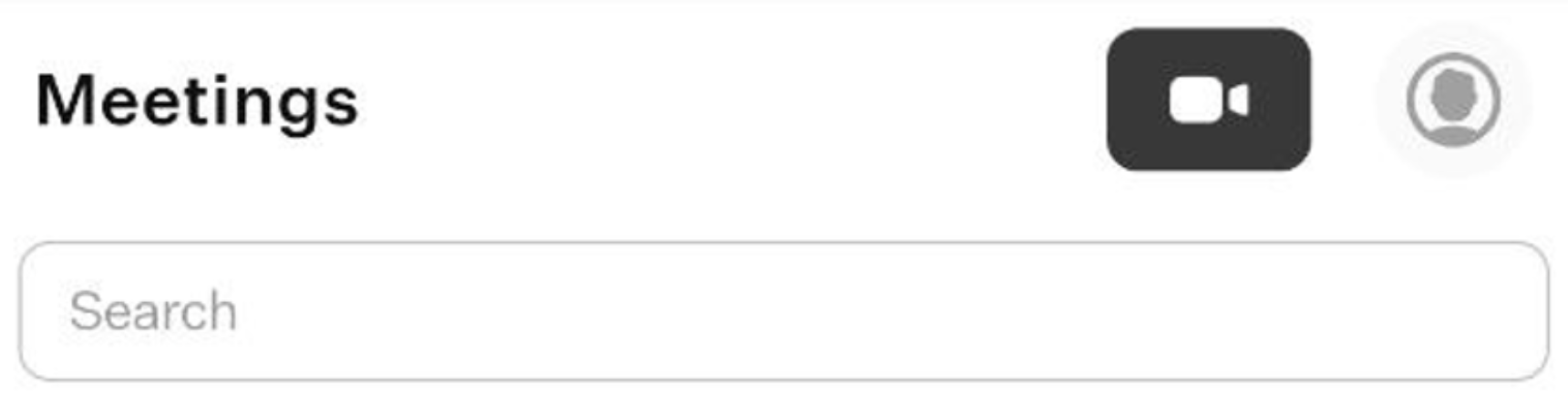
- Meeting button: this button is the main tool for working with meetings and meeting rooms in the MeetUpComm app. When you click it, a drop-down list will appear showing all available actions you can perform.
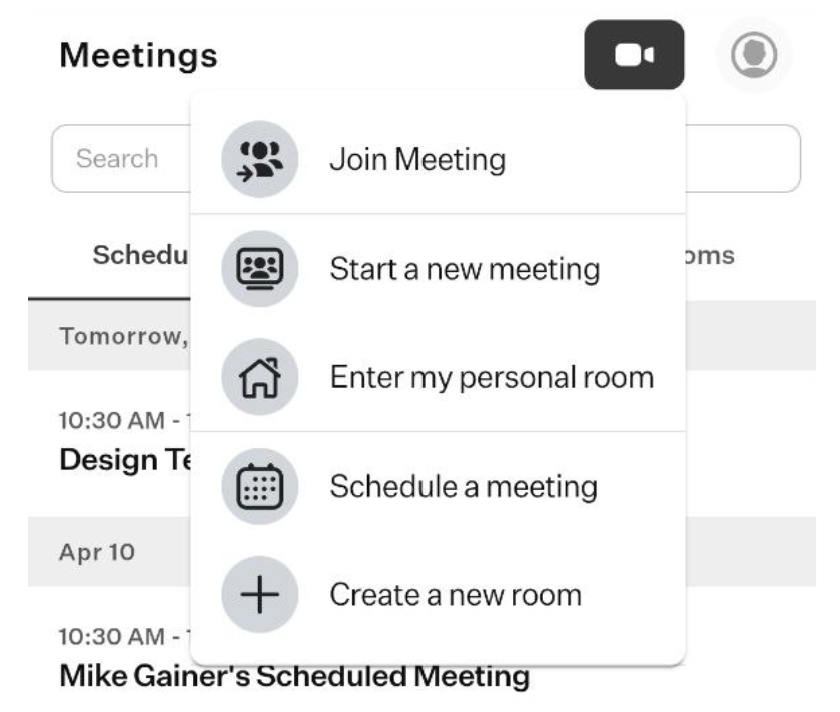
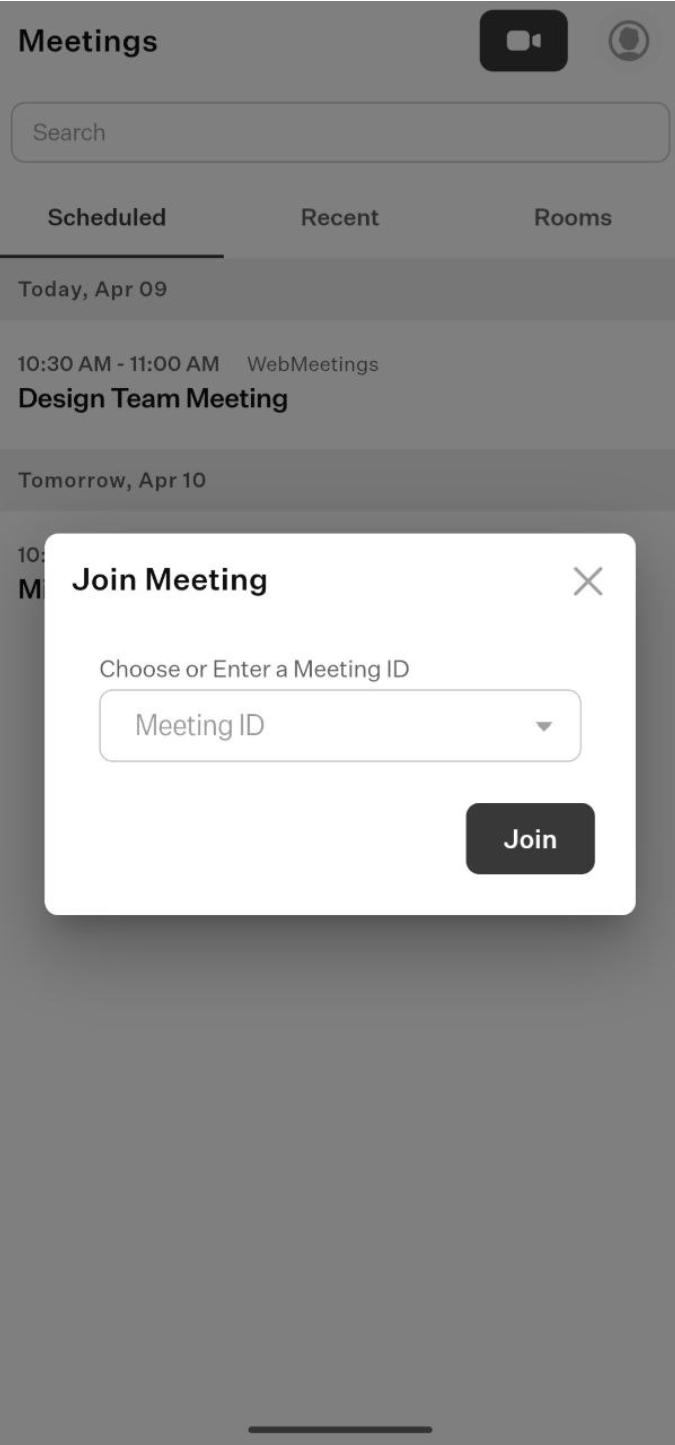
- Join Meeting: select this option to join a meeting. A pop-up window will appear where you can enter the meeting ID and tap the “Join” button to join the meeting.
- Start a new meeting: select this option if you want to create a new meeting where you are the host. After selecting it, a new window will open where you can configure the basic parameters of the meeting.
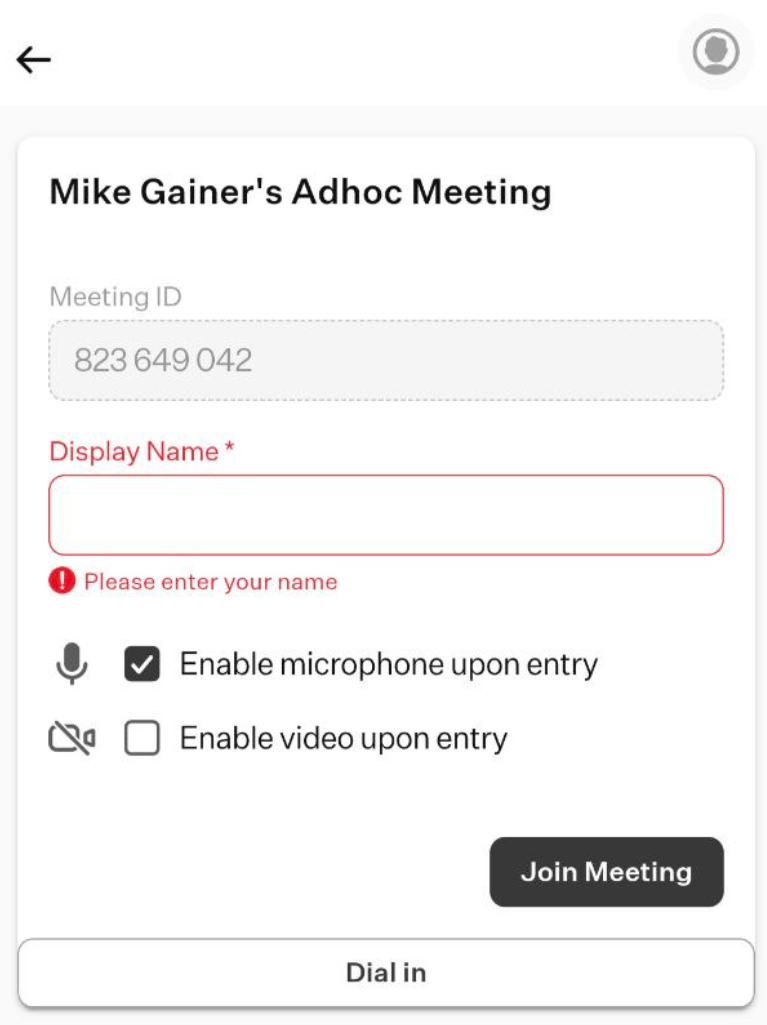
- Meeting ID: a preset value automatically generated by the system. It cannot be modified.
- Display Name: use this field to enter a custom name for the meeting that will be shown after you join.
- Enable microphone upon entry: select this checkbox if you want your microphone to be automatically enabled when you join the meeting.
- Enable video upon entry: select this checkbox if you want your smartphone camera to be turned on automatically when you join the meeting.
- Join Meeting: click this button to join the meeting.
- Dial in: click this button to view a list of phone numbers that can be shared with participants, allowing them to join the meeting via a regular cellular network.
- Enter my personal room: use this option to start a new meeting in your personal meeting room. After selecting it, a new window will open where you can configure the basic meeting parameters for the session in your room.
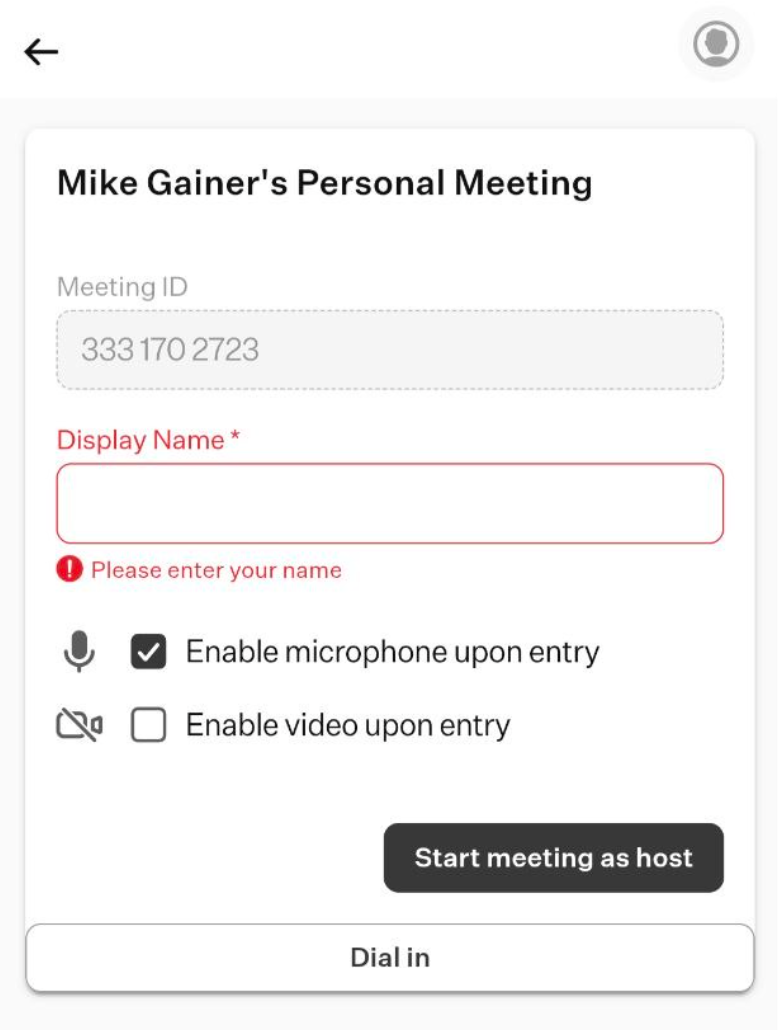
These parameters are the same as those described above and are therefore not repeated here.
- Schedule a meeting: use this option to schedule a new meeting for a future date. After selecting it, a new window will open where you can configure the basic parameters of the meeting.
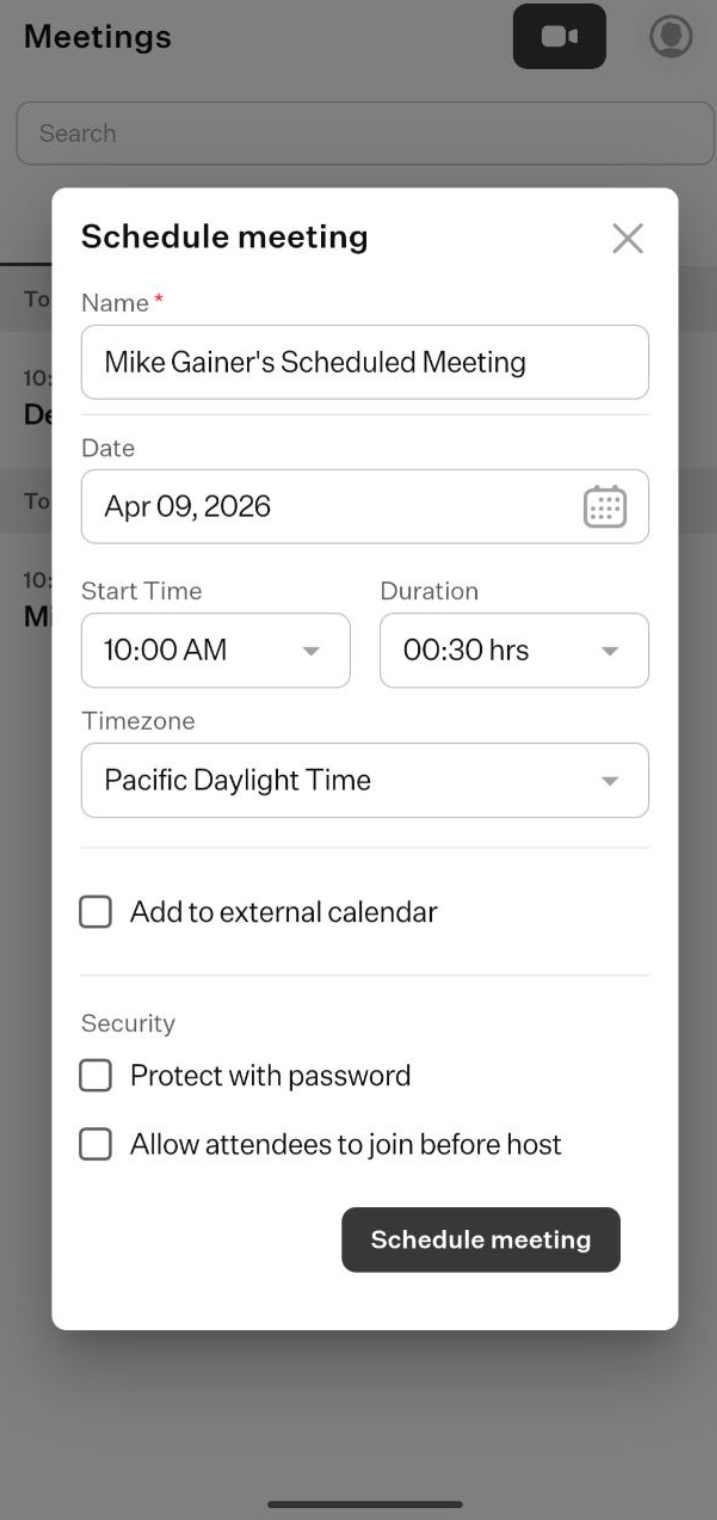
- Name: enter a custom name for the meeting.
- Date: select the date on which the meeting will take place.
- Start Time: set the start time of the scheduled meeting.
- Duration: configure how long the meeting will last.
- Time Zone: select a specific time zone for the meeting. The system will automatically adjust the time for participants who are detected to be in different time zones.
- Add to External Calendar: select this checkbox if you want to add the meeting to an external calendar.
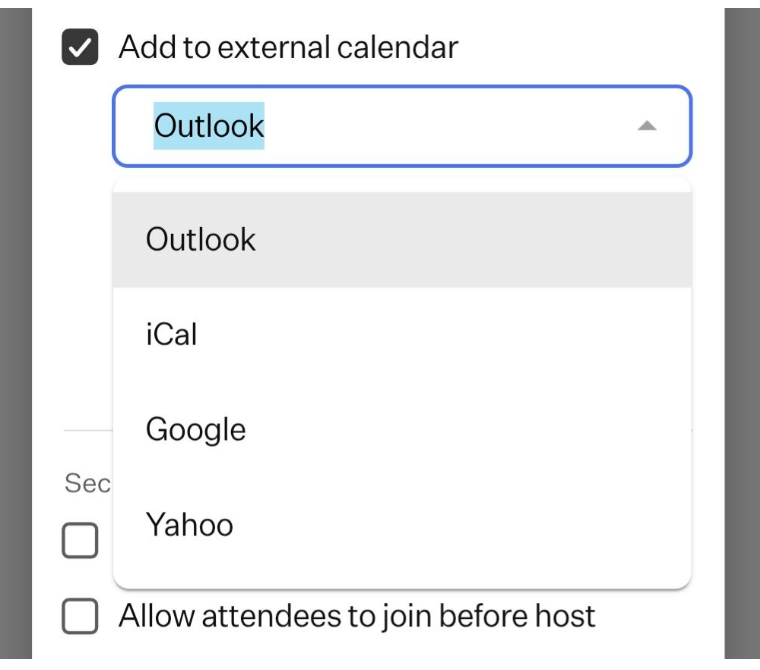
After selecting one of the available options from the drop-down list, a new section called “Location” will appear, containing two options, from which you can select only one.
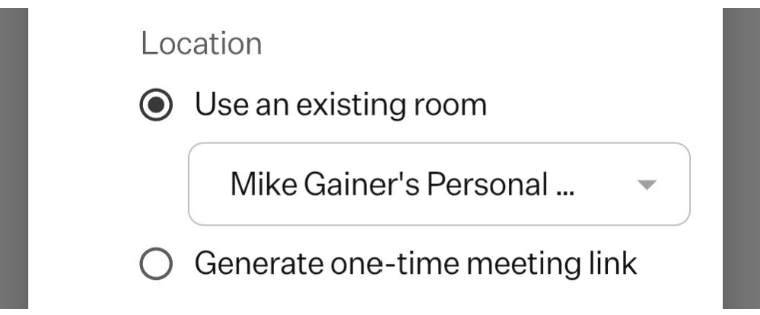
- Use an existing room: if you select this option, a field will appear allowing you to choose one of the available meeting rooms from a drop-down list.
- Generate one-time meeting link: if you select this option, the system will generate a unique meeting link that can be used to access the meeting.
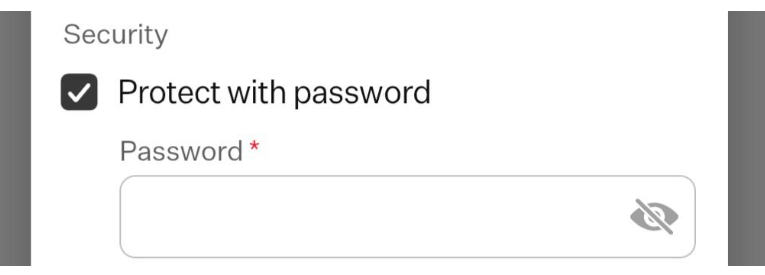
- Protect with password: enable this option to require a password for joining the meeting. Participants will need to enter the correct password before they can access the session.
- Allow attendees to join before host: enable this option to let participants join the meeting before the host arrives. If disabled, attendees will be placed in a waiting state until the host joins and starts the meeting.
- Create a new room: use this option to create a new meeting room. After selecting it, a new window will open where you can configure the basic parameters of the meeting room.
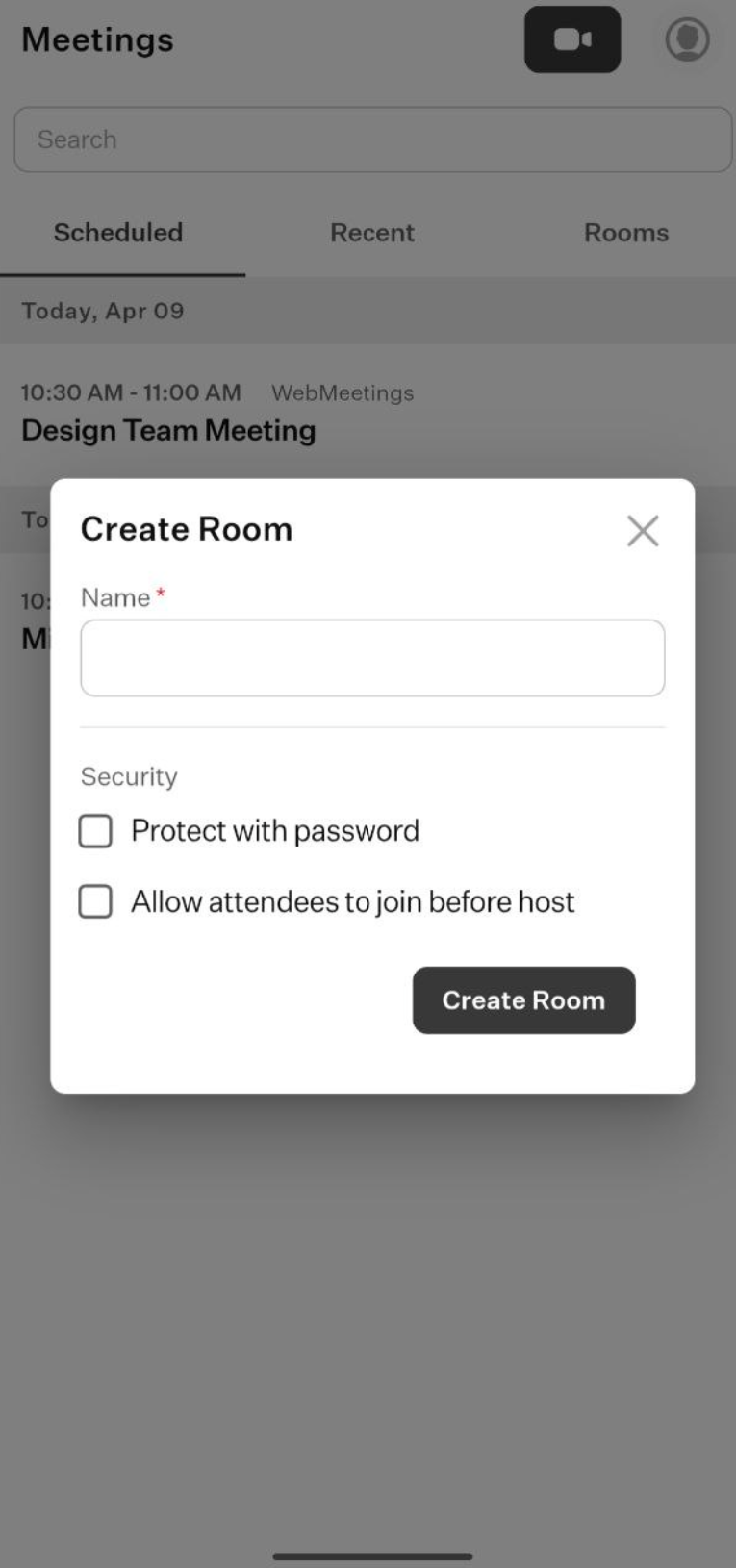
- Name: enter a custom name for the meeting room.
- Protect with password: enable this option to require a password for getting access to the meeting room.
- Allow attendees to join before host: enable this option to let participants enter the meeting room before the host arrives.
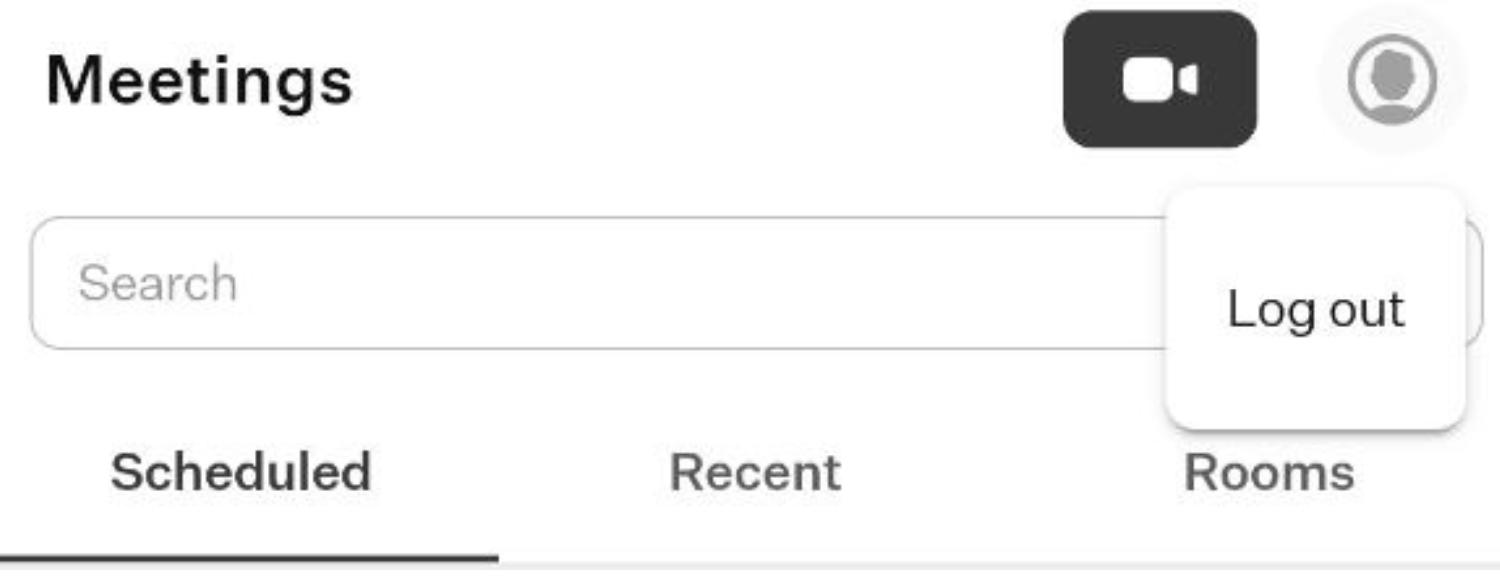
- Profile button: when you click this button, a drop-down list will appear with a single option to log out. Select this option to log out of the MeetUpComm app.
- Search bar: use the search bar to find a specific meeting or room in the corresponding tabs of the MeetUpComm app located in the Tabs section below.
Tabs
This section contains three tabs, which organize all past and upcoming meetings as well as meeting rooms into separate categories. This structure allows users to easily navigate between different types of meetings and quickly find the information they need.

- Scheduled tab: in this tab, you can find a list of upcoming meetings scheduled for different times. The meetings are displayed in chronological order based on when they will take place, with those occurring sooner appearing higher in the list.
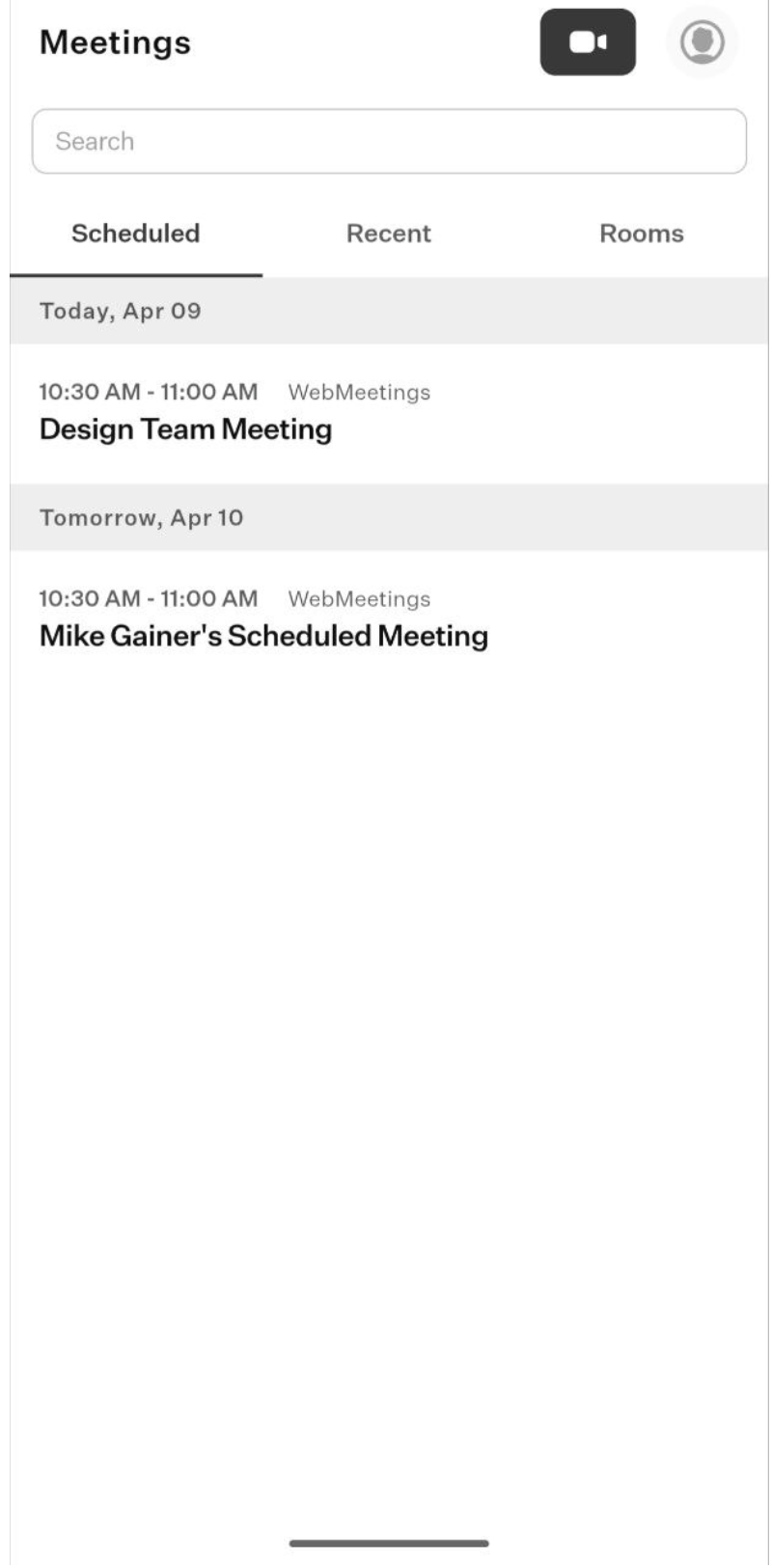
When you select any meeting from the list, its dedicated page will open, where you can view the meeting details and access a set of action buttons.
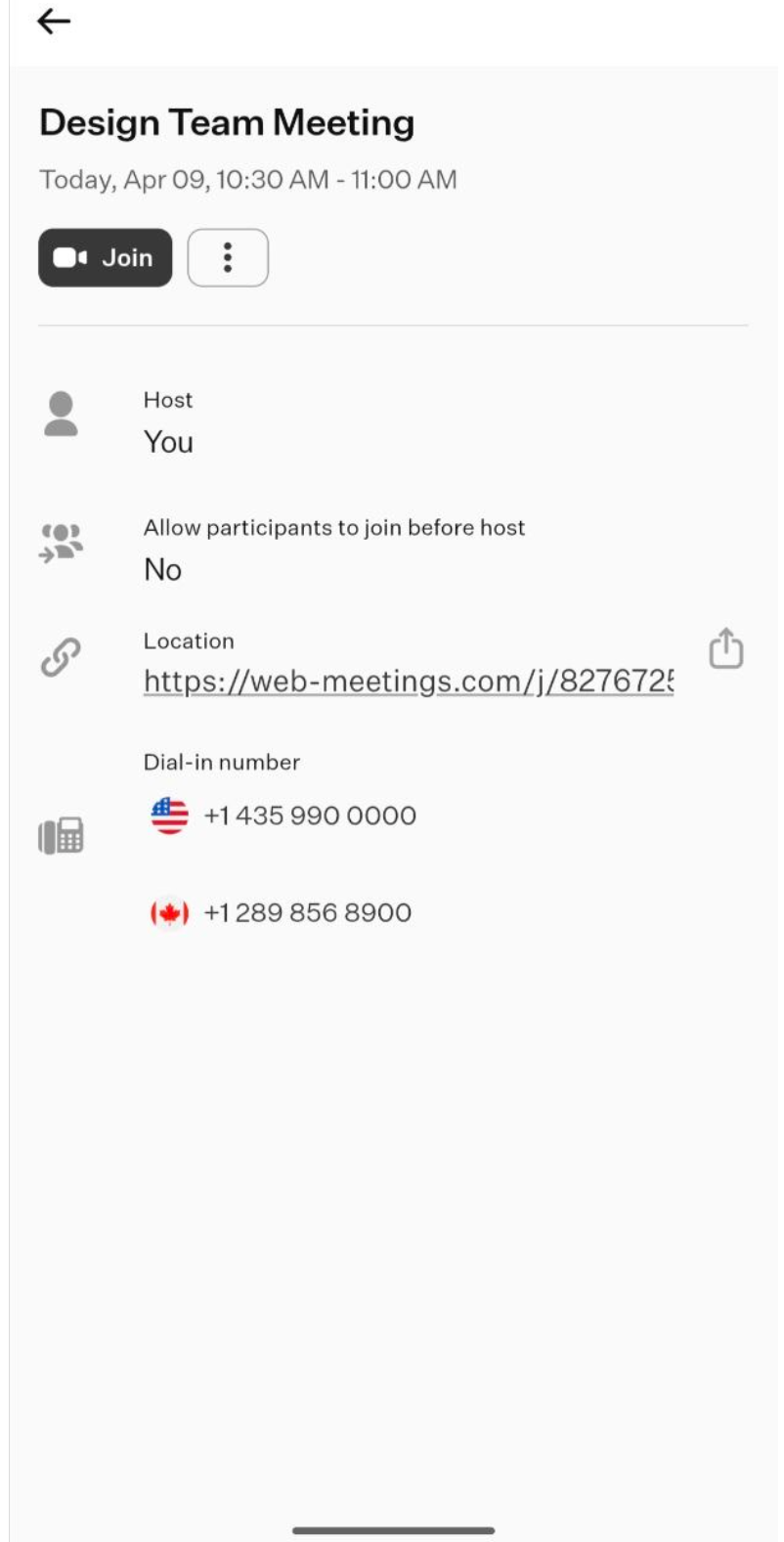
- Join: click this button to join the meeting.
- Three-dot button: when you click this button, a drop-down list of available actions will appear.
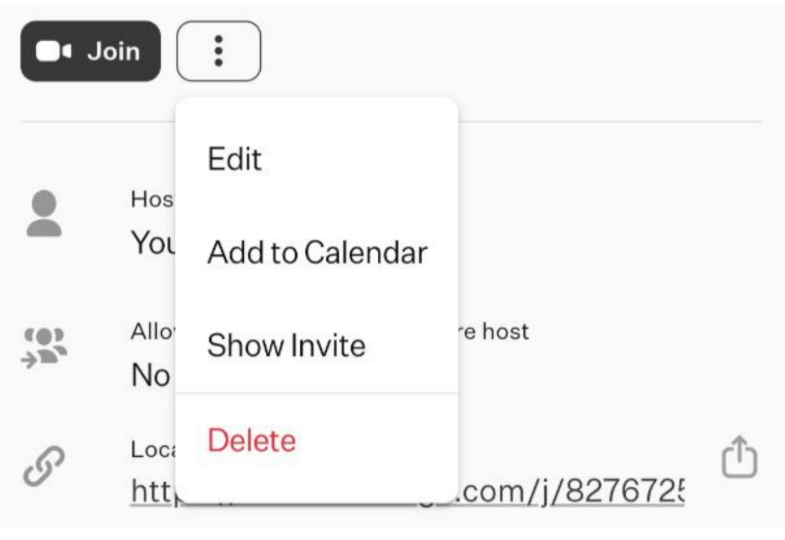
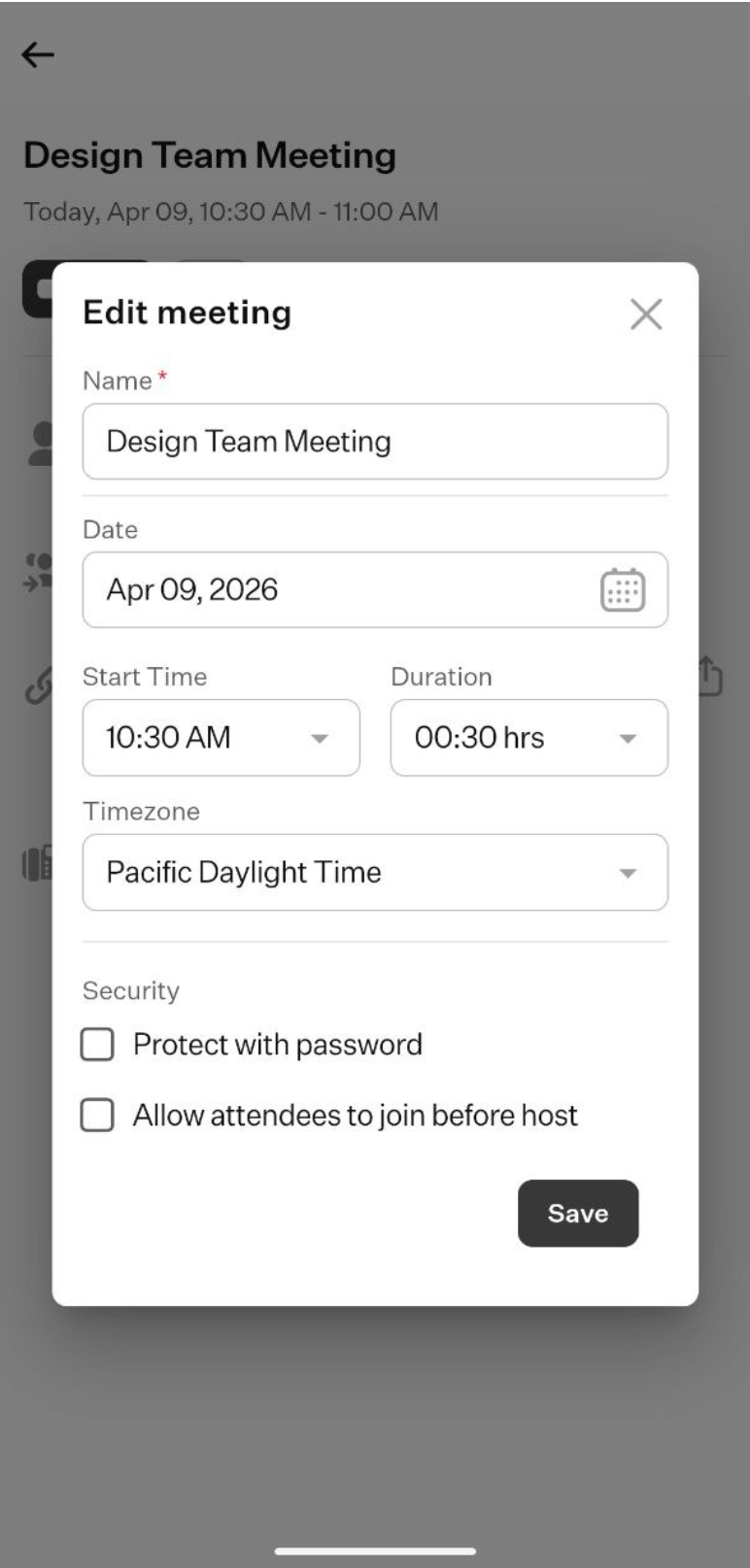
- Edit: select this option to modify the meeting parameters. A pop-up window will open with the same fields used when scheduling a meeting, as described in the corresponding section of this user guide given above.
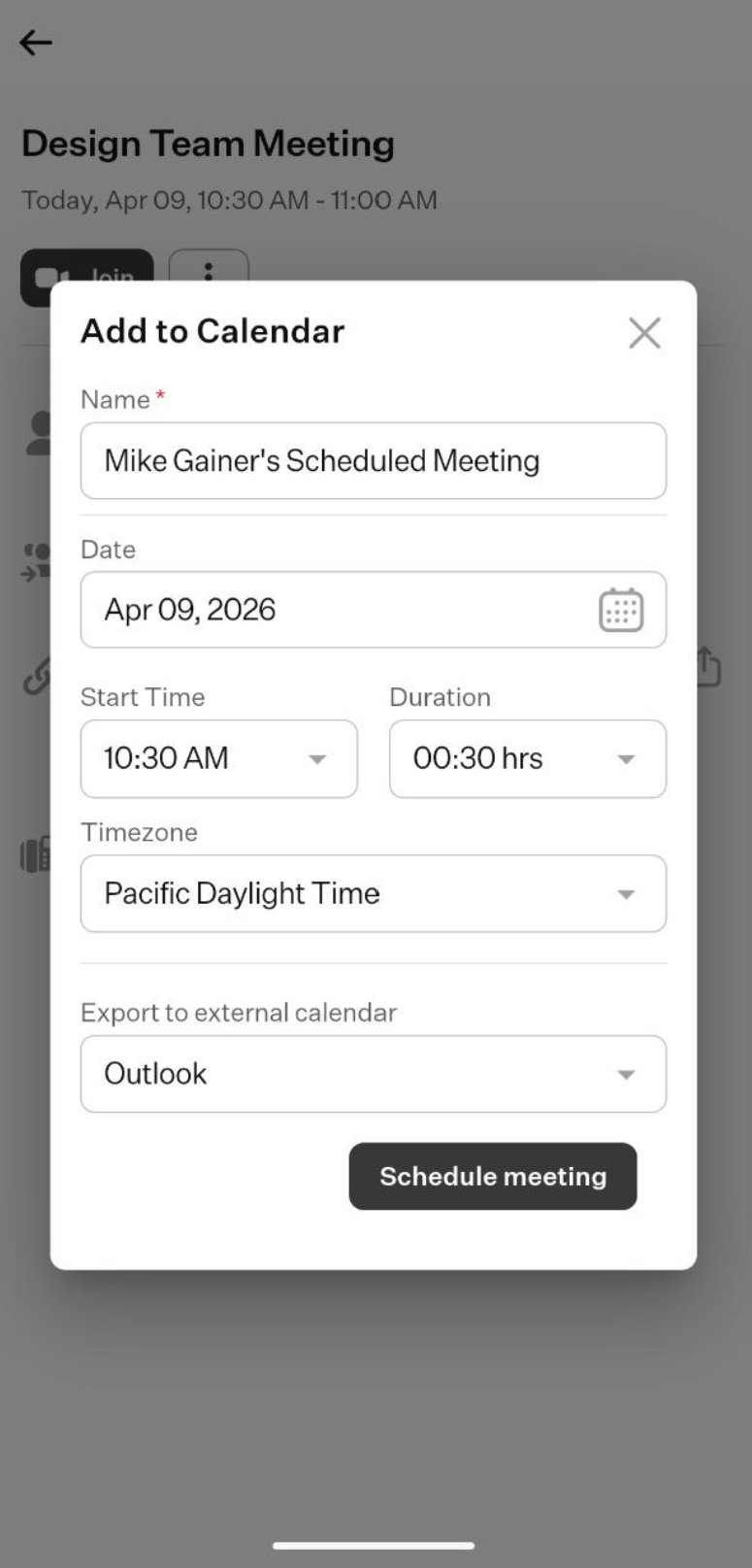
- Add to Calendar: select this option to add the meeting to one of your calendars. A pop-up window will open with the same fields used when scheduling a meeting, as described in the corresponding section of this user guide given above. The main difference is that you can adjust certain fields to better suit how the meeting will appear in your calendar.
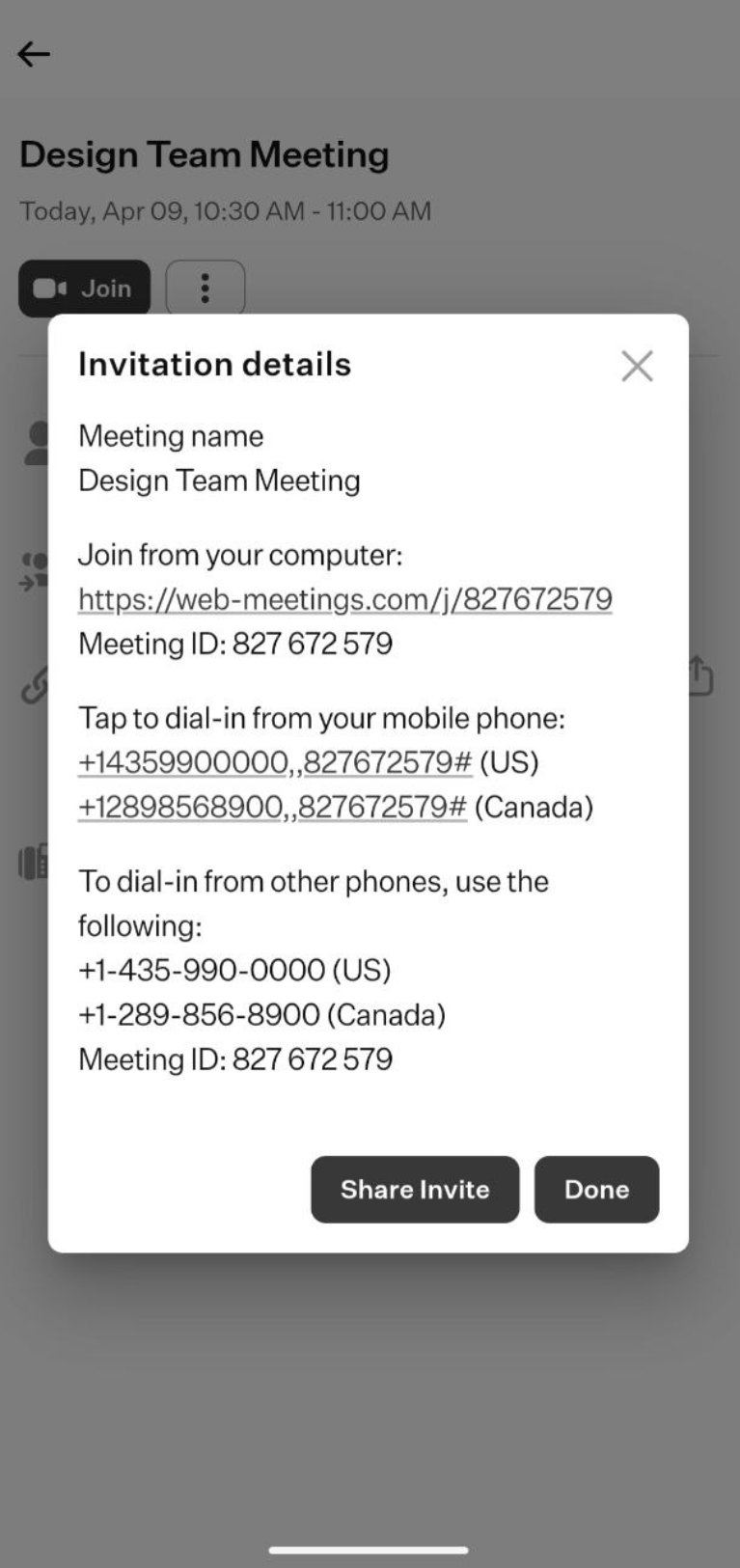
- Show Invite: when you select this option, a pop-up window will appear displaying the invitation details of the selected meeting. This includes the meeting name, a link to join the meeting from your computer, several phone numbers for dialing in from a mobile device, and the meeting ID. It also provides a “Share Invite” button, which allows you to send the invitation link directly through one of the apps on your smartphone.
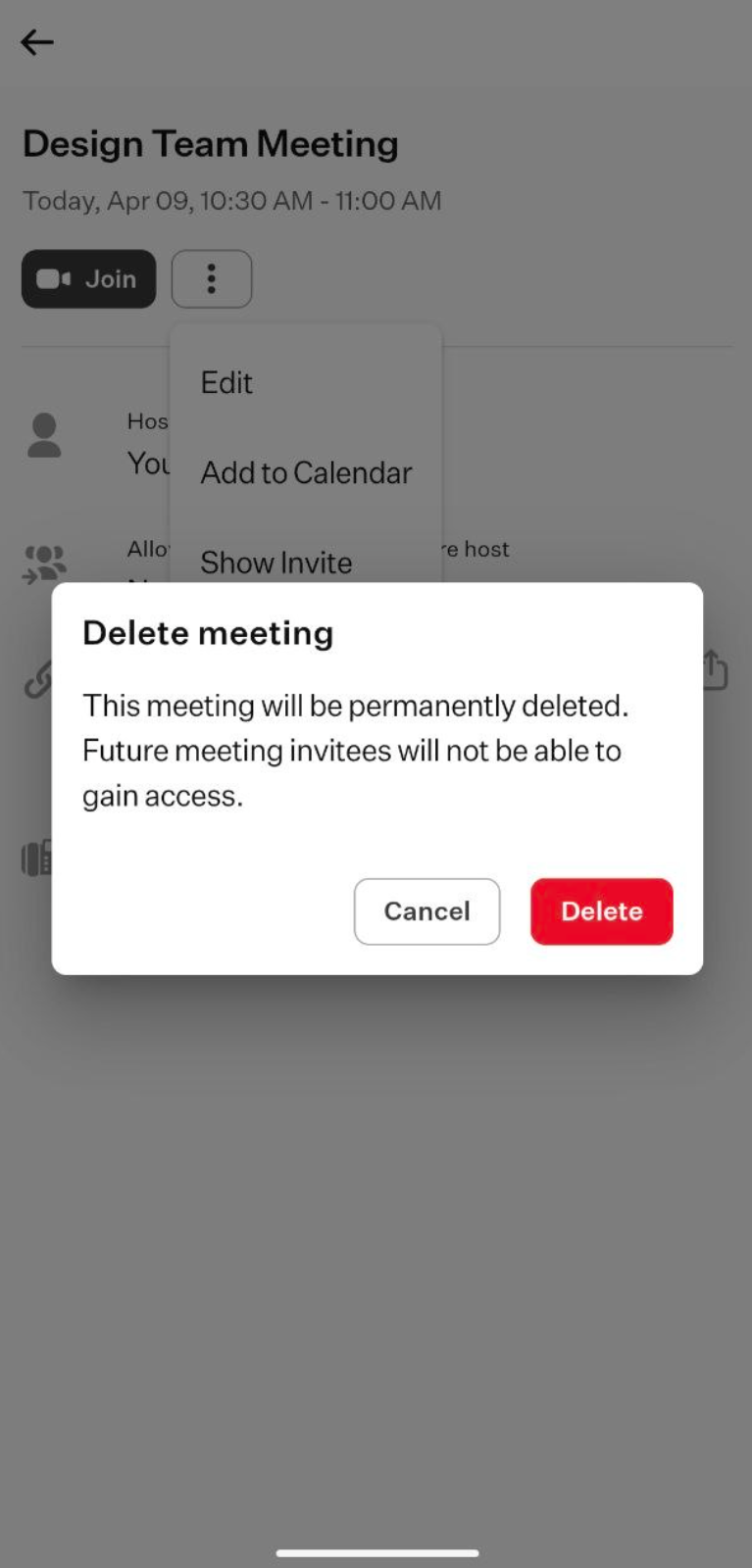
- Delete: select this option to permanently delete the meeting.
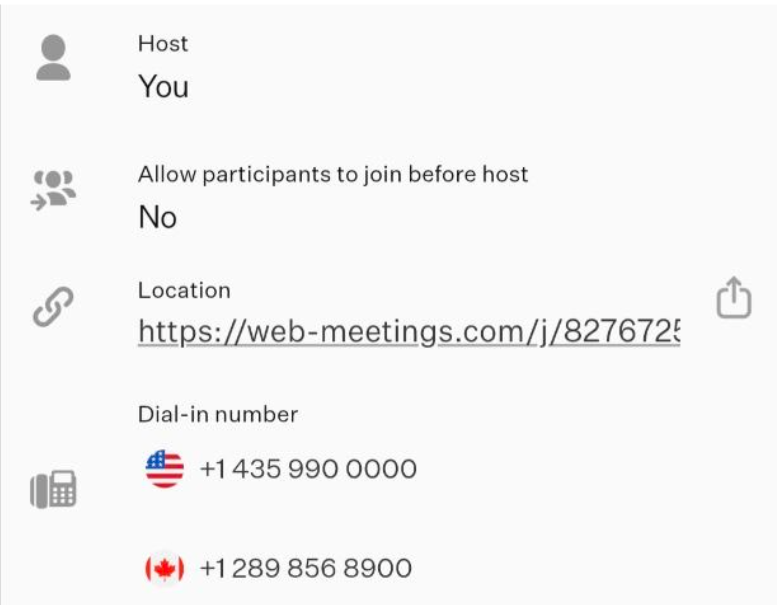
- Meeting Details: in this section, you can find general information about the meeting, such as the host, whether participants are allowed to join before the host, the meeting link, and the dial-in numbers.
- Recent tab: in this tab, you can find a history of meetings you have participated in, both as regular meetings and meetings held in meeting rooms.
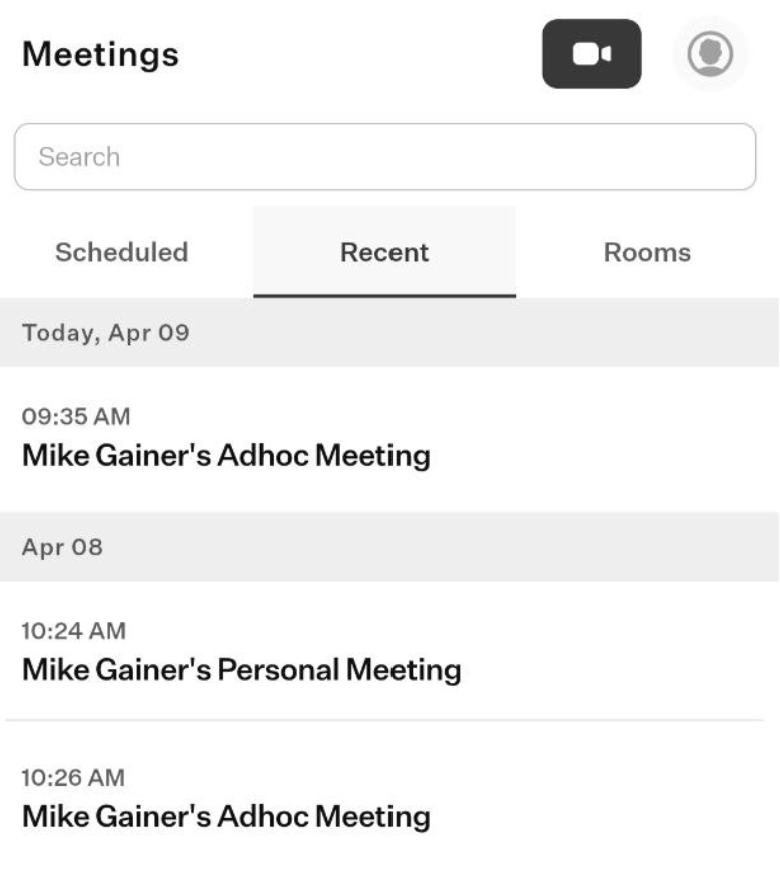
When you click on any meeting from the list, a dedicated page will open where you can view the meeting details organized into sub-tabs.
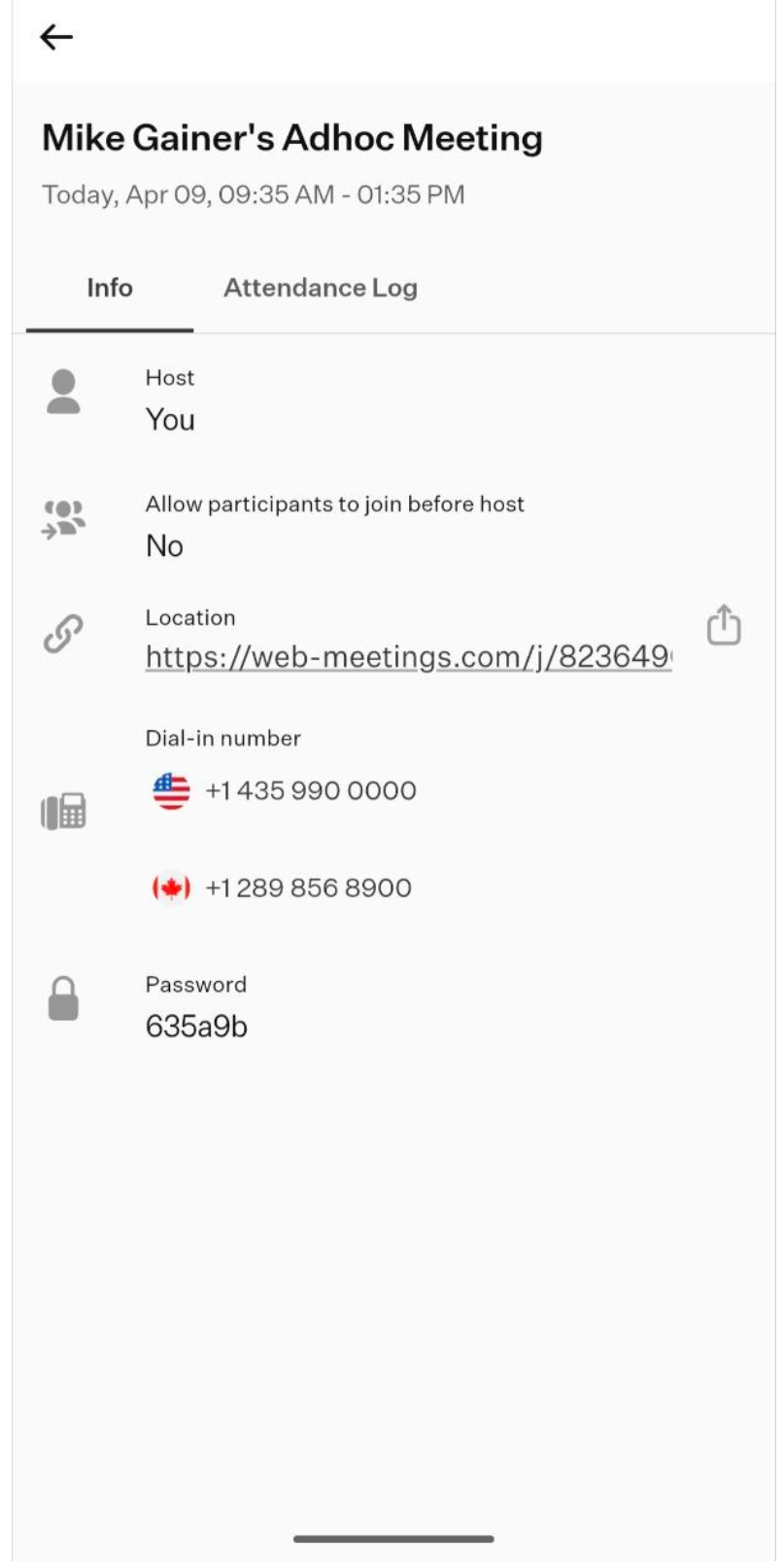
- Info: in this sub-tab, you can find general information about the meeting, such as the host, whether participants are allowed to join before the host, the meeting link, the dial-in numbers, and the password (if it was set up).
- Attendance log: in this sub-tab, you can find a list of participants who joined the meeting.
- Rooms tab: in this tab, you can find a list of meeting rooms you have access to.
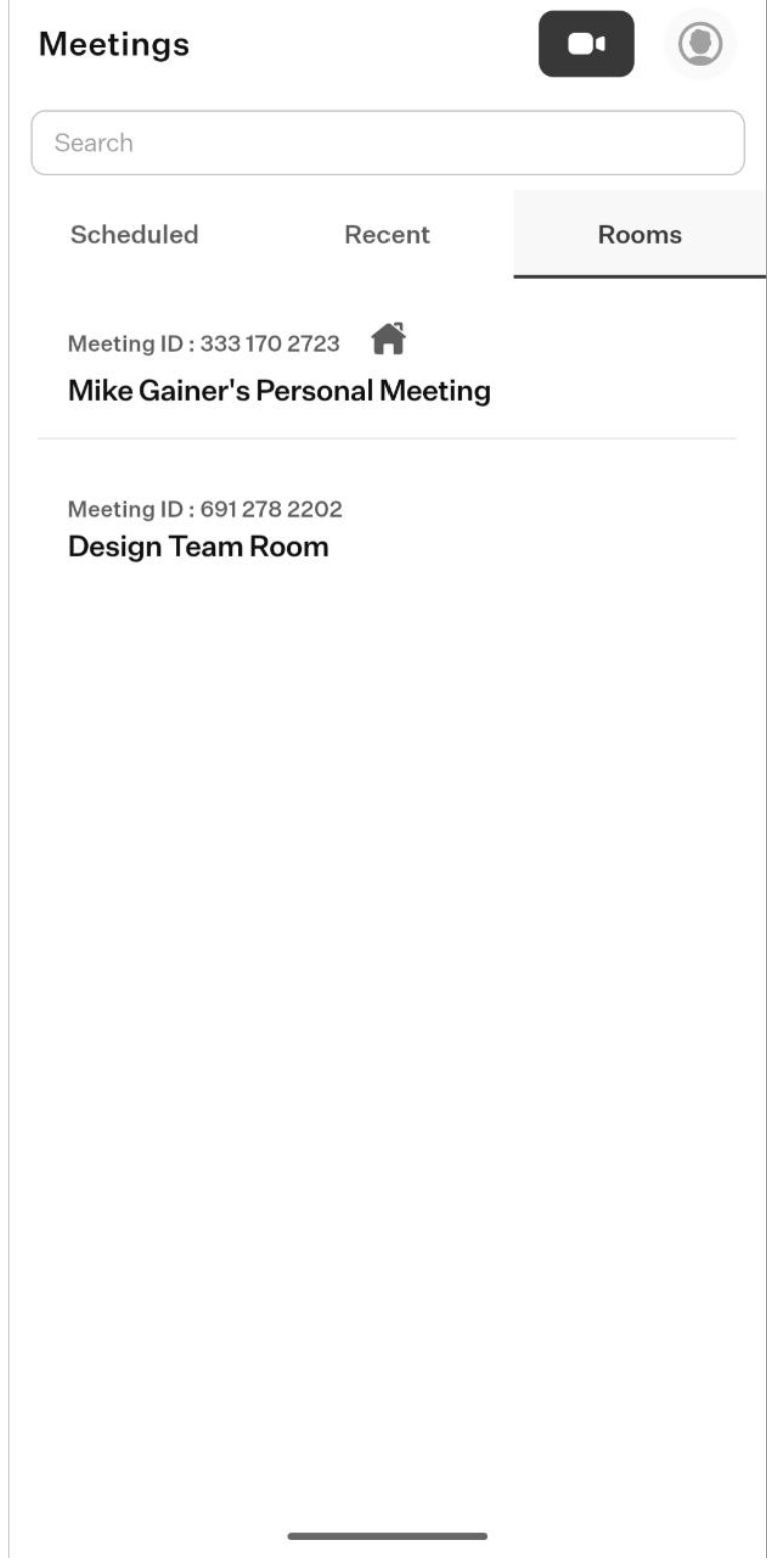
When you select any meeting room from the list, a dedicated page will open where you can view its details and access a set of action buttons.
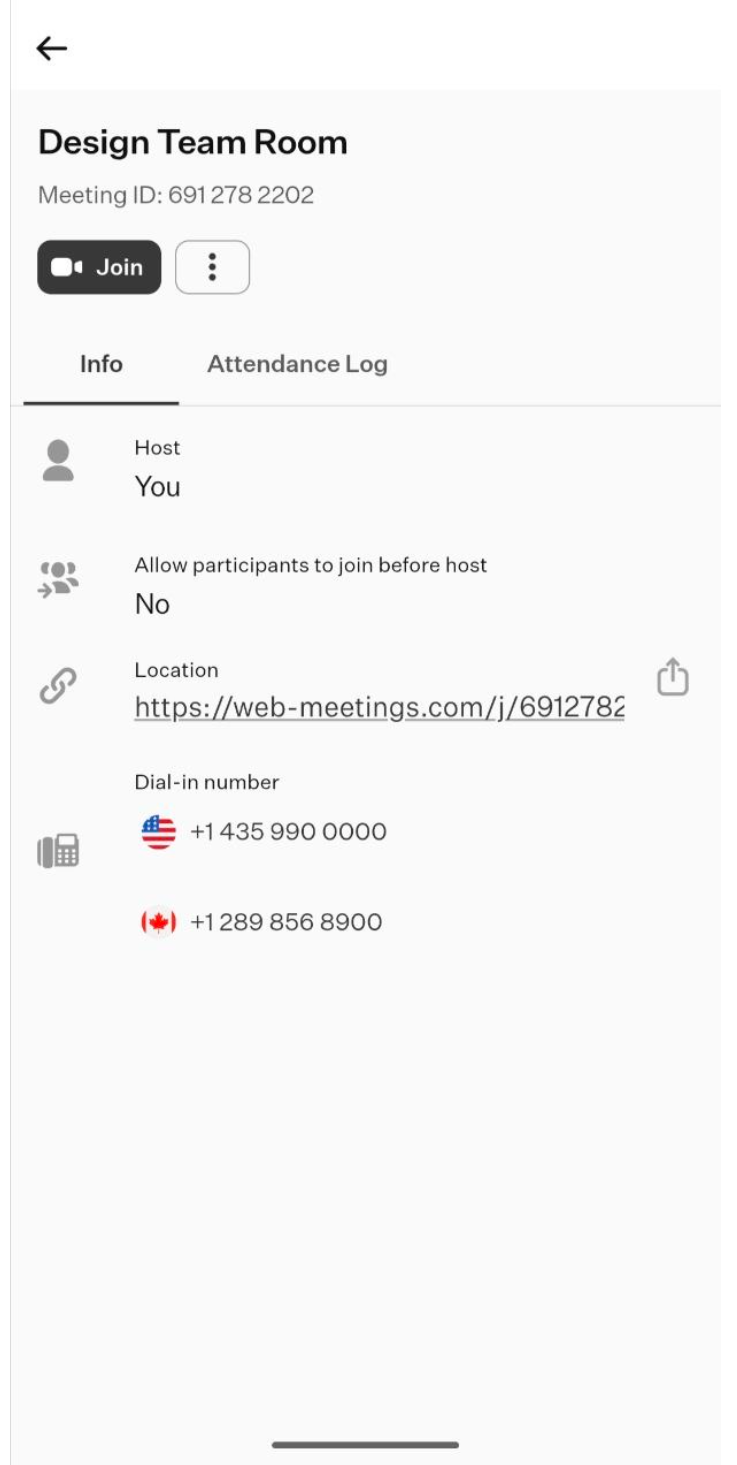
- Join: click this button to enter the meeting room.
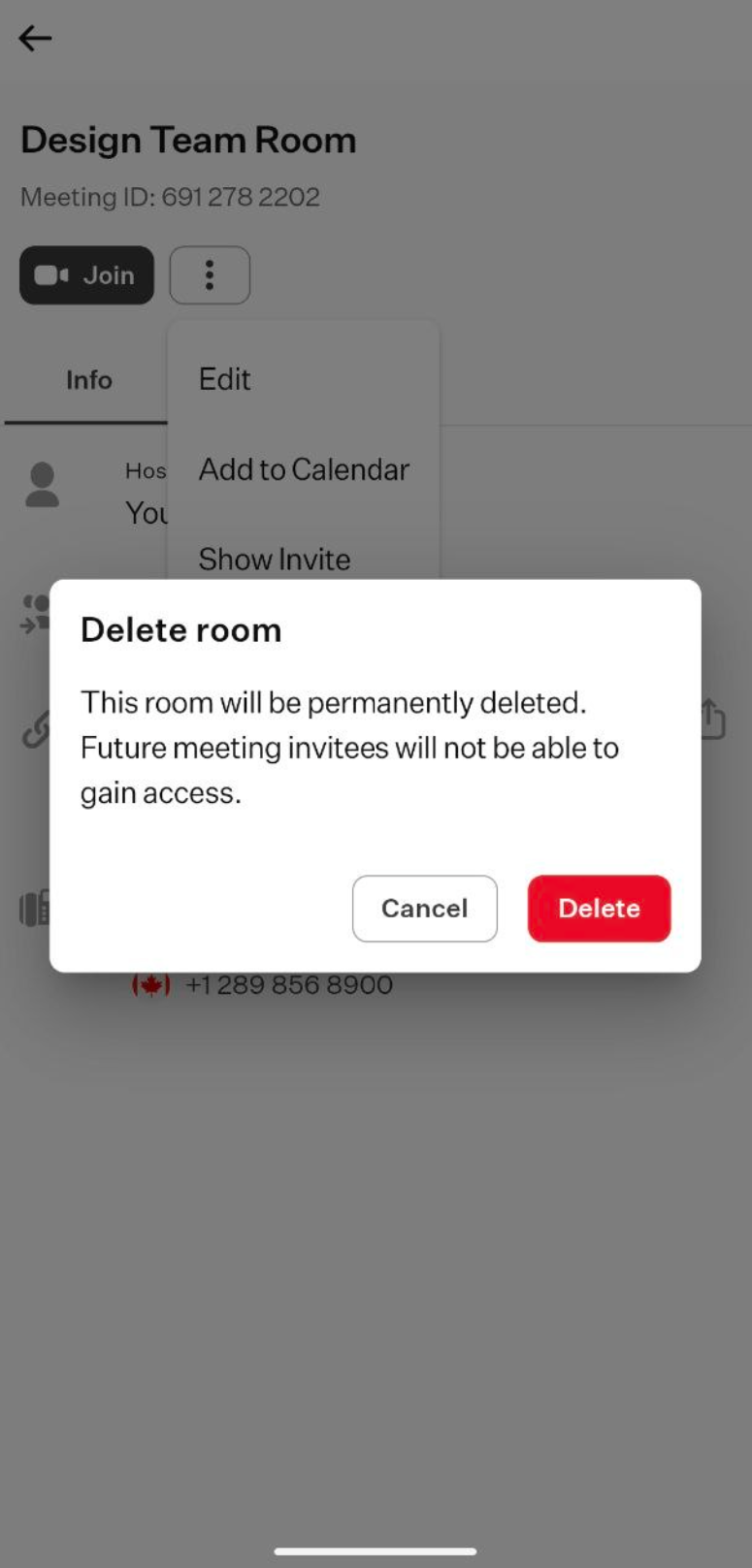
- Three-dot button: when you click this button, a drop-down list of available actions will appear.
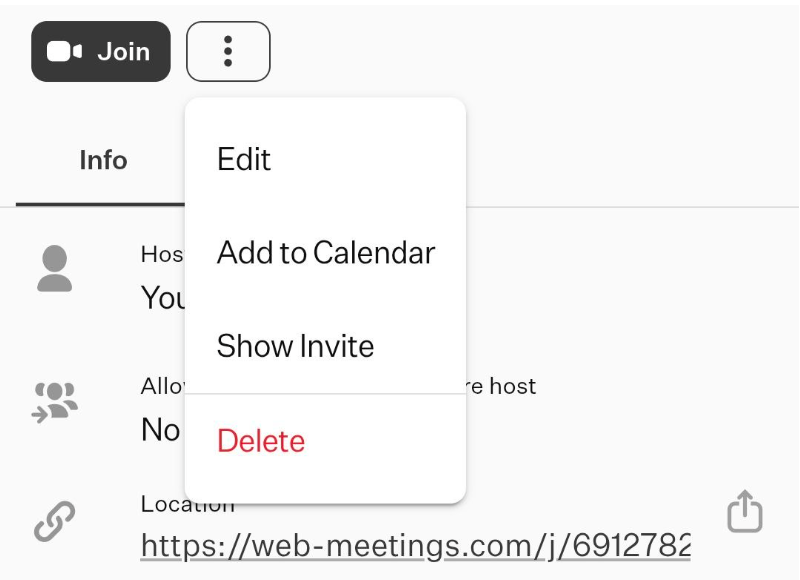
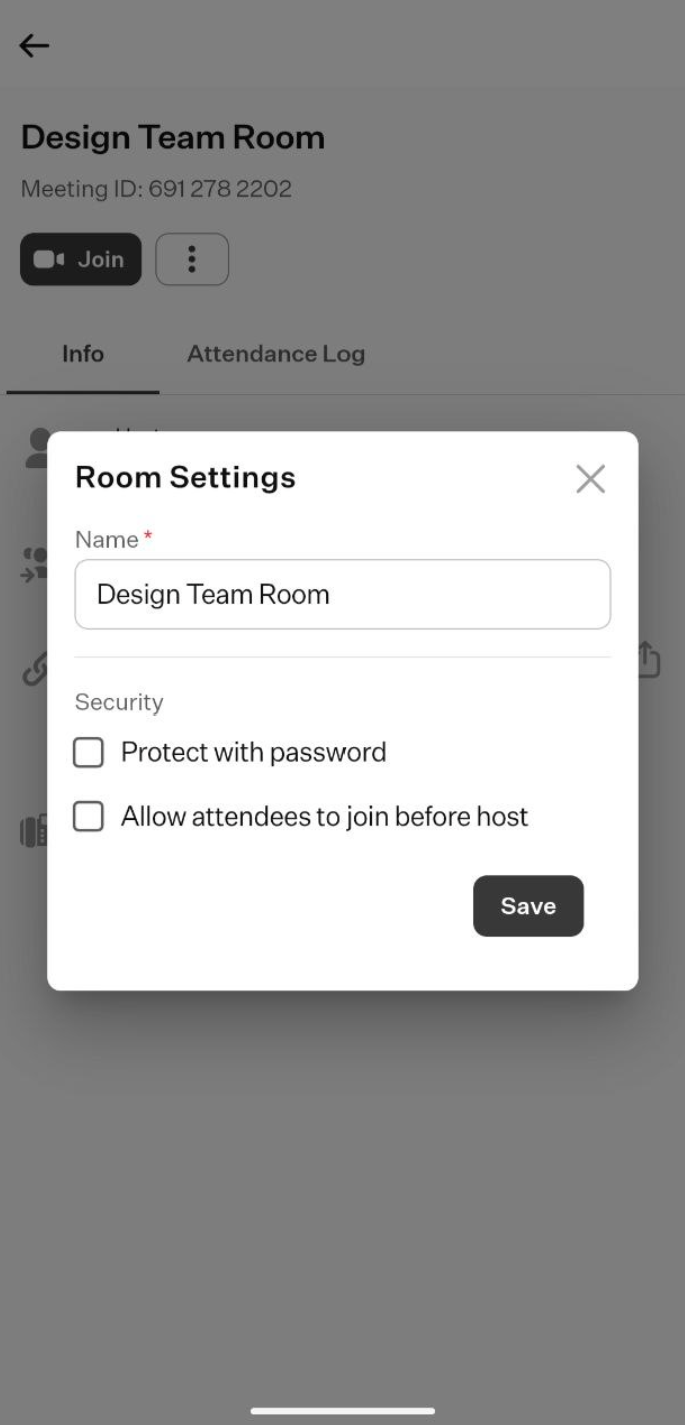
- Edit: select this option to modify the parameters of the meeting room. A pop-up window will open with the same fields used when creating a new room, as described in the corresponding section of this user guide given above.
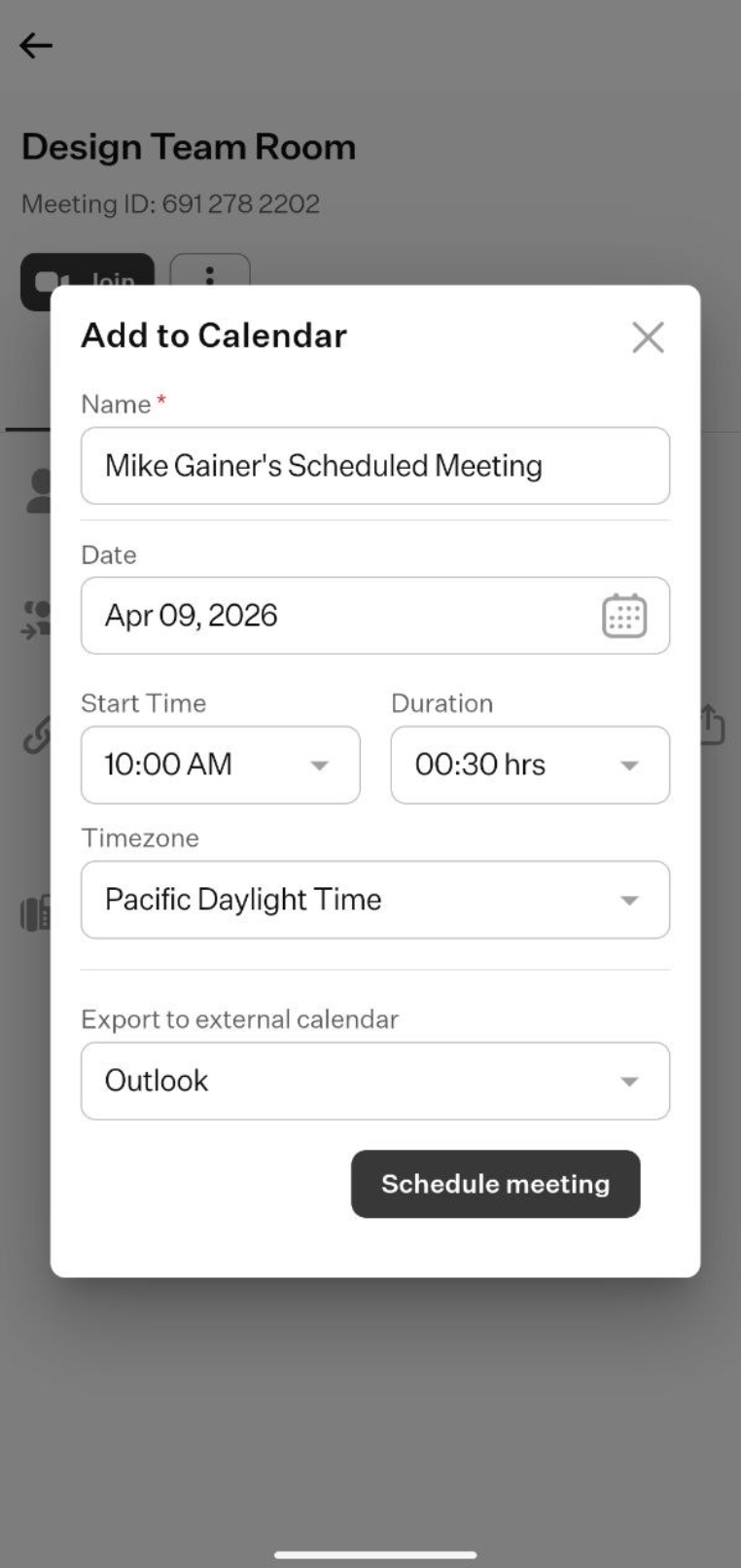
- Add to Calendar: select this option to create a meeting in this meeting room and add it to one of your calendars. A pop-up window will open with the same fields used when scheduling a meeting, as described in the corresponding section of this user guide above.
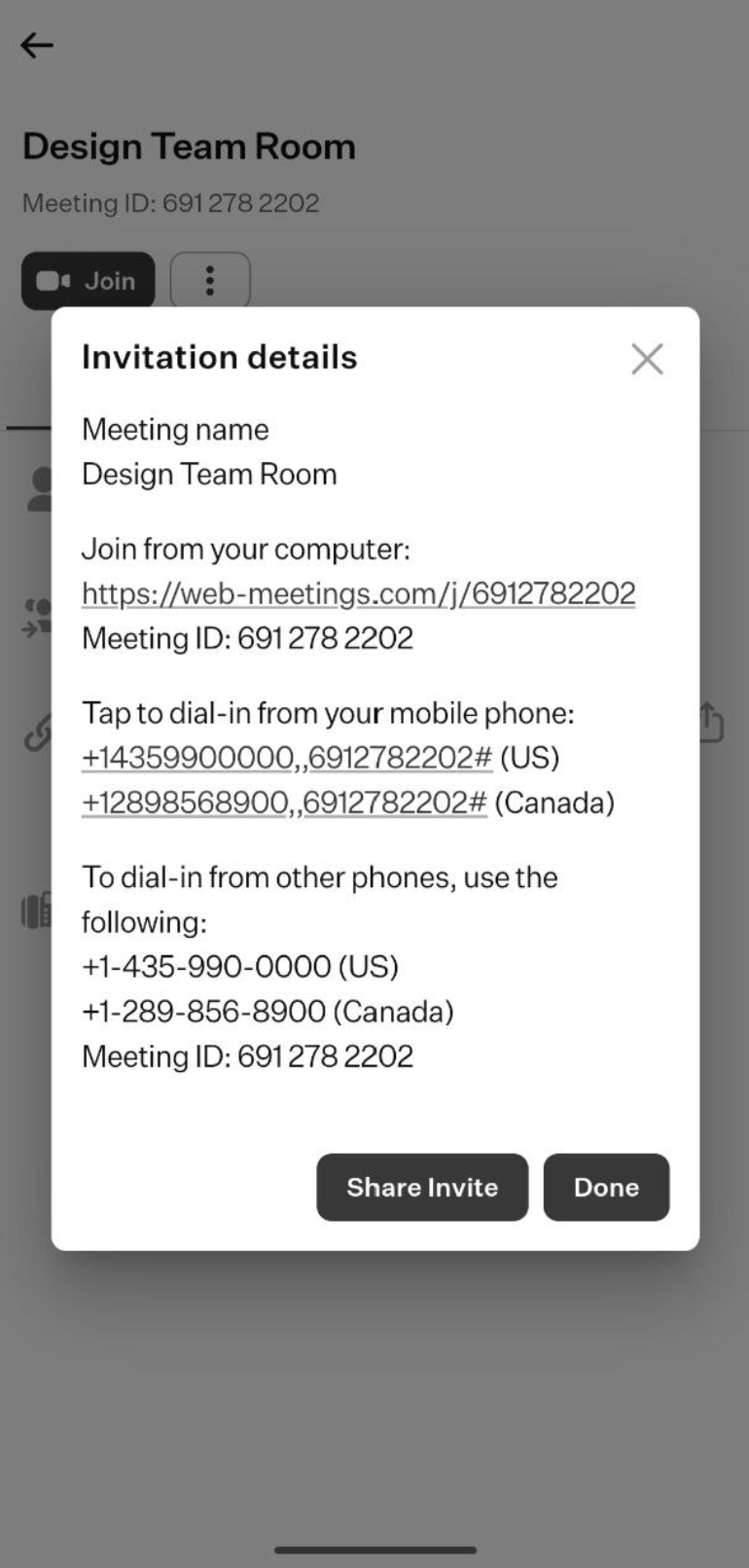
- Show invite: when you select this option, a pop-up window will appear displaying the invitation details of the meeting that takes place in the selected meeting room. This includes the meeting name, a link to join the meeting from your computer, several phone numbers for dialing in from a mobile device, and the meeting ID. It also provides a “Share Invite” button, which allows you to send the invitation link directly through one of the apps on your smartphone.
- Delete: select this option to permanently delete the meeting room.
Was this article helpful?
That’s Great!
Thank you for your feedback
Sorry! We couldn't be helpful
Thank you for your feedback
Feedback sent
We appreciate your effort and will try to fix the article