Description: The purpose of this article is to provide an overview of the DesktopComm App’s Login Page.
When the user launches the DesktopComm App for the first time, they will be presented with this interface.
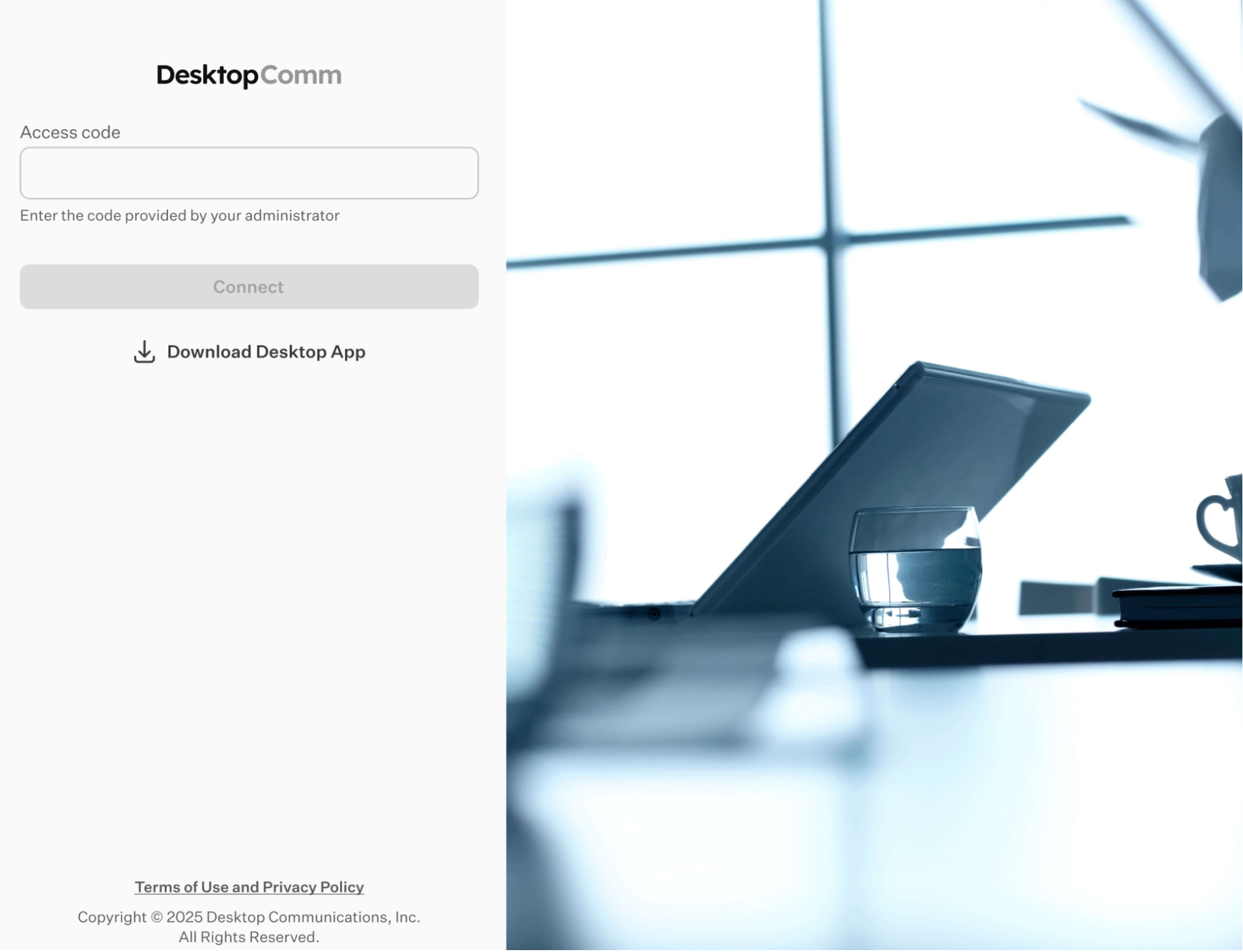
The Access Code identifies a specific instance of your system. Please contact your Administrator to obtain the appropriate Access Code.
Access Code example:
For the Shared Hosted platform: Welcome
Once you enter the Access Code, the General Login Form will become accessible.
General Login Form
At the top of the DesktopComm app window, you will find the primary General Login Form. This form operates like a standard login interface where you input your credentials
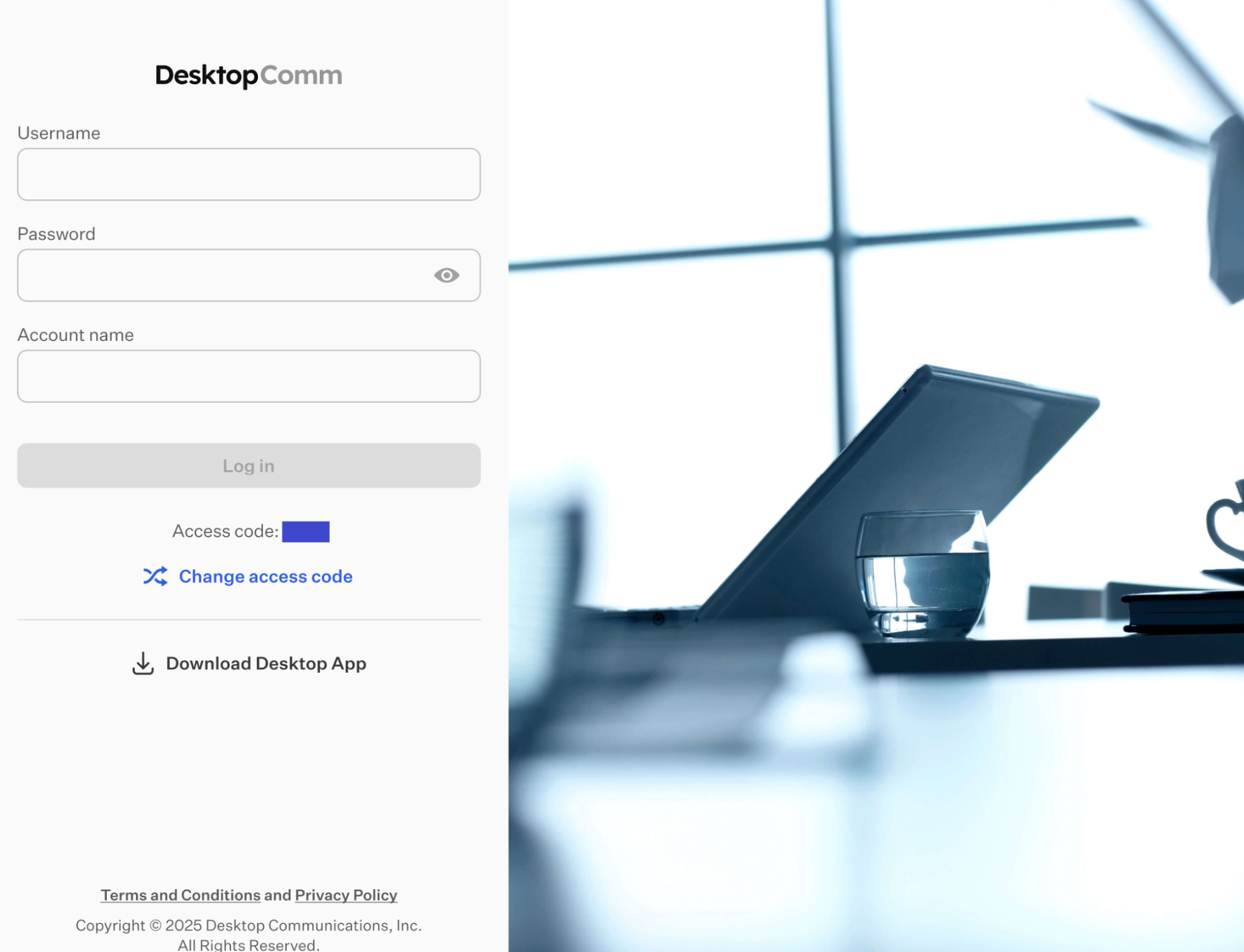
Once filled, the “Log In” button becomes active for submission.

If an account administrator has enabled MFA (or messaging features that require MFA), an additional pop-up window will appear after you click the “Log In” button.
Multi-Factor Authentication (MFA) is a security approach that requires users to confirm their identity using two or more distinct verification factors before access is allowed. These factors generally include something the user knows (for example, a password or PIN), something the user possesses (such as a mobile device or hardware token), and something the user is (such as biometric information). By requiring multiple forms of verification, MFA significantly reduces the risk of unauthorized access, even if one factor is compromised.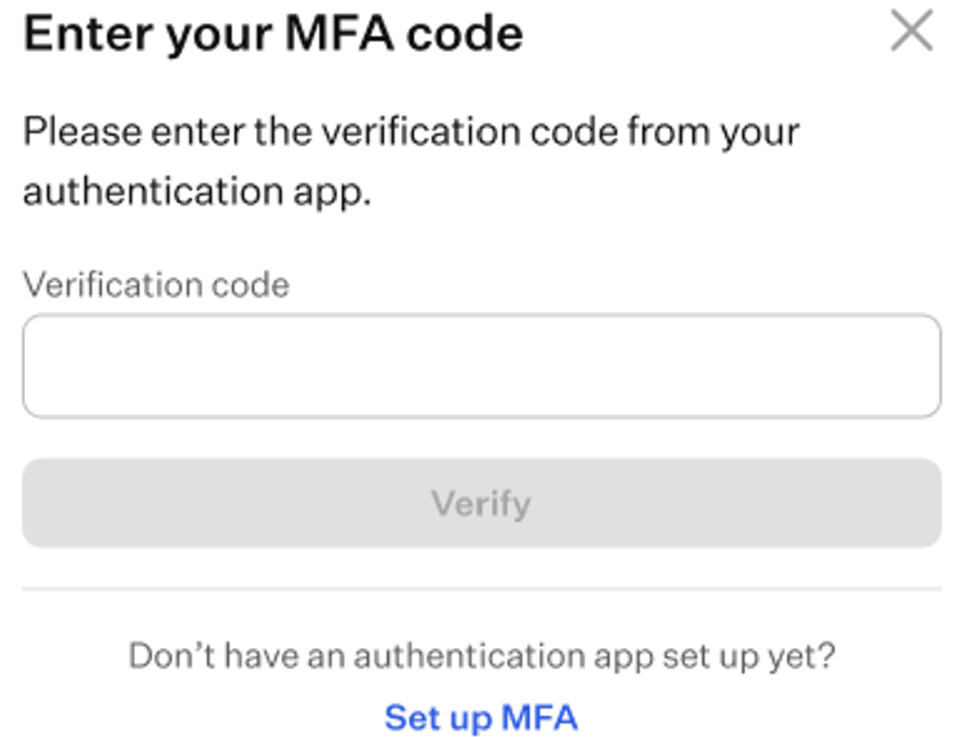
Once you receive the verification code from your authentication app, enter it in the corresponding field and click the “Verify” button to access the app.
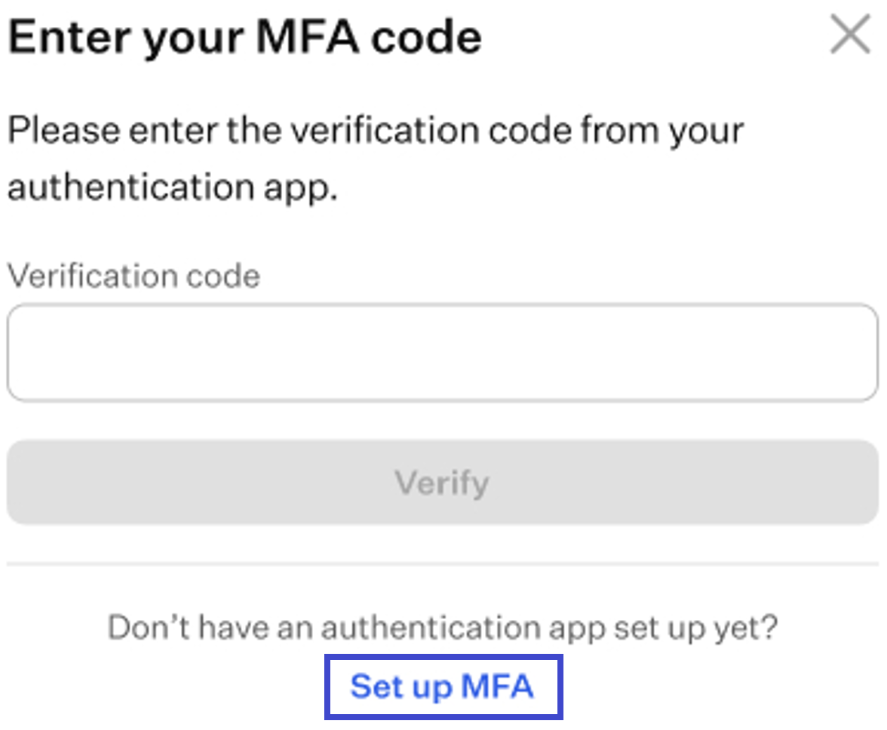
If you don’t have MFA enabled for your account, click the “Set Up MFA” button in the pop-up window and follow the wizard to complete the setup using one of the suggested options. The three options shown are recommendations, not requirements.
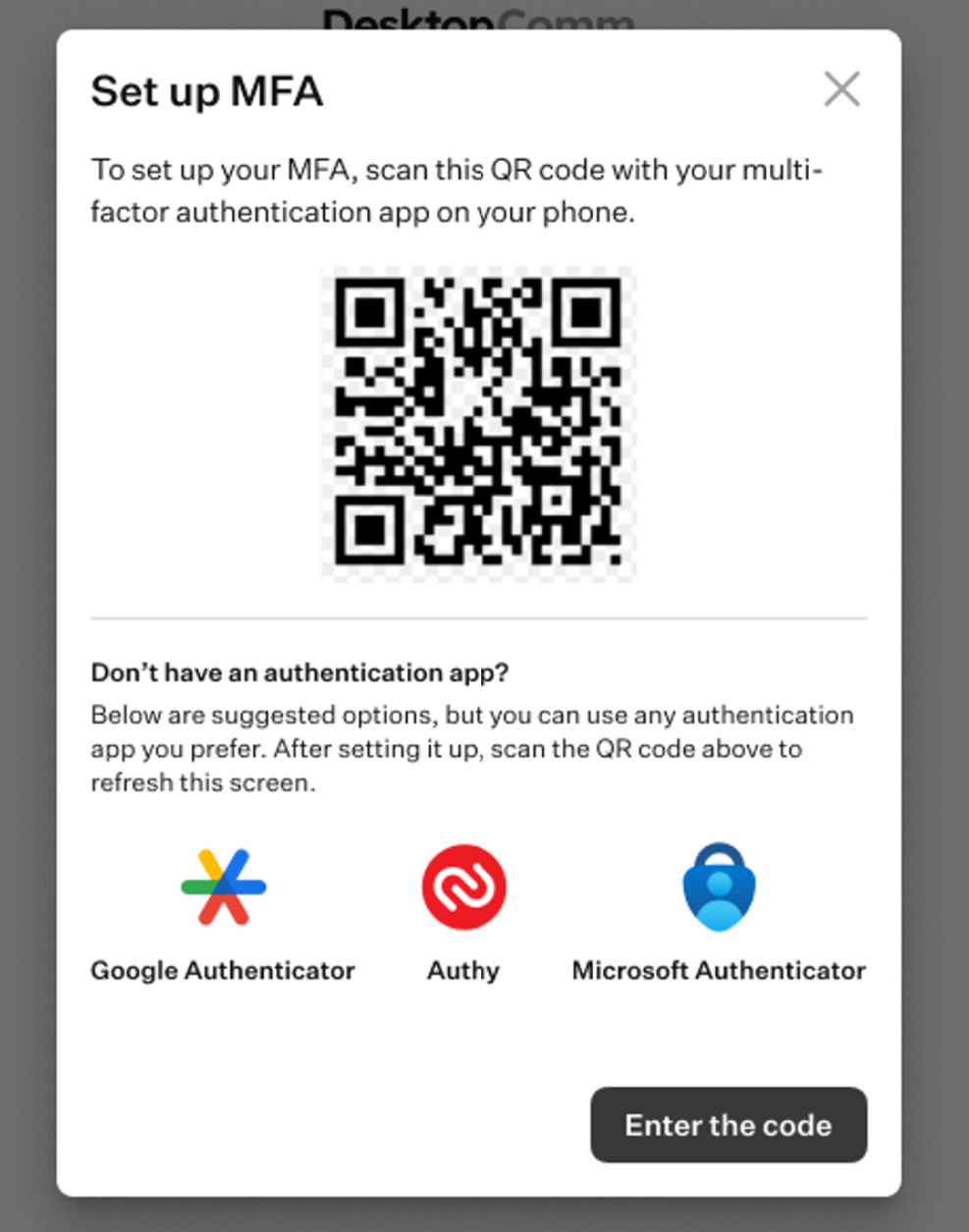
After completing the MFA authentication process, you will gain access to the app.
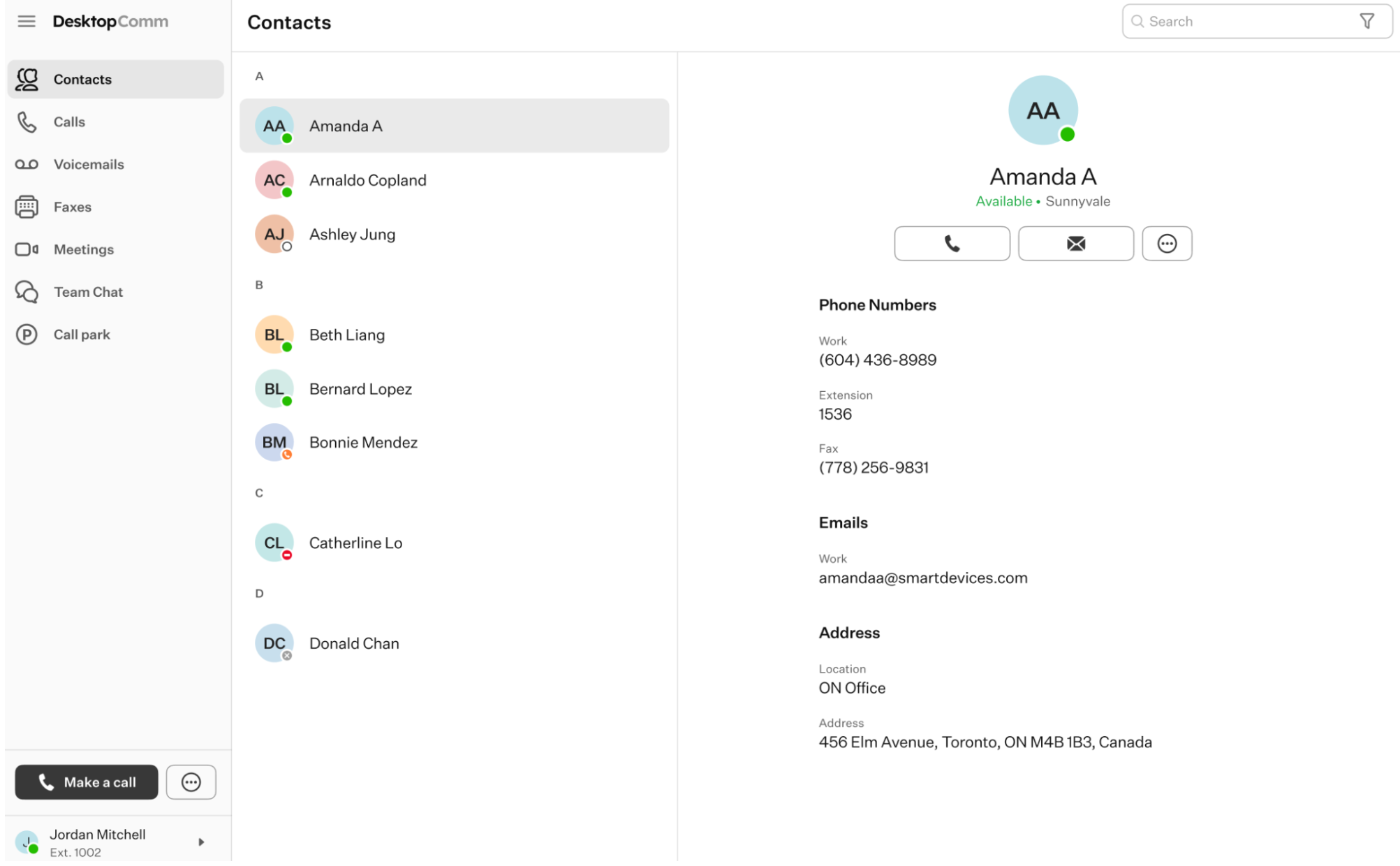
Once you set up MFA and logged in, go to the Messages feature and verify that the message box or boxes are displayed. This confirms that MFA has been successfully enabled, and messaging is now available for your account.If you need to reset MFA because you’ve lost your phone or are otherwise unable to access your authenticator, the reset is handled internally on our side. In the UI of the app, you’ll be instructed to contact your system administrator to request the reset.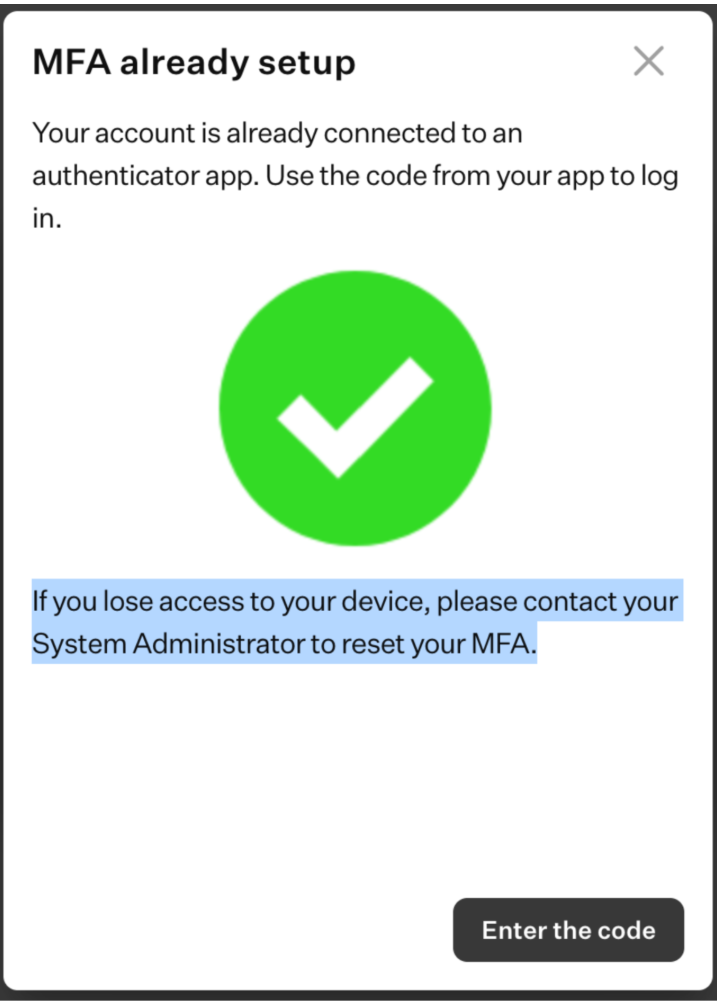
Was this article helpful?
That’s Great!
Thank you for your feedback
Sorry! We couldn't be helpful
Thank you for your feedback
Feedback sent
We appreciate your effort and will try to fix the article