Description: The purpose of this article is to guide users through the process of connecting 2600Hz with Zapier for texting.
Follow the steps below to complete the setup:
- First, make sure SMS/MMS services were enabled as it was explained in this user guide.
- Next, set up your Zapier account by visiting the www.zapier.com website and completing the registration. Keep the browser page open, as you’ll need to return to the Zapier portal later.
- After that, open the Webhooks app.
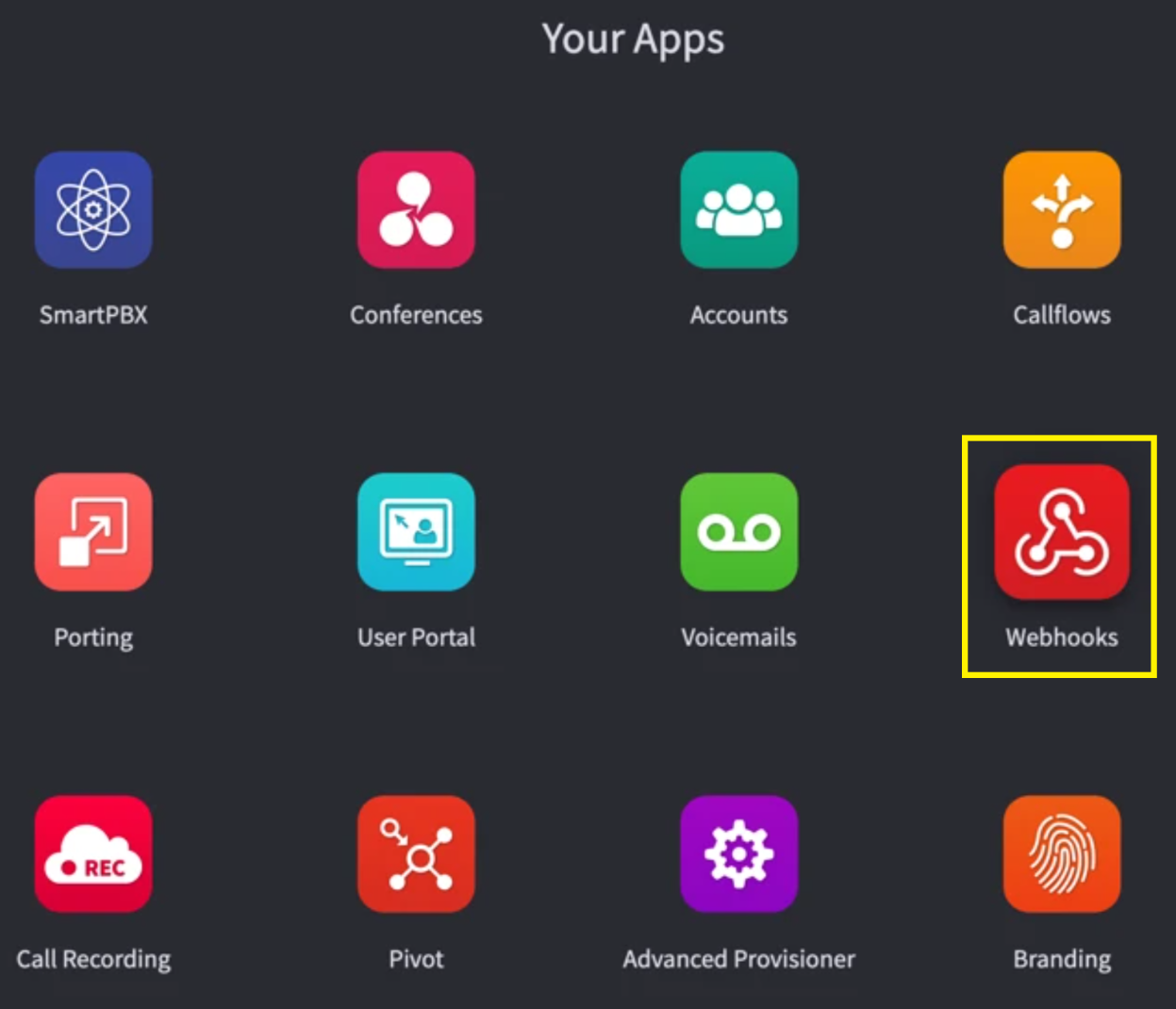
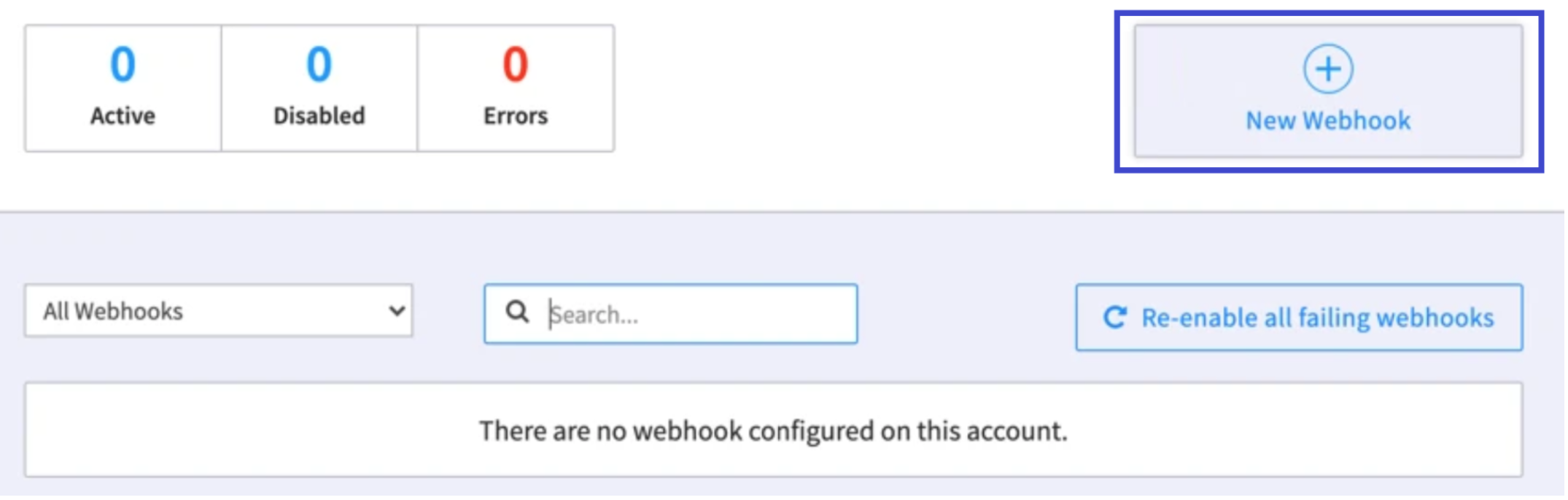
- Click the “New Webhook” button to create a new webhook.
- Configure the webhook as follows:
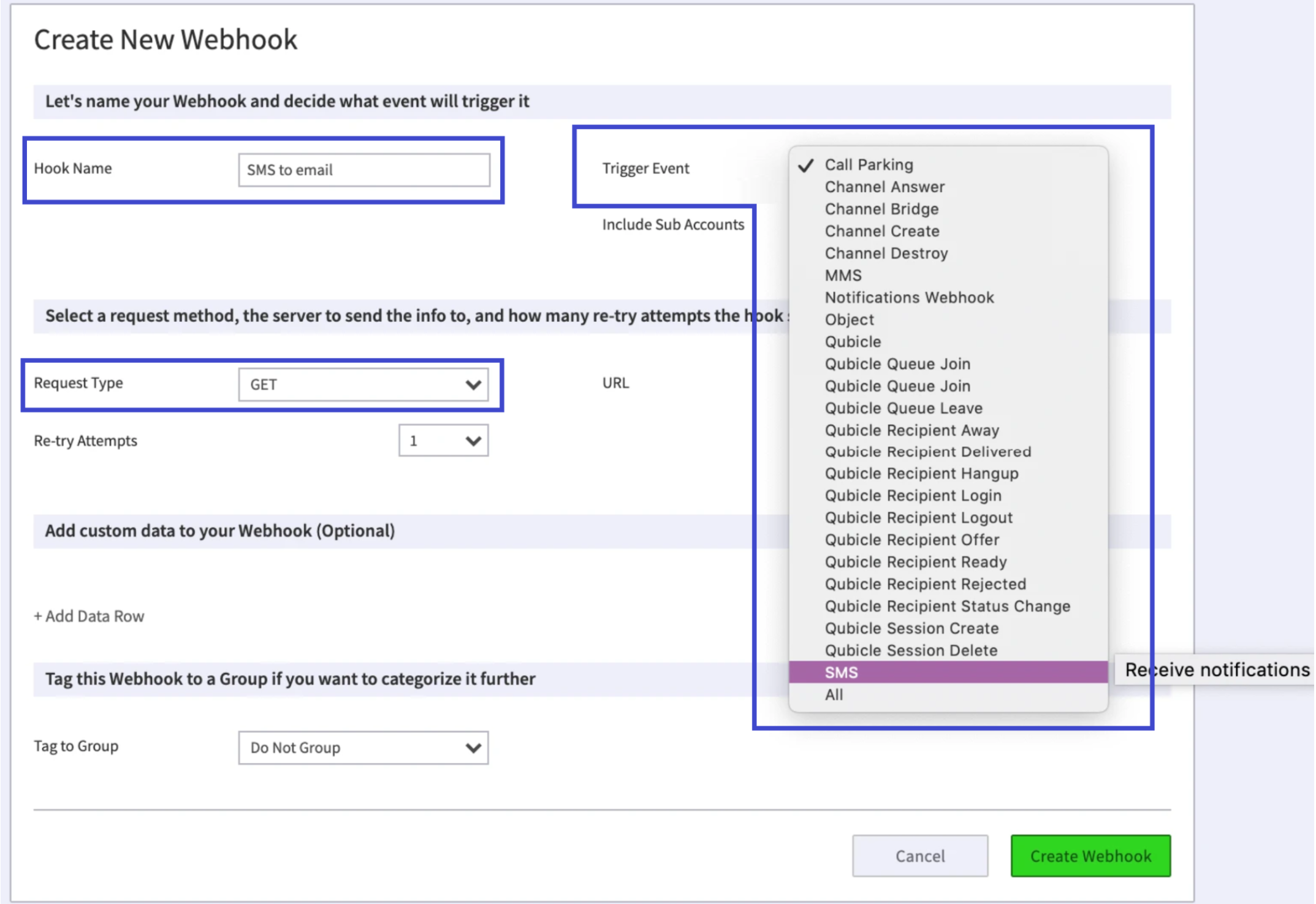
- Assign a custom name that you’ll recognize.
- Choose SMS as the Trigger Event.
- Set the request type to GET.
Keep the browser page open, as you’ll need to return to it later.
- Return to the Zapier portal and select “Make a Zap.”
- Then, choose “Webhooks by Zapier” as your trigger.
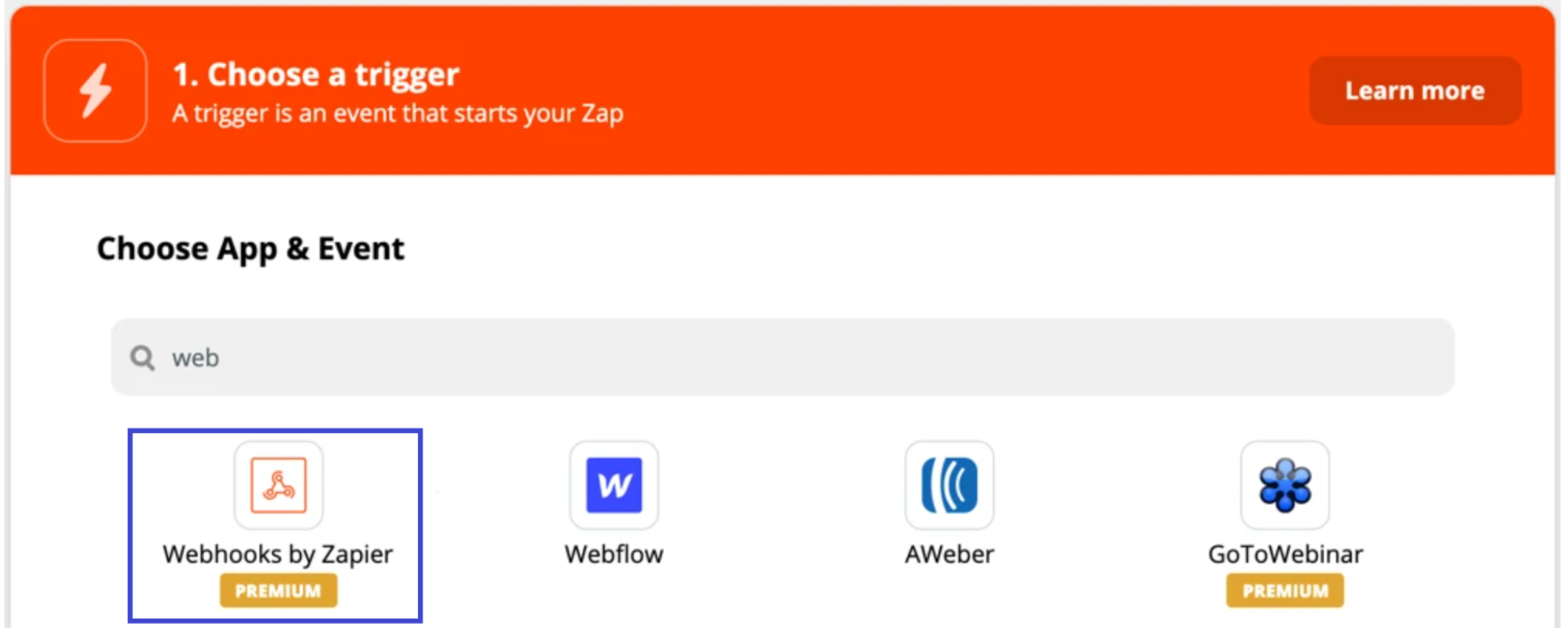
- Select “Catch Hook” as your Trigger Event.
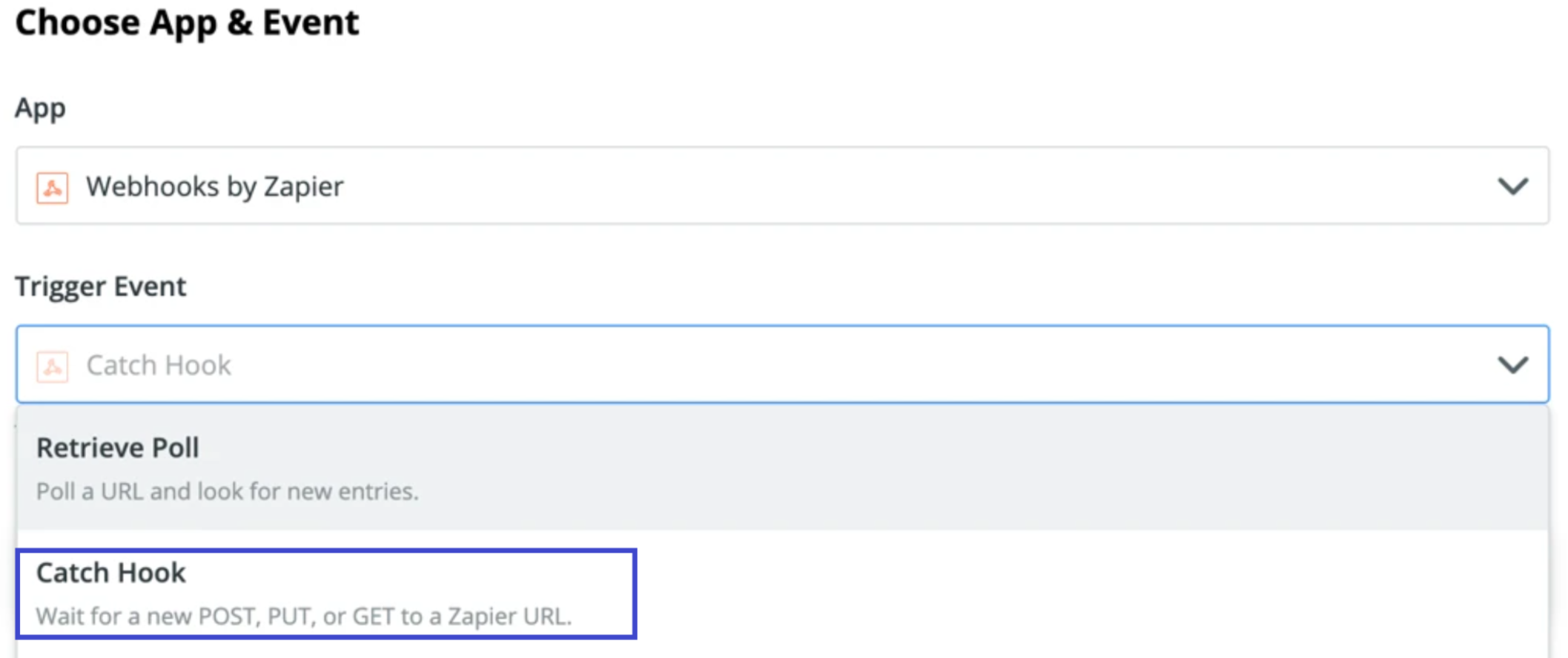
- Click the “Continue” button. This will generate a Custom Webhook URL.
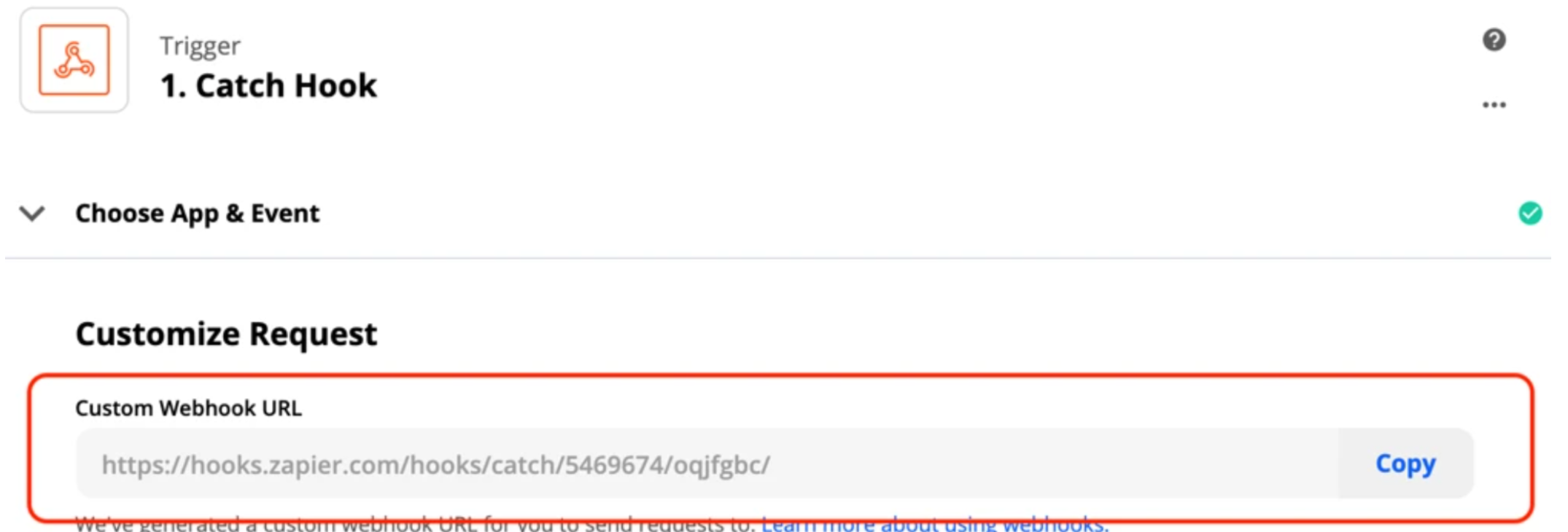
Copy the URL, then switch to the Webhooks app in the other browser tab.
- Go back to the Create New Webhook configuration form and paste the URL into the field shown below.
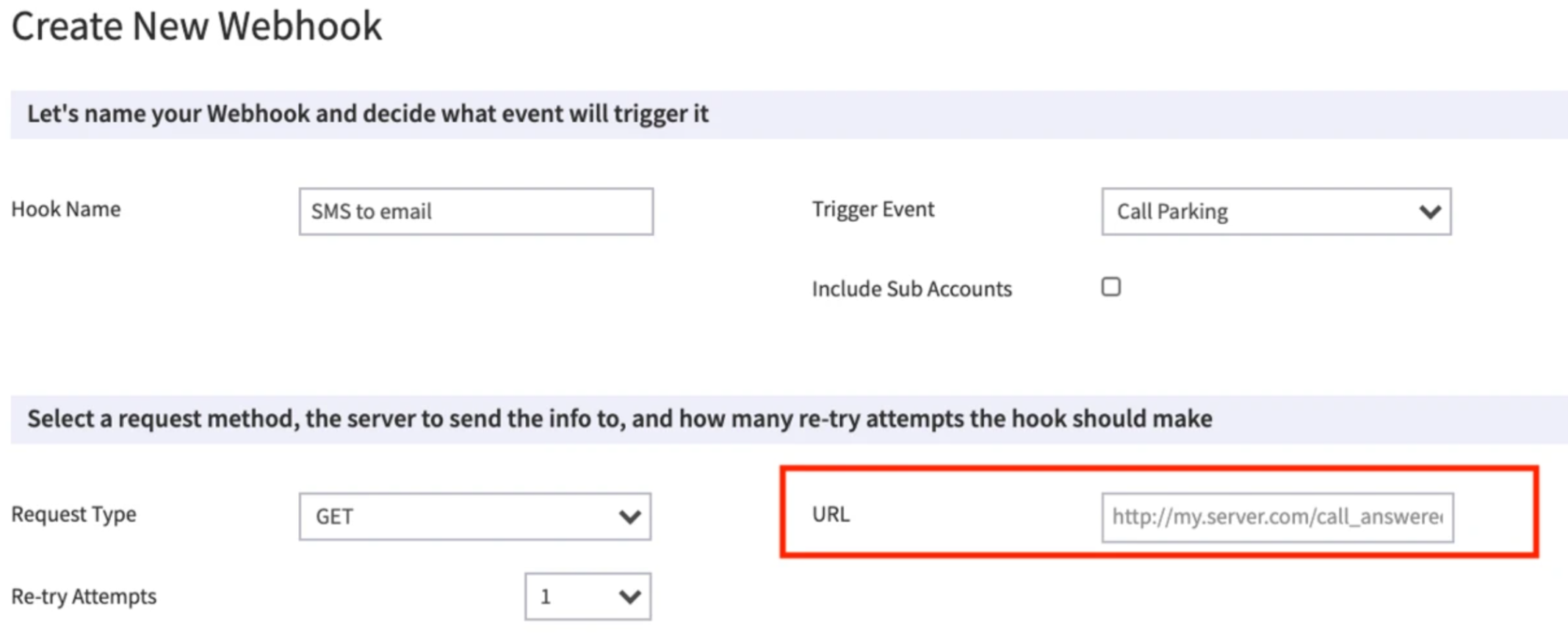
- Click the “Create Webhook” button at the bottom of the page. The new webhook should then appear in the list and be shown as toggled on.
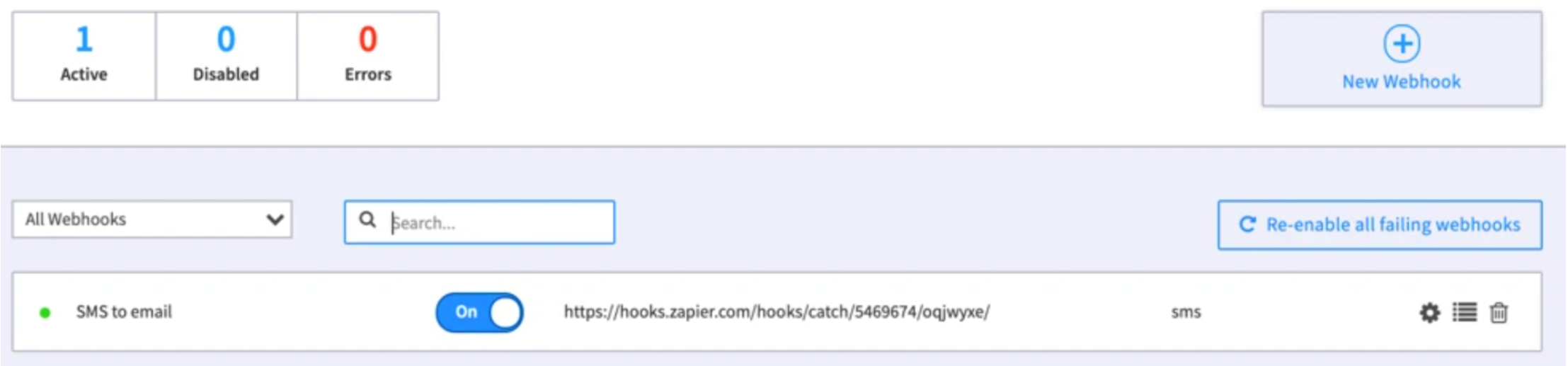
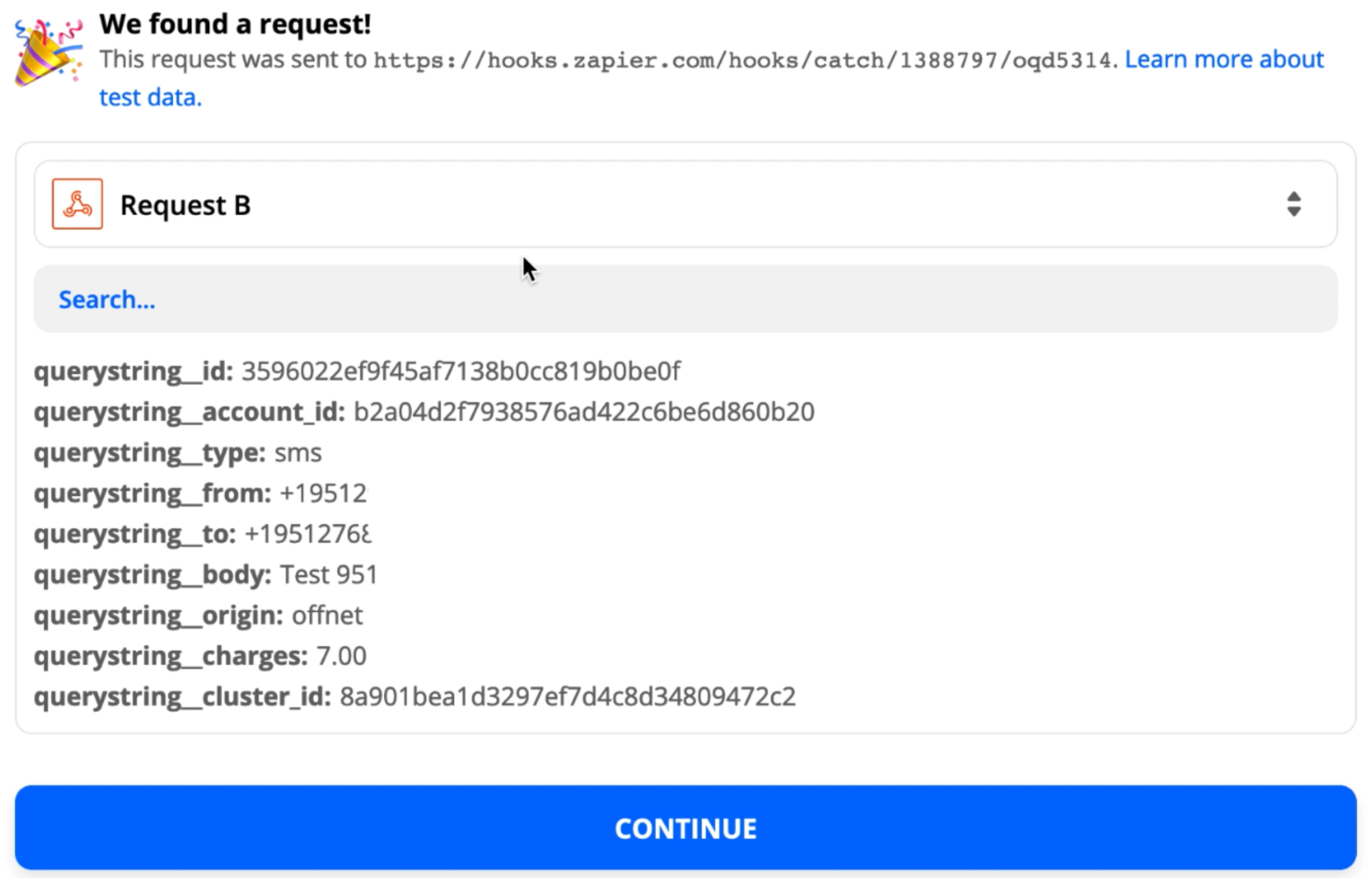
- Return to the Zapier window and click “Continue.” To test the newly created webhook, send a sample SMS message. Zapier should display a confirmation similar to the screenshot below.
- Next, define the action you want Zapier to perform when the webhook is triggered. You can select any action provided by Zapier.
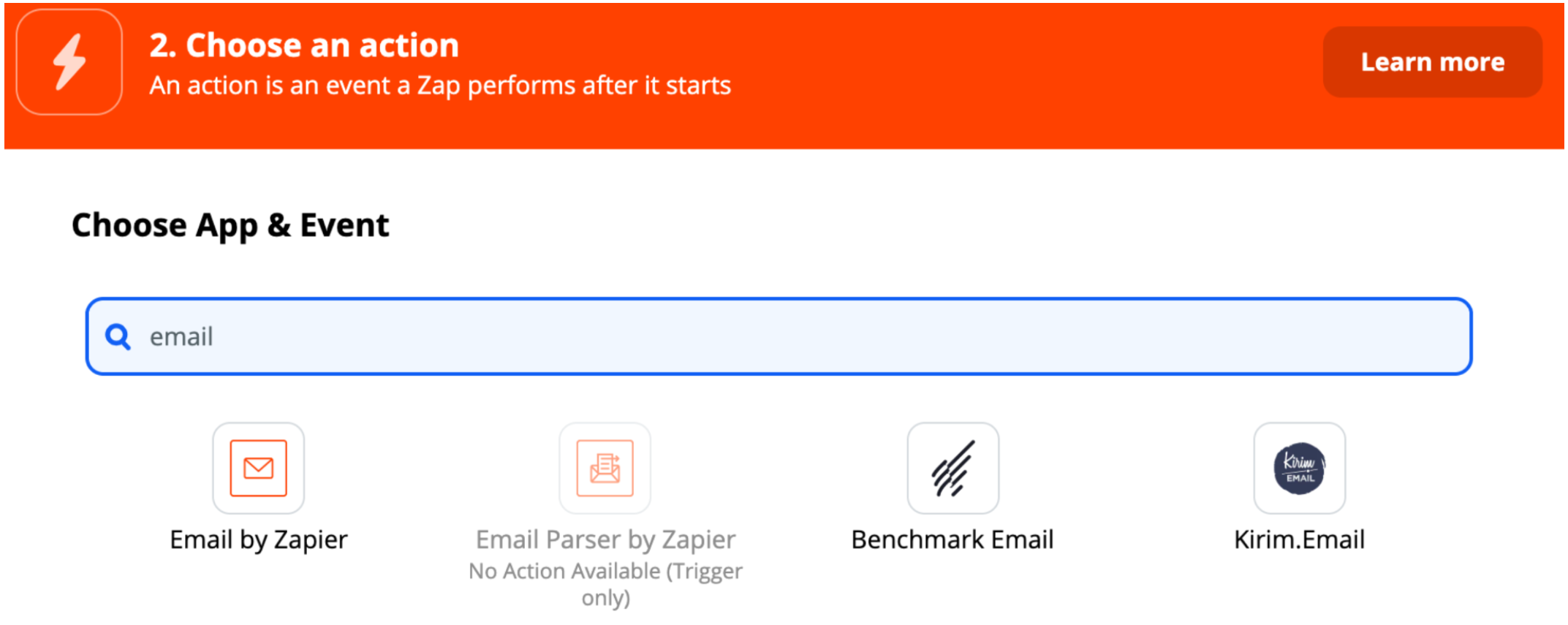
For example, choose “Send an Outbound Email” from the list.
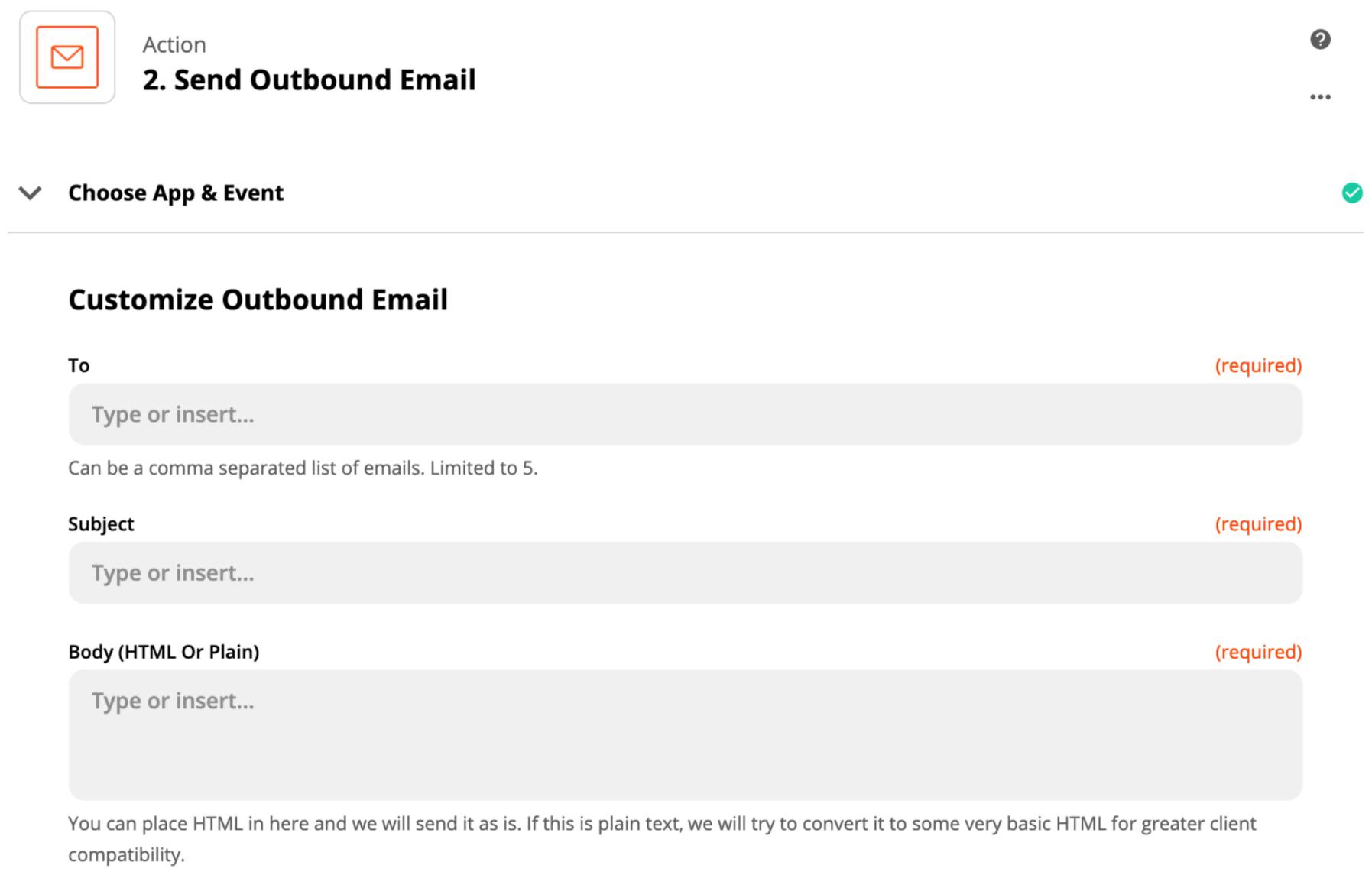
- In each field add a data source from the drop down menu that was captured during your test.
If you skipped the test, you will not see data source options here. If your test worked properly you can add any field, or more than one field if you separate them by a colon. The configuration fields on this tab will vary depending on the type of action you select. You can link any field to any data source, so choose carefully.- After filling in all the required fields, click the “Test & Continue” button. A sample email based on your entries should then be generated.
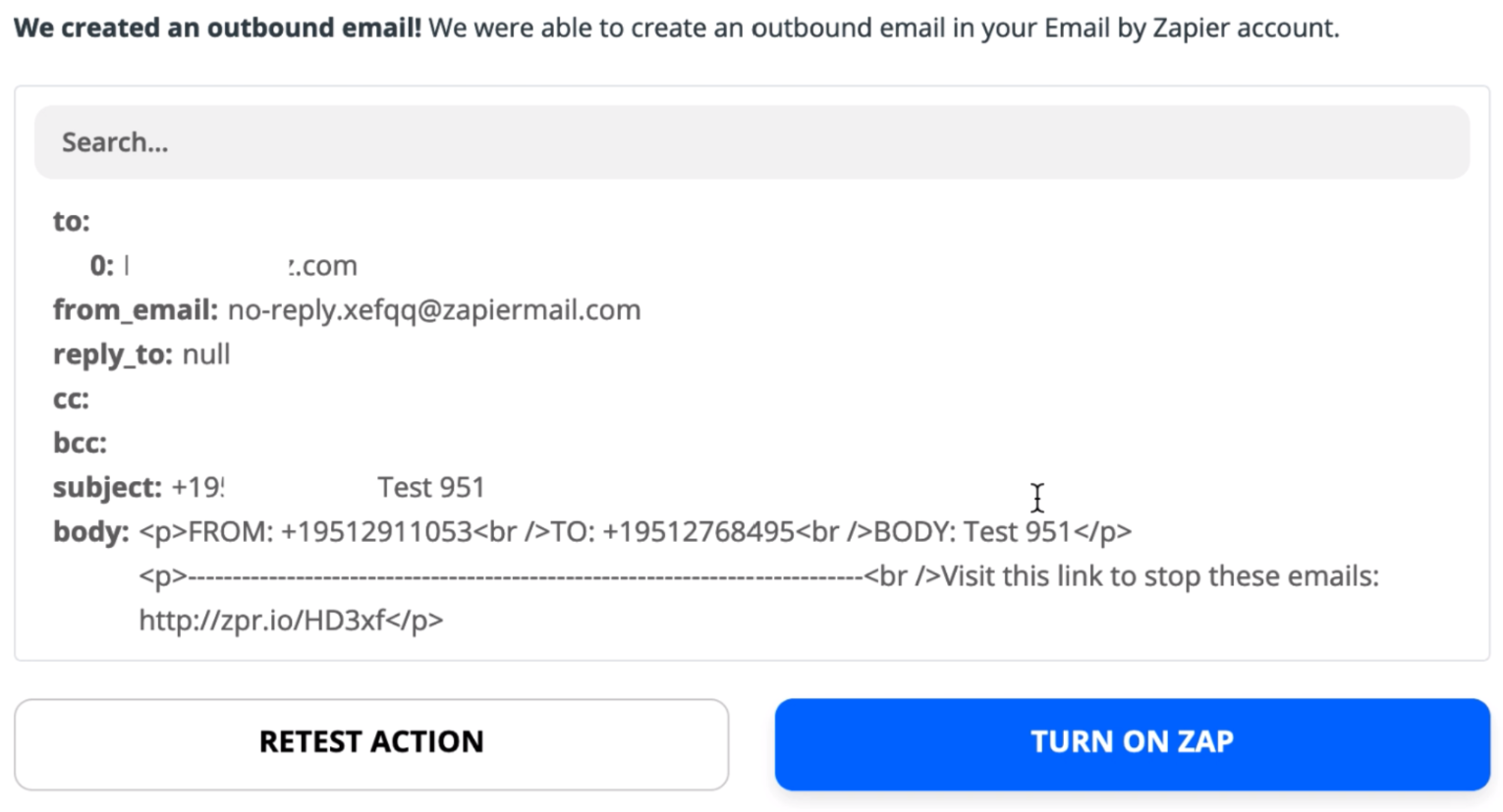
- If all looks correct, click the “Turn on ZAP” button.
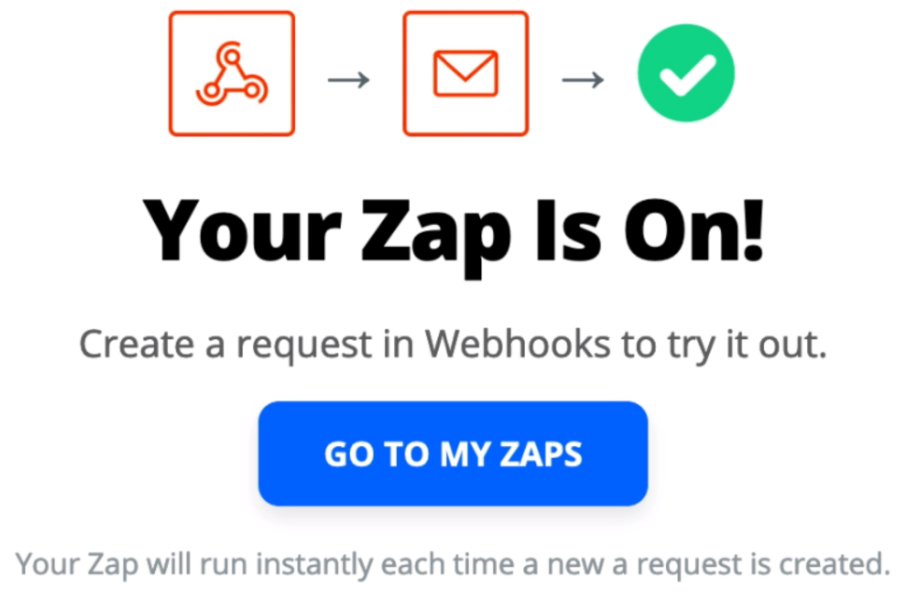
At this point, the connection is established and ready for use.
Was this article helpful?
That’s Great!
Thank you for your feedback
Sorry! We couldn't be helpful
Thank you for your feedback
Feedback sent
We appreciate your effort and will try to fix the article