Description: The purpose of this article is to guide users through the process of connecting 2600Hz with ChatServ for texting.
The instructions given in following section of this user guide are detailed and may seem a bit overwhelming, but for clarity, here’s a simplified overview of the entire process:
- Create an Operator Account.
- Create a Channel.
- Link the Channel to your Kazoo account.
- Create a user.
- Authorize the user for the Channel.
- Create a Service.
- Connect the Service to your Kazoo account.
- Enable the webhook.
Follow the steps below to complete the setup:
- First, make sure SMS/MMS services were enabled as it was explained in this user guide.
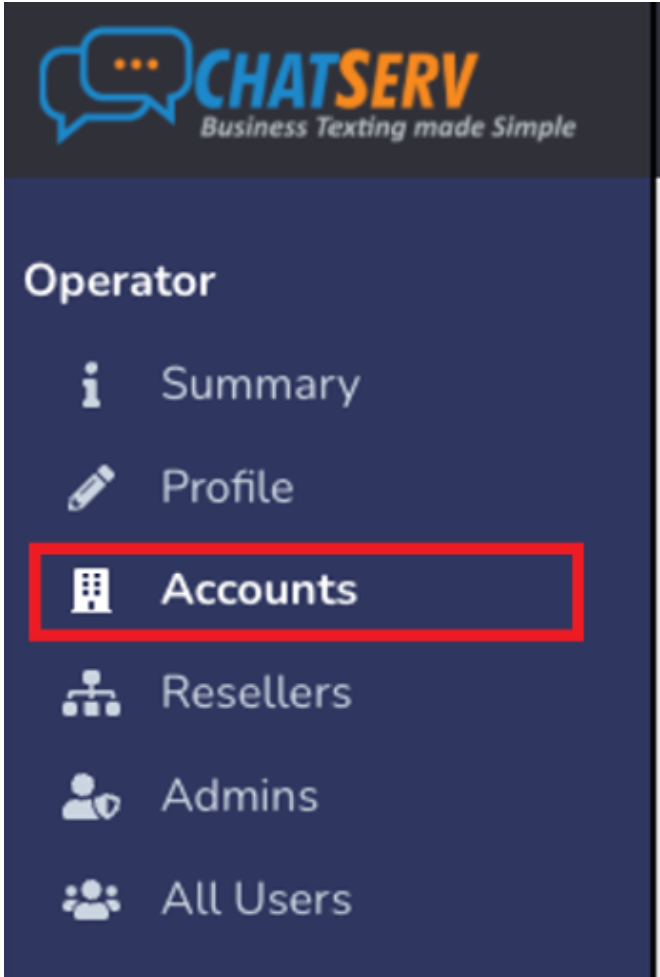
- Access the ChatServ Portal and sign in using an administrator account. From the left-hand menu, select Accounts.
Click the “Add Account” button to create a new operator account.
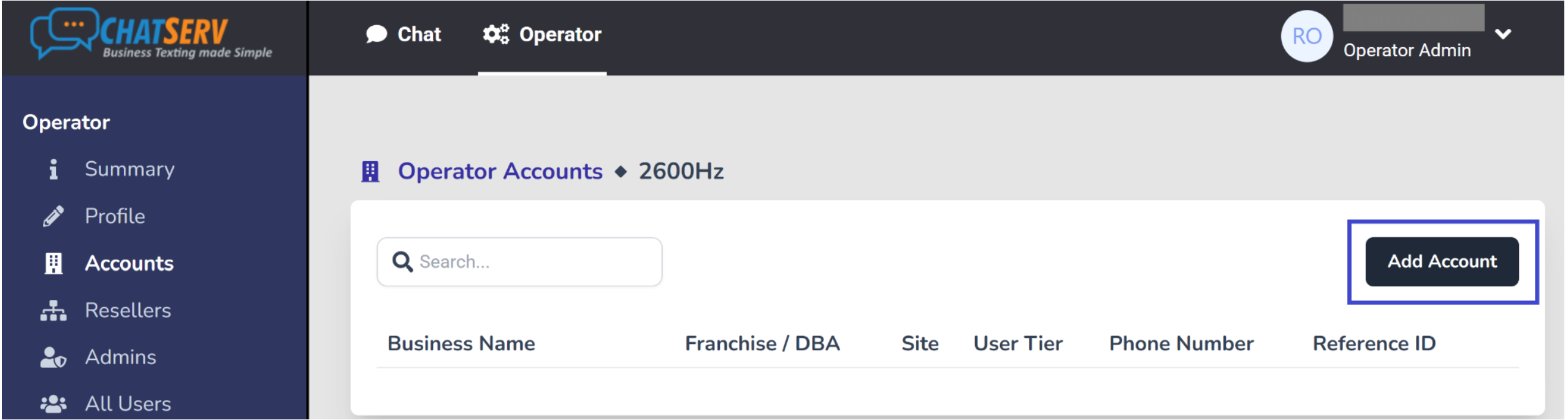
It is recommended to create a separate account for each customer.
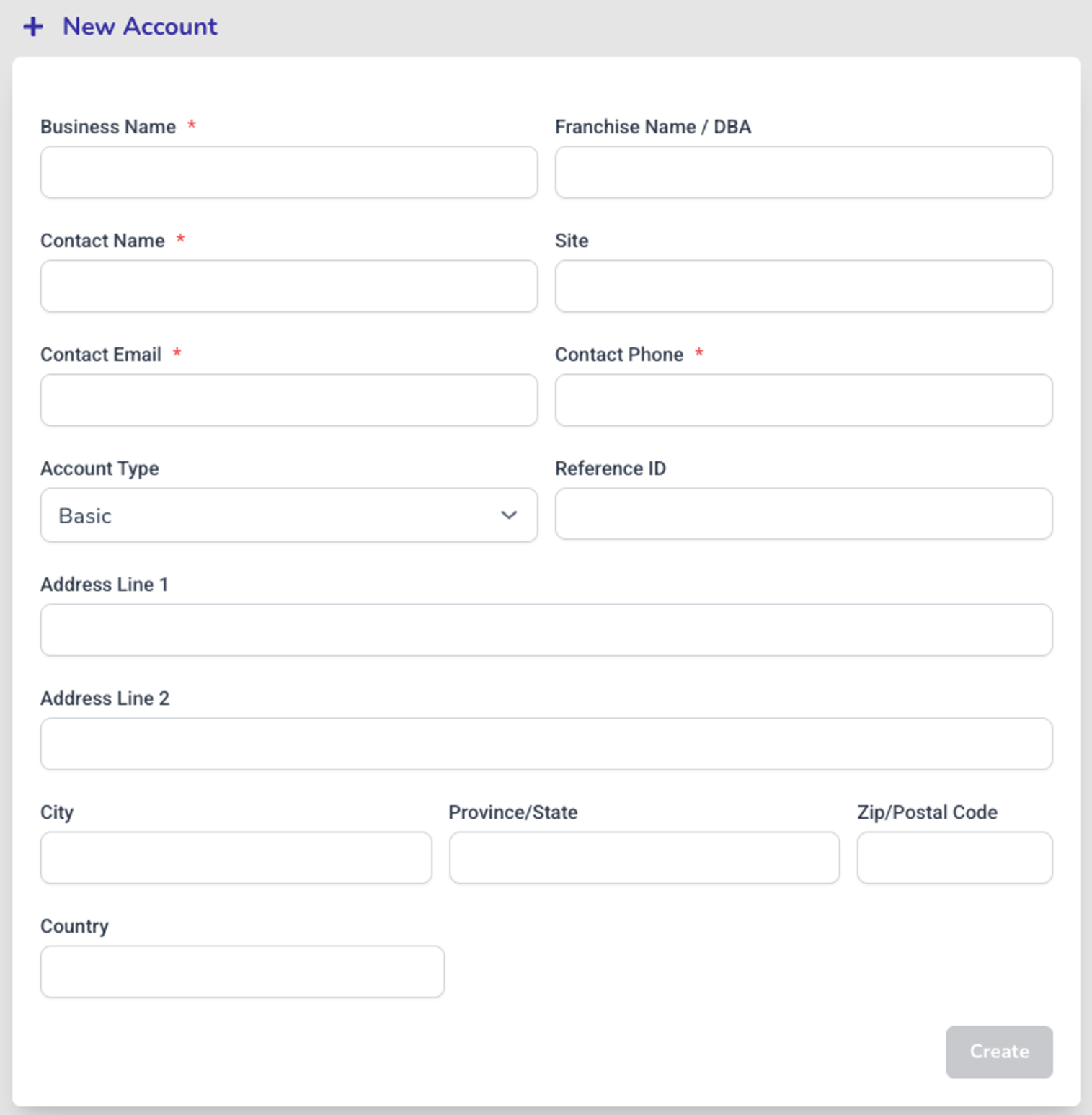
- In the New Account form, complete the required fields and click the “Create” button.
- Once the account is created and appears in the Operator Accounts table, select it. When the newly created account’s page opens, click Channels in the left-hand menu.
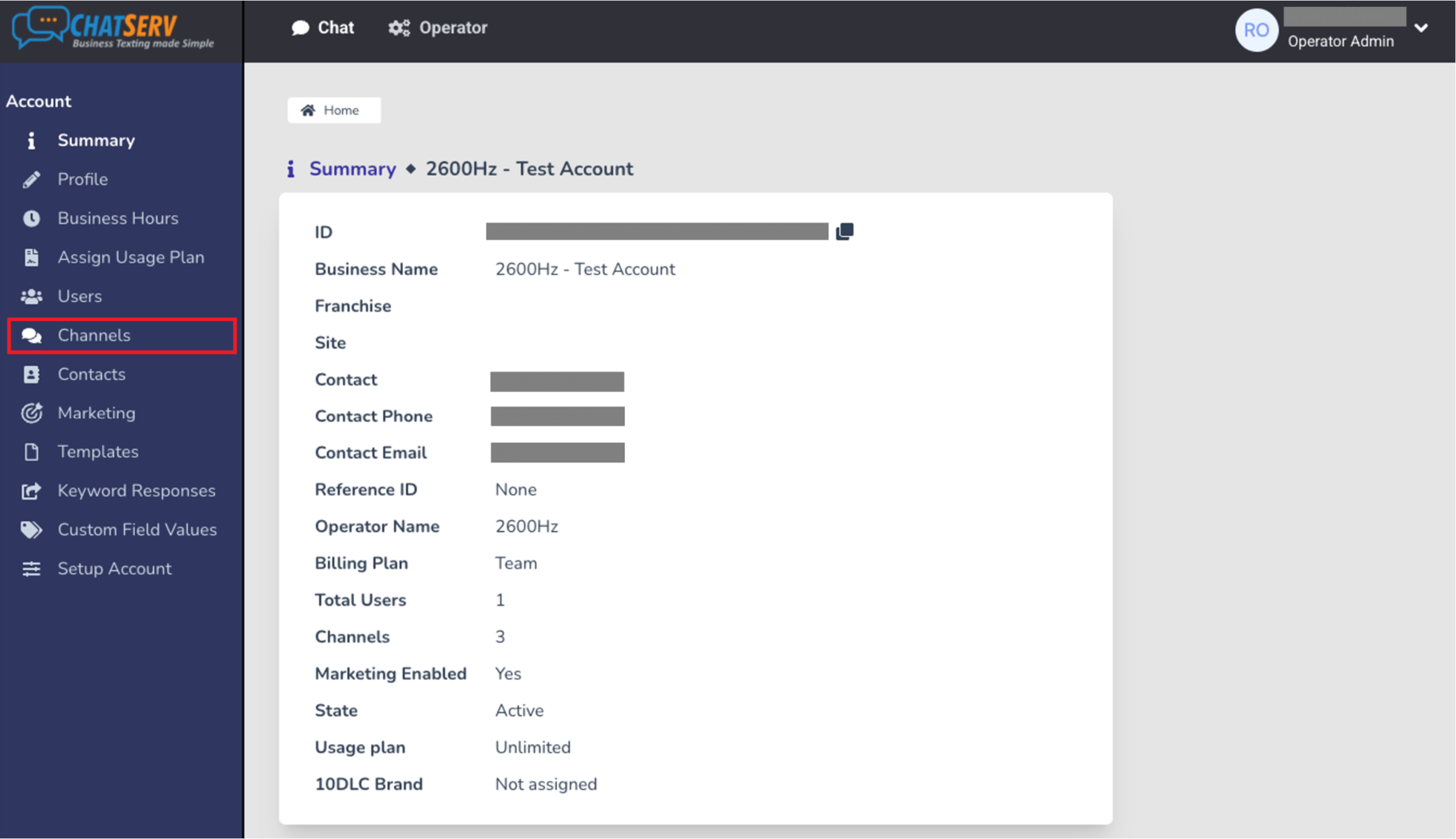
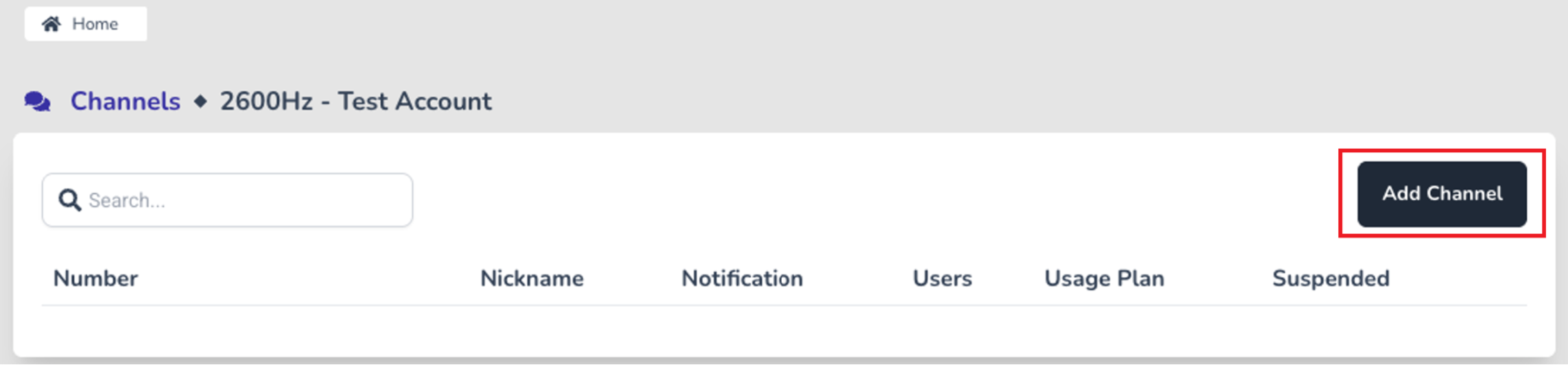
When the Channels page opens, click the “Add Channel” button to create a new Channel.
- When the New Channel form appears, fill out the shown fields. After selecting the “TF:TIO” option from the “Select Service” field’s drop-down list, an additional field named “Account ID” will appear.
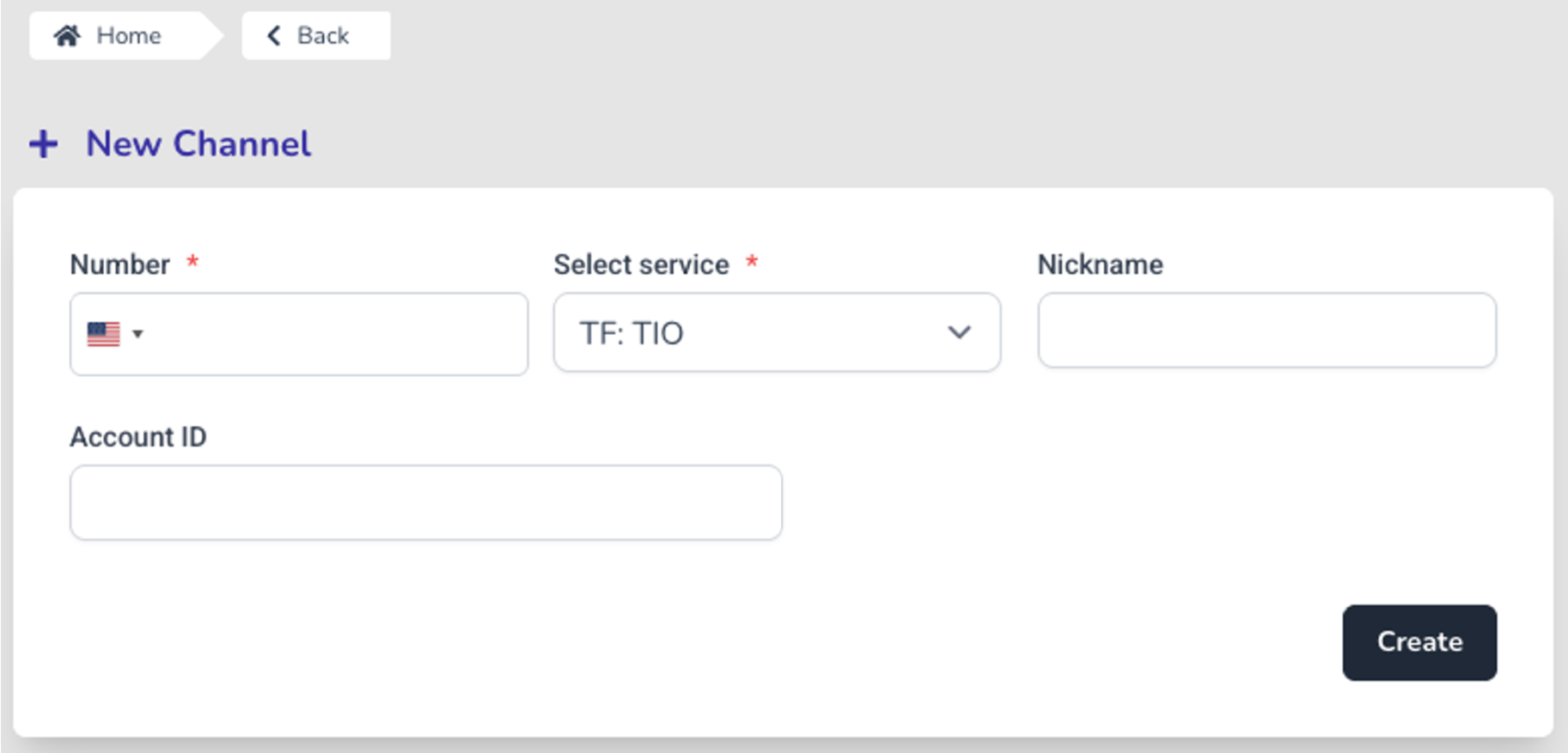
To determine the correct value to enter, you’ll need to get access to the Kazoo portal.
- Open a new browser tab and sign in to the Kazoo portal as an administrator. Once you have access to the portal, press the “D” key on your keyboard to open the Debug Account Info pop-up window.
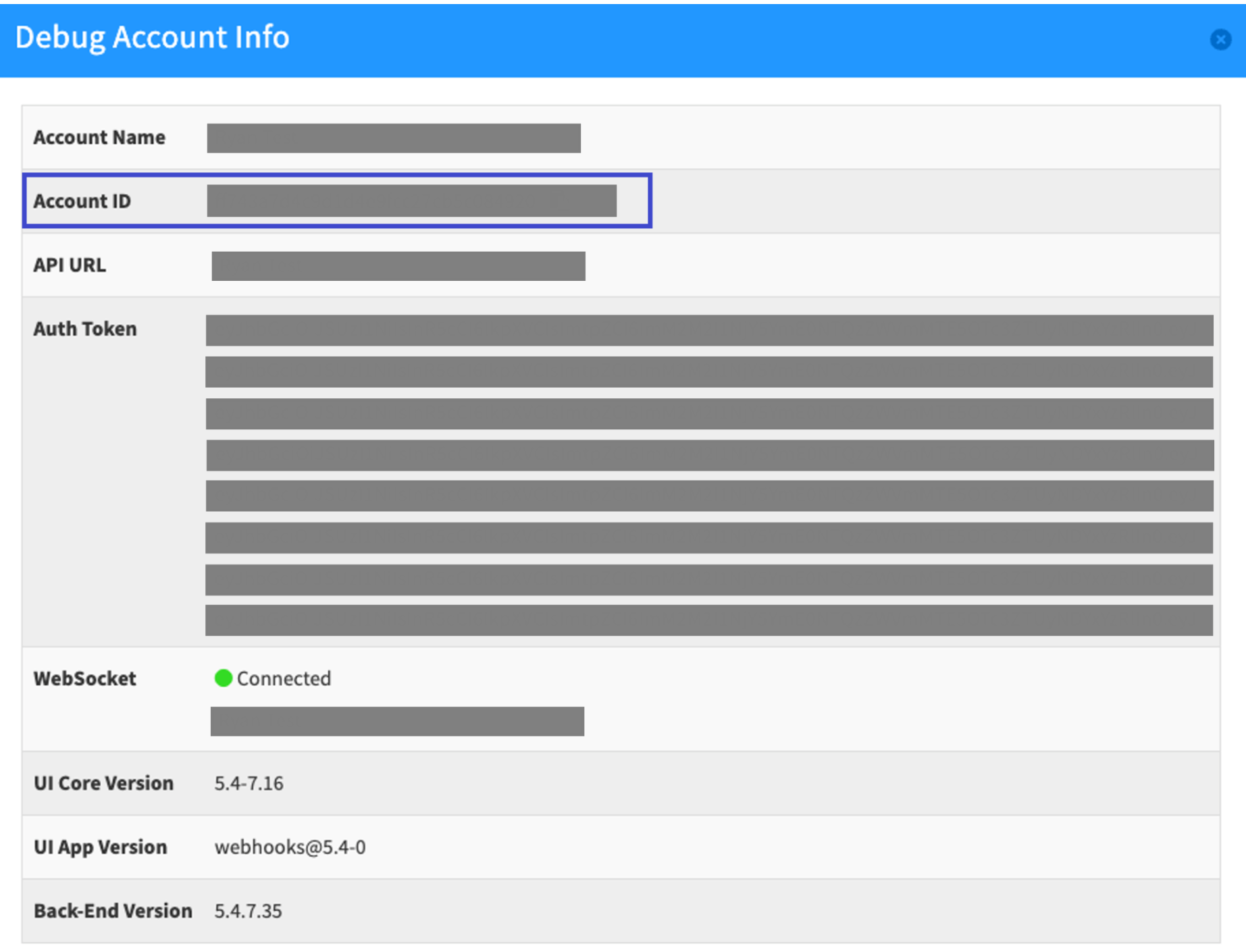
This window displays details about your Kazoo admin account, including the Account ID. Copy this value and return to the ChatServ portal.
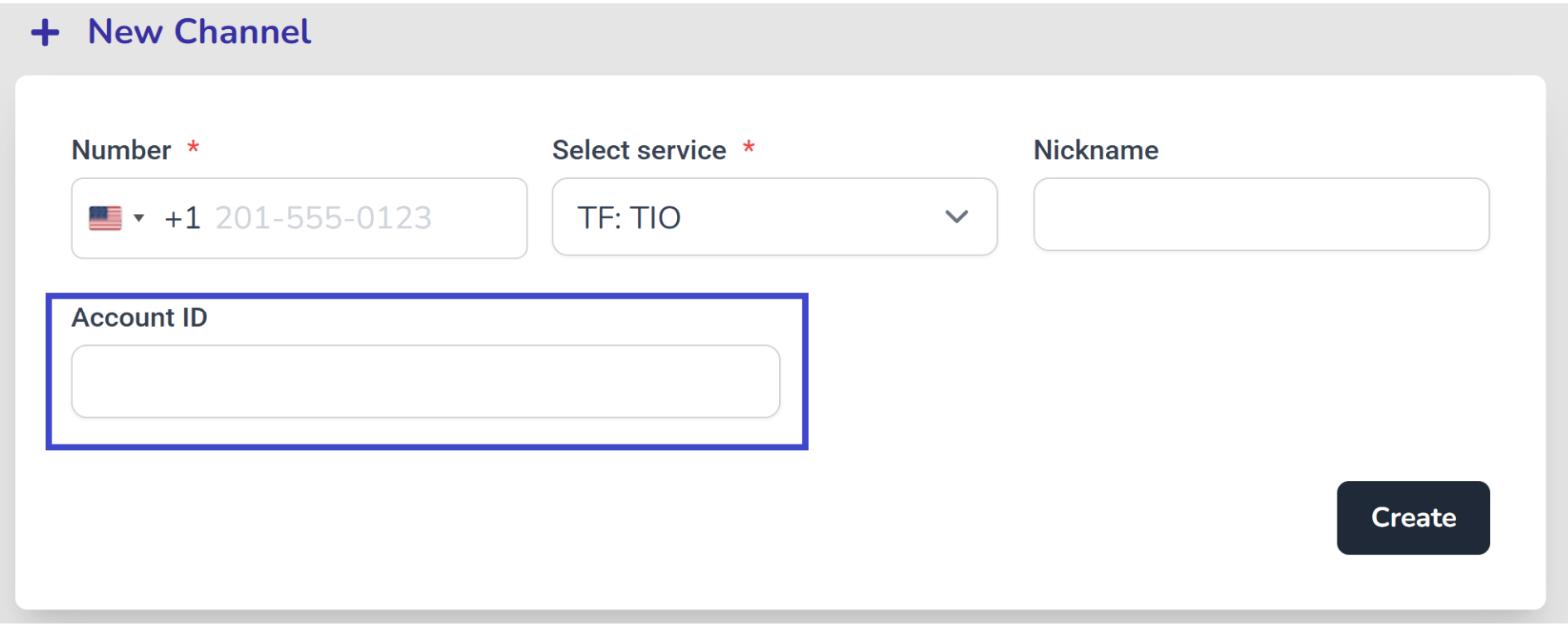
- Enter this value into the “Account ID” field of the New Channel form, then click the “Create” button.
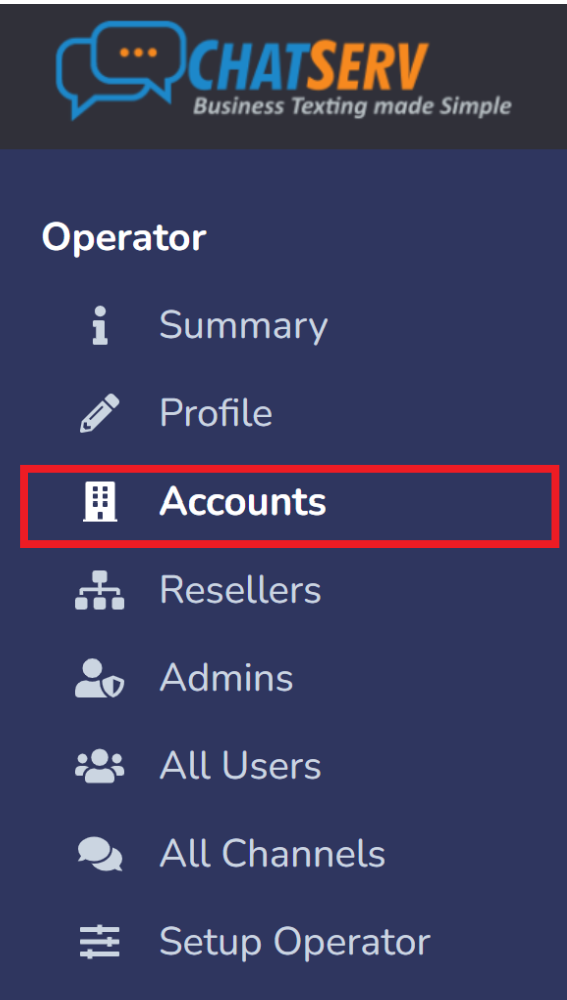
- Now, you need to create users that will use the SMS/MMS services via ChatServ. To do this, go back to the Home page and select Accounts from the left-hand menu.
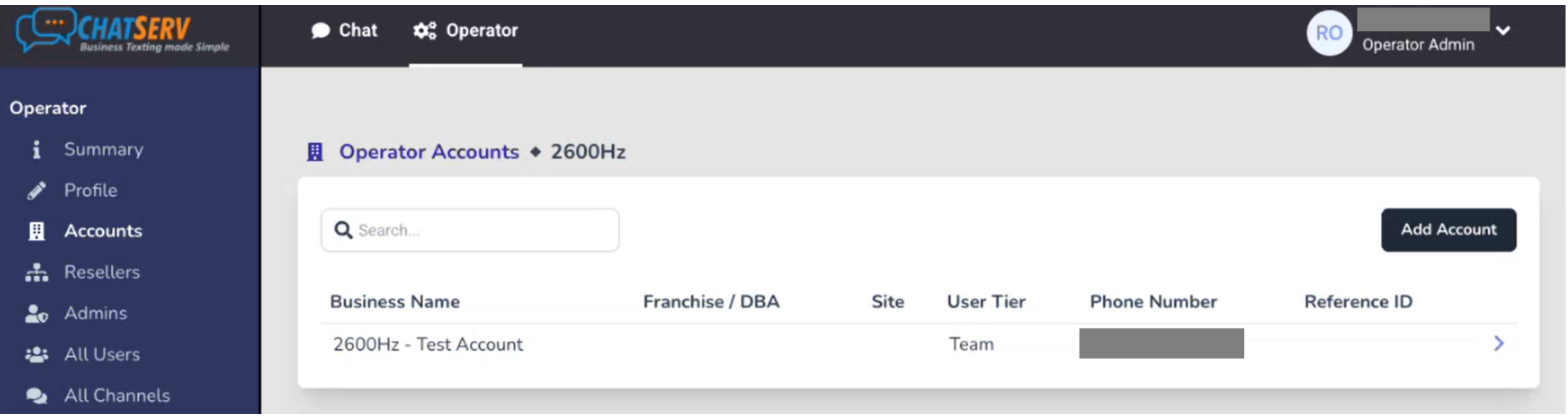
In the Accounts section, select the recently created operator account from the Operator Accounts table.
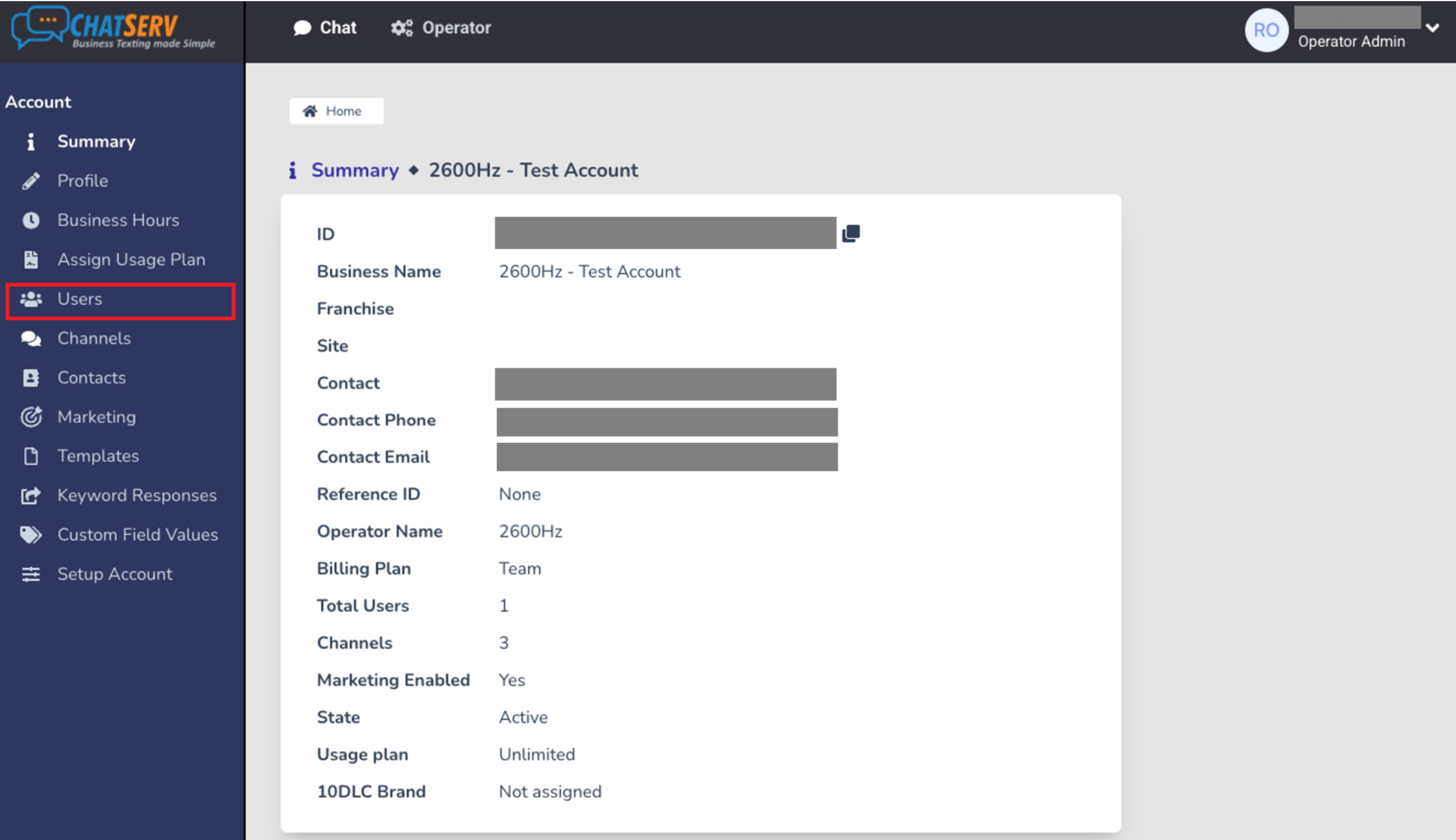
On the account page, click Users in the left-hand menu to access the user management page for that operator account.
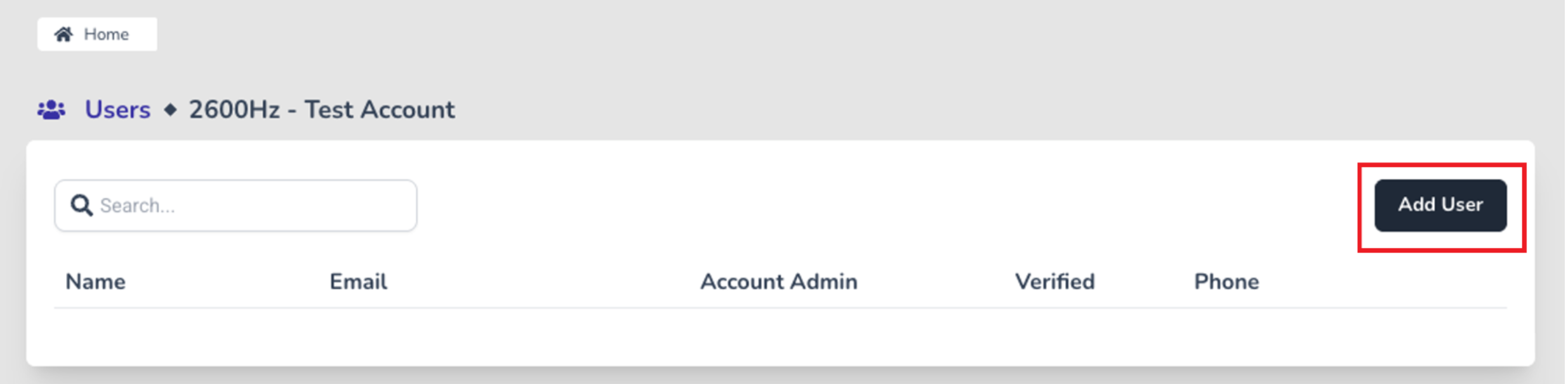
When the user management page opens, click the “Add User” button.
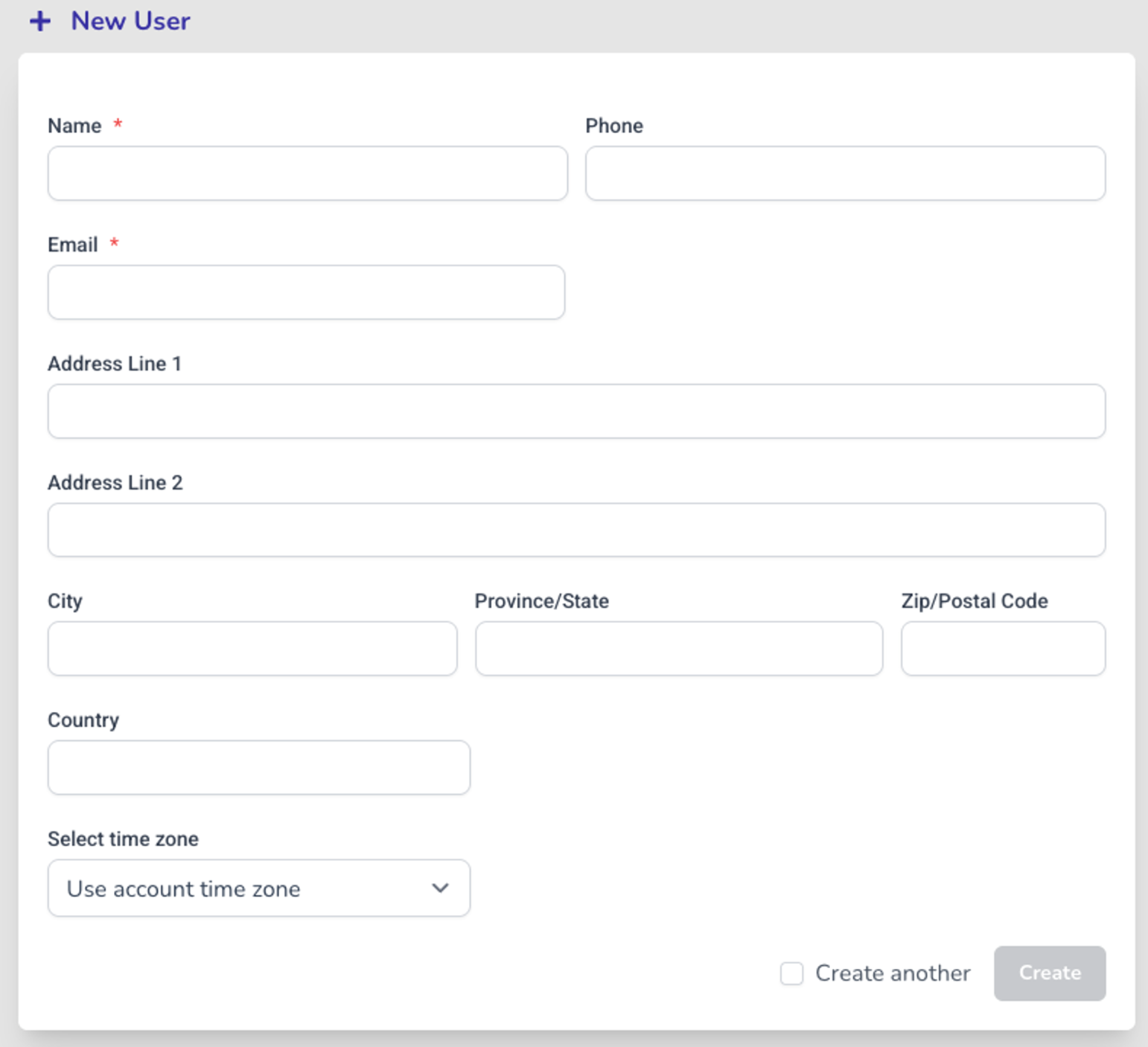
- When the New User form appears, fill out the given fields and click the “Create” button to create the user.
You can create as many users as you want.
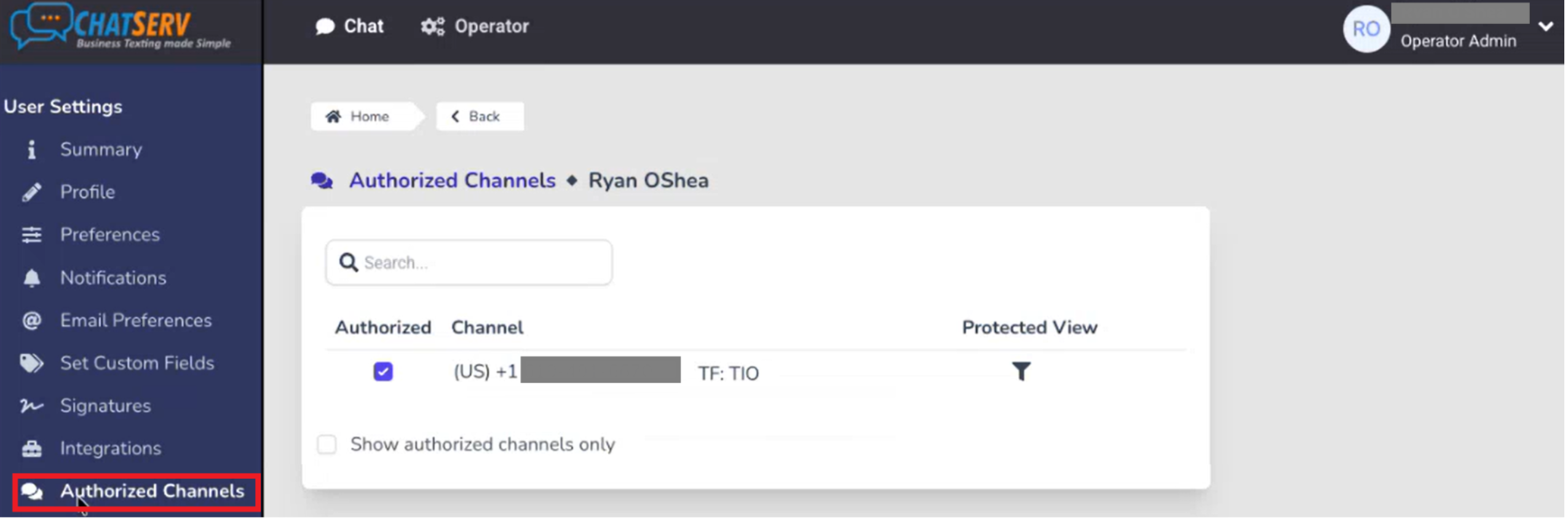
- Once the user is created, they will appear in the Users table. Click on the user to open their User Settings page. Then, select Authorized Channels from the left-hand menu to link the user to the channel you recently created.
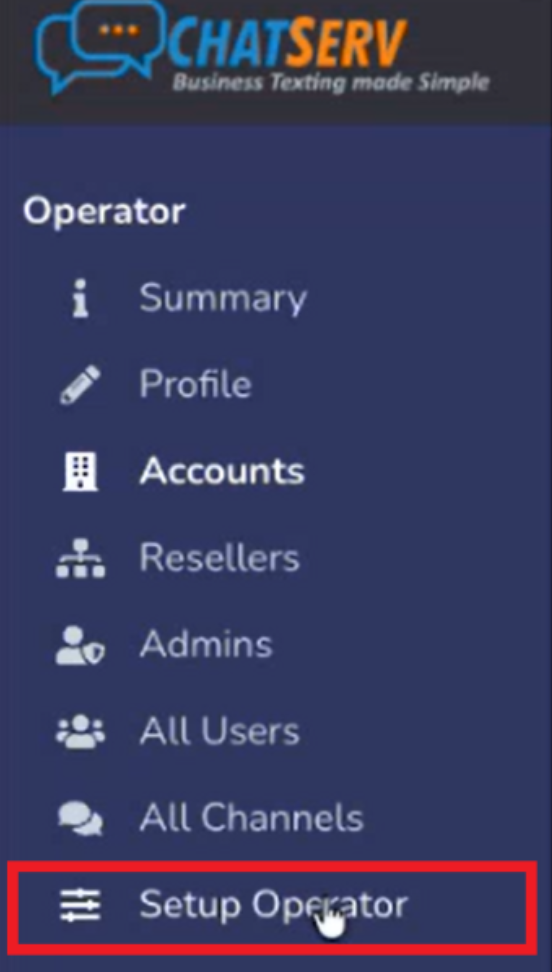
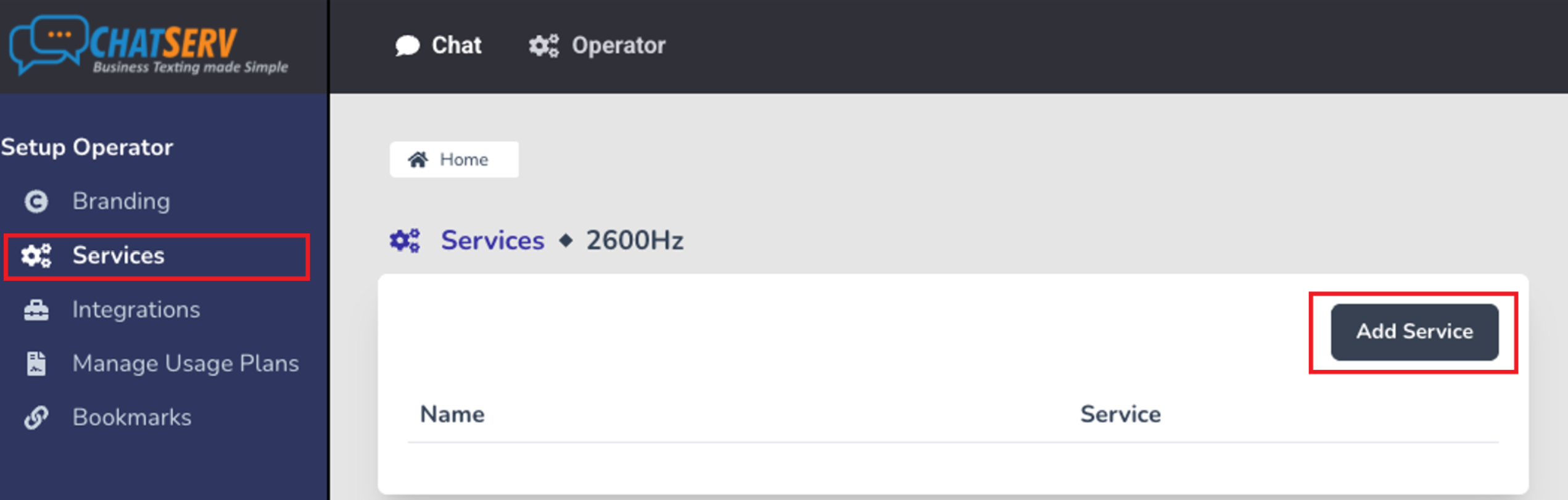
- Next, you need to create a new service to connect the systems. Return to the Home page. From the left-hand menu, select Setup Operator.
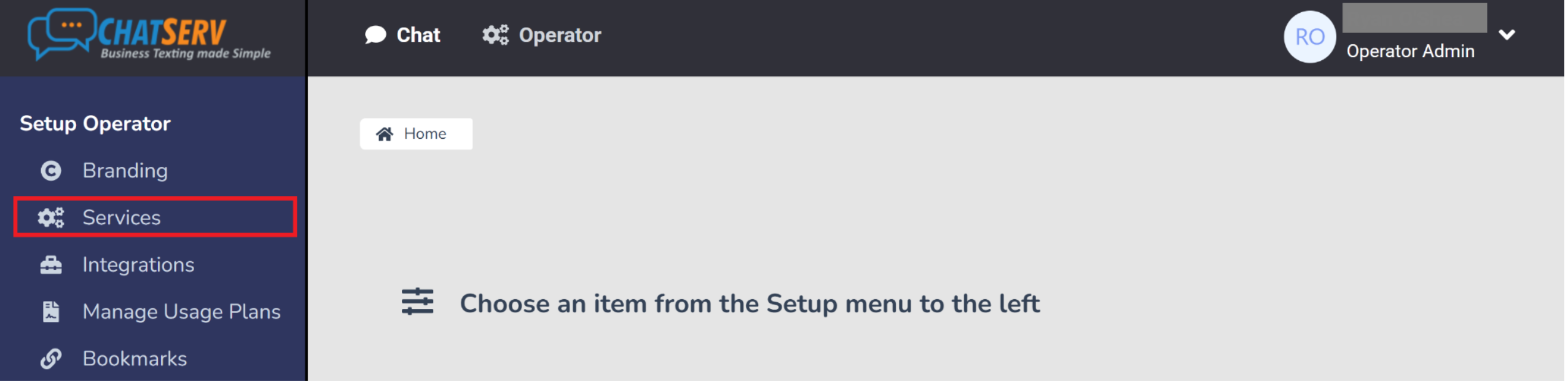
When the Setup Operator section opens, select Services from the left-hand menu.
Once the Services page appears, click the “Add Service” button.
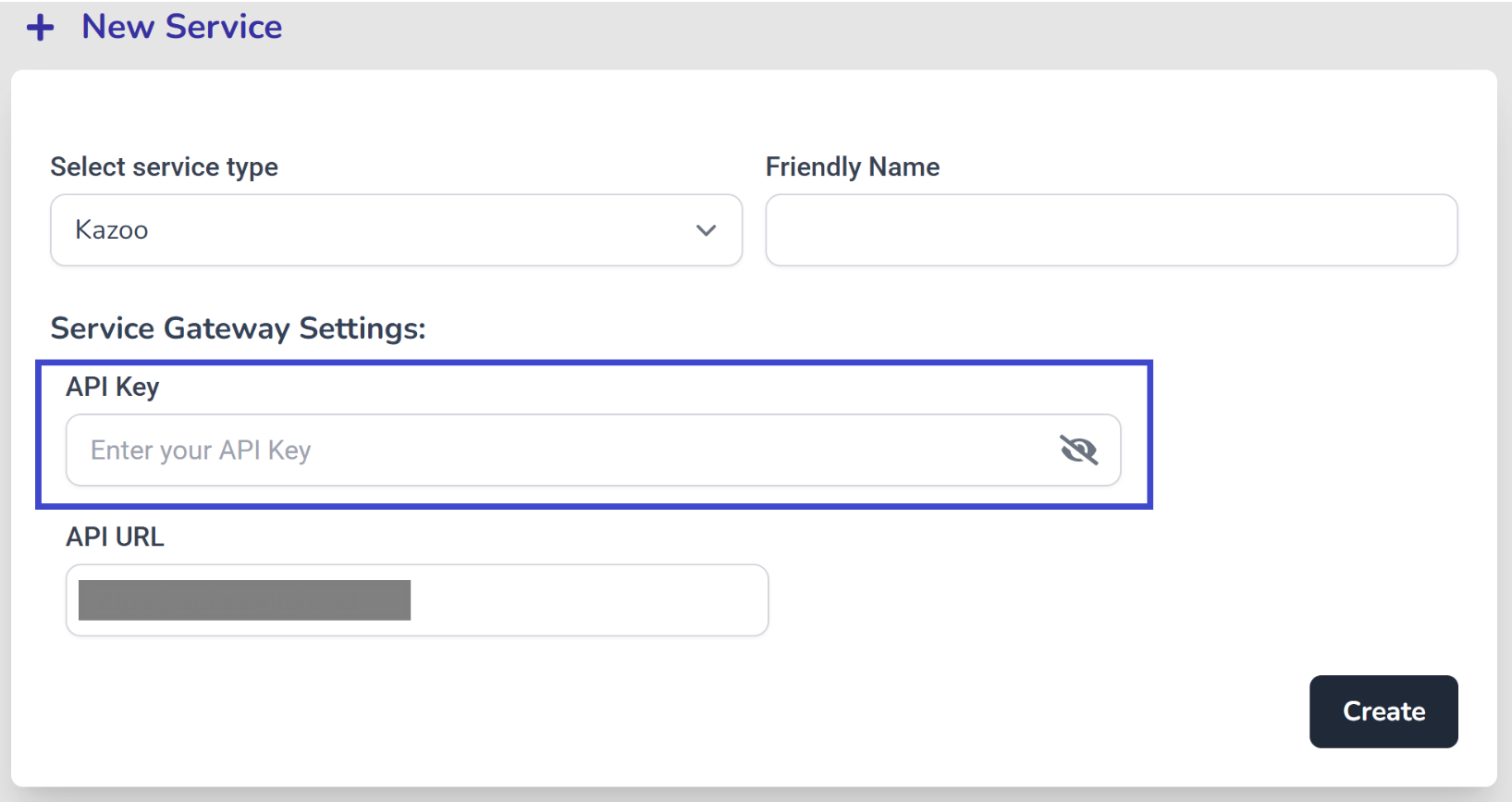
- When the New Service form appears, complete the required fields. Selecting “Kazoo” in the “Select Service Type” field will display additional fields for configuring the service gateway.
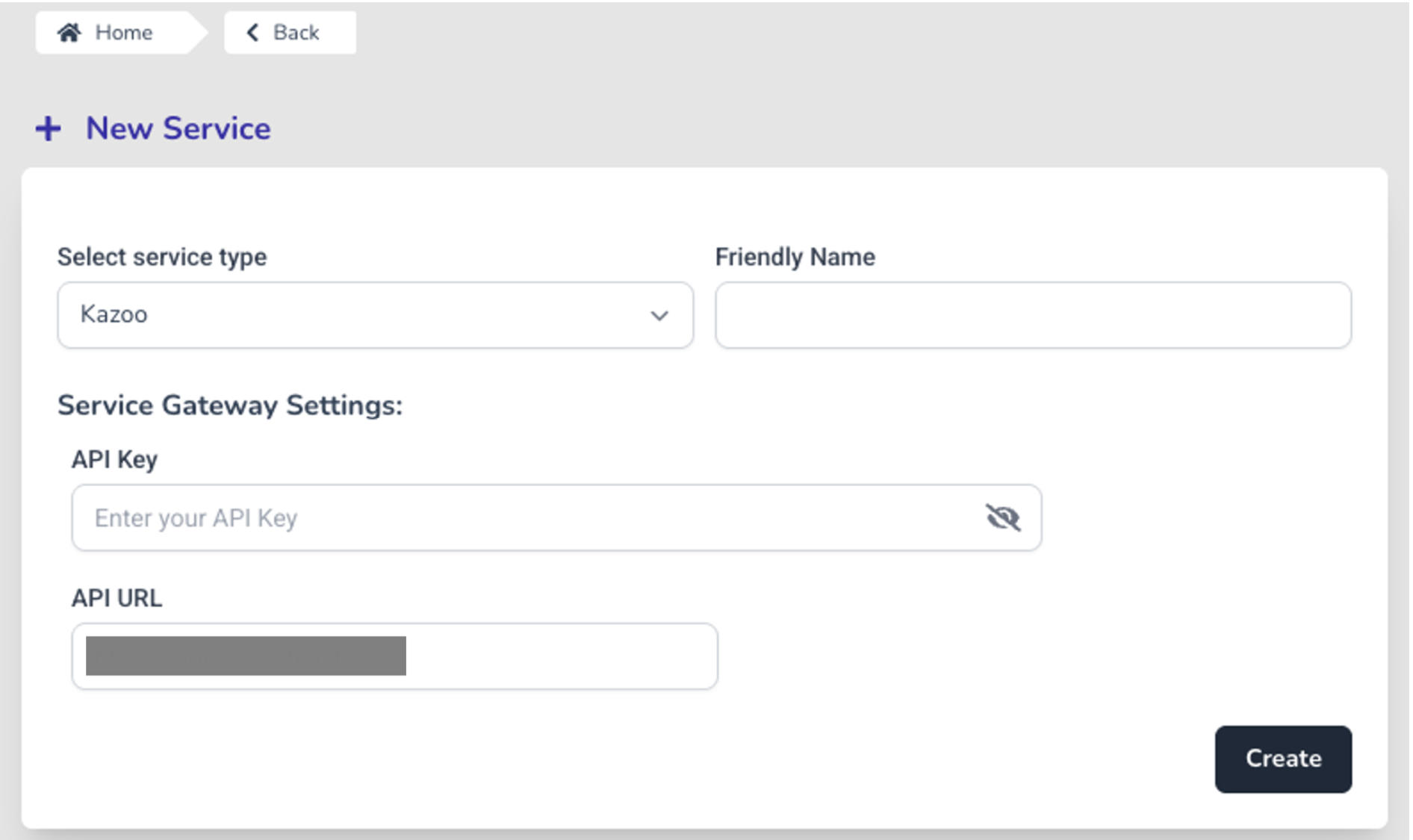
To find the correct value for the “API Key” field, you will need to access the Kazoo portal.
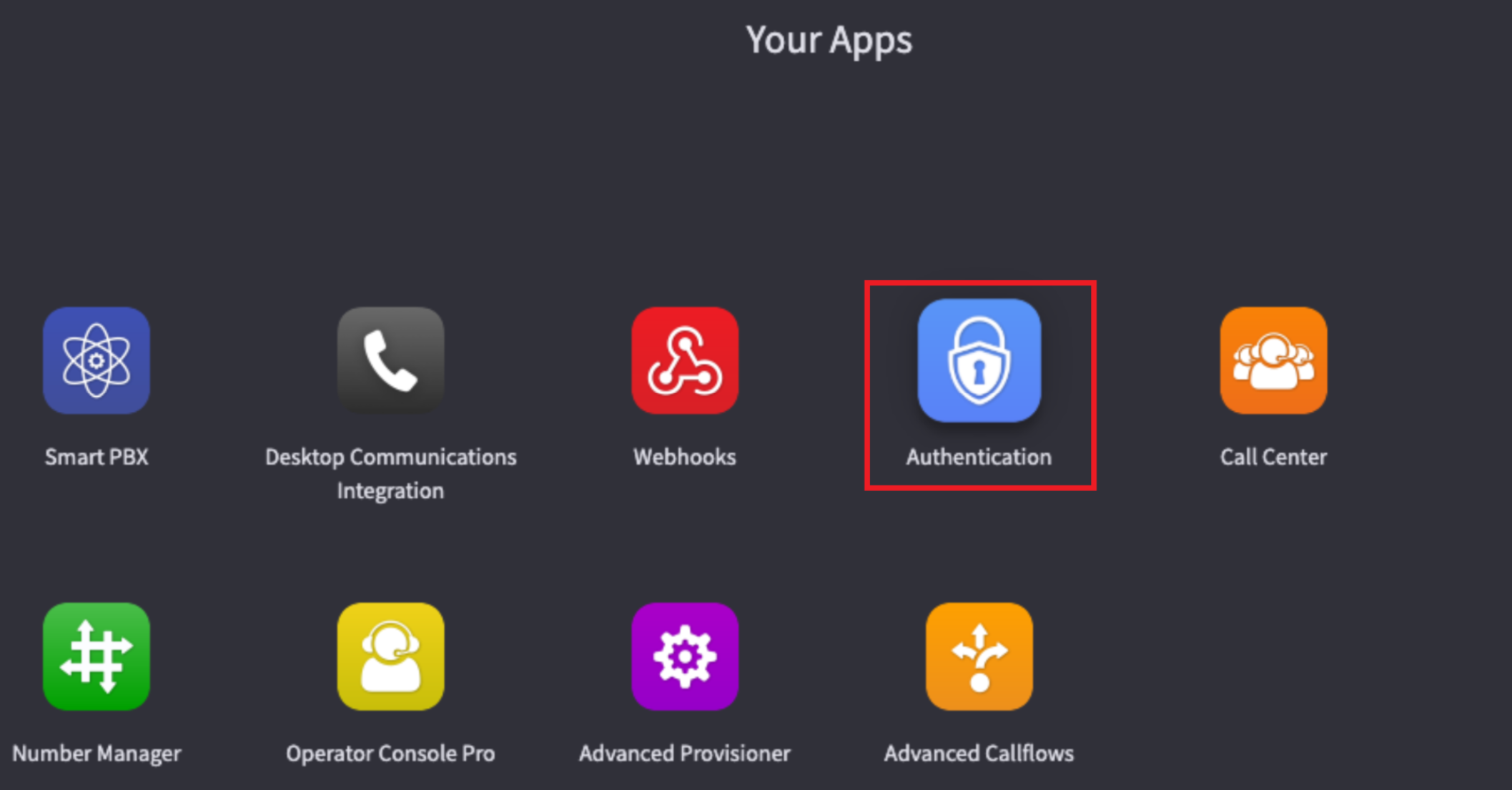
- Switch back to the browser tab with the Kazoo portal and open the Authentication app.
When the Authentication app opens, navigate to the API Key Authentication tab and copy the value from the “API key value” field.
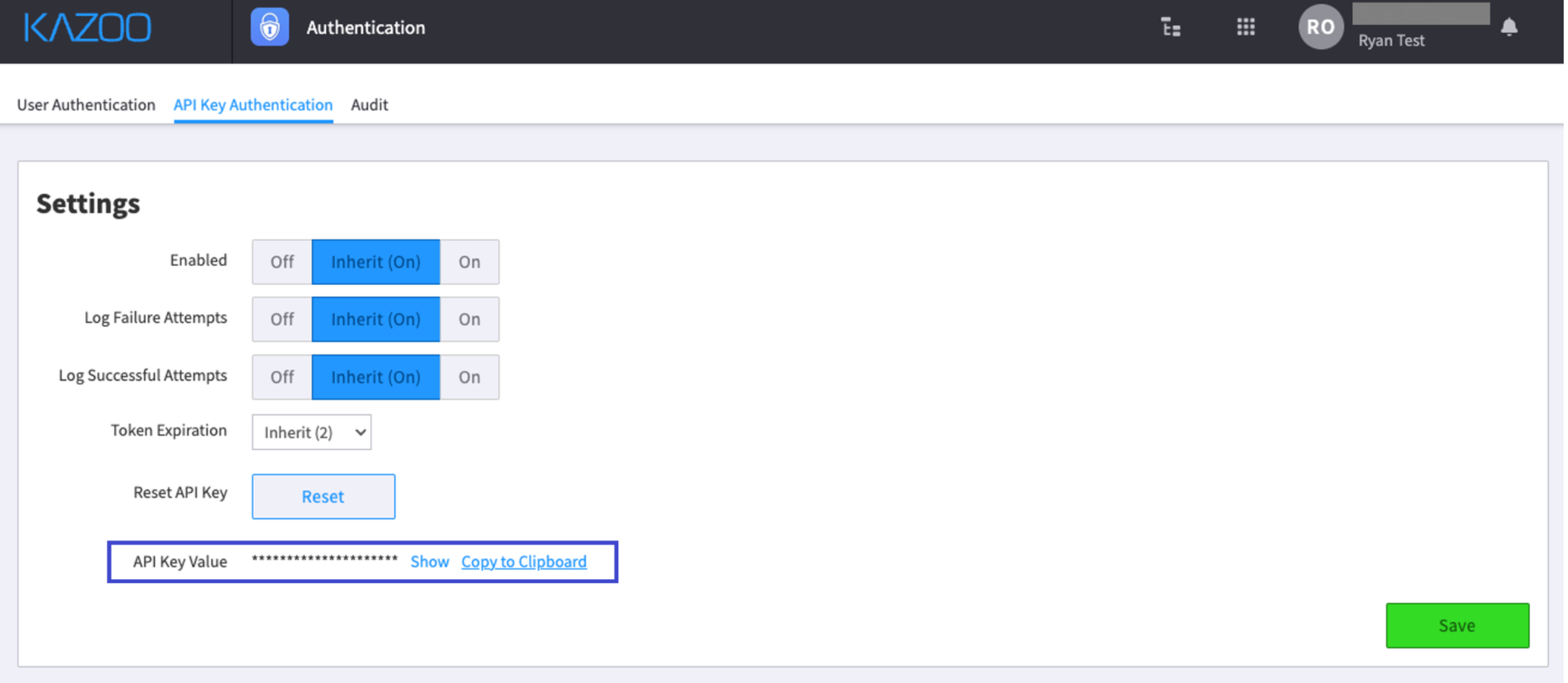
- Return to the ChatServ portal and paste this value into the “API Key” field of the New Service form. Then click the “Create” button to add the Service.
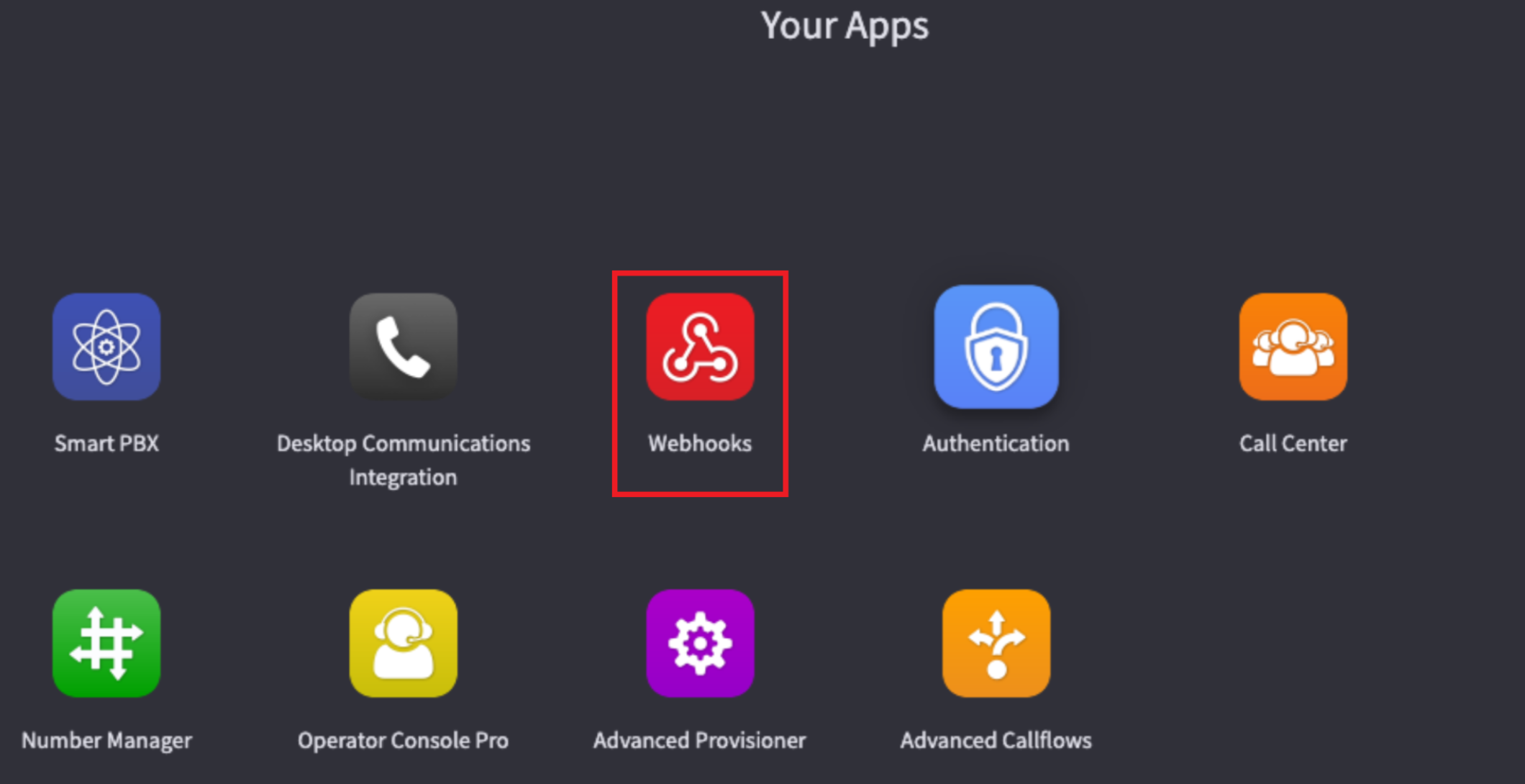
- At this stage, the webhooks should be created automatically via the API. To verify, return to the Kazoo portal and open the Webhooks app.
There, you should see the recently created webhooks that enable SMS/MMS services for your ChatServ account.
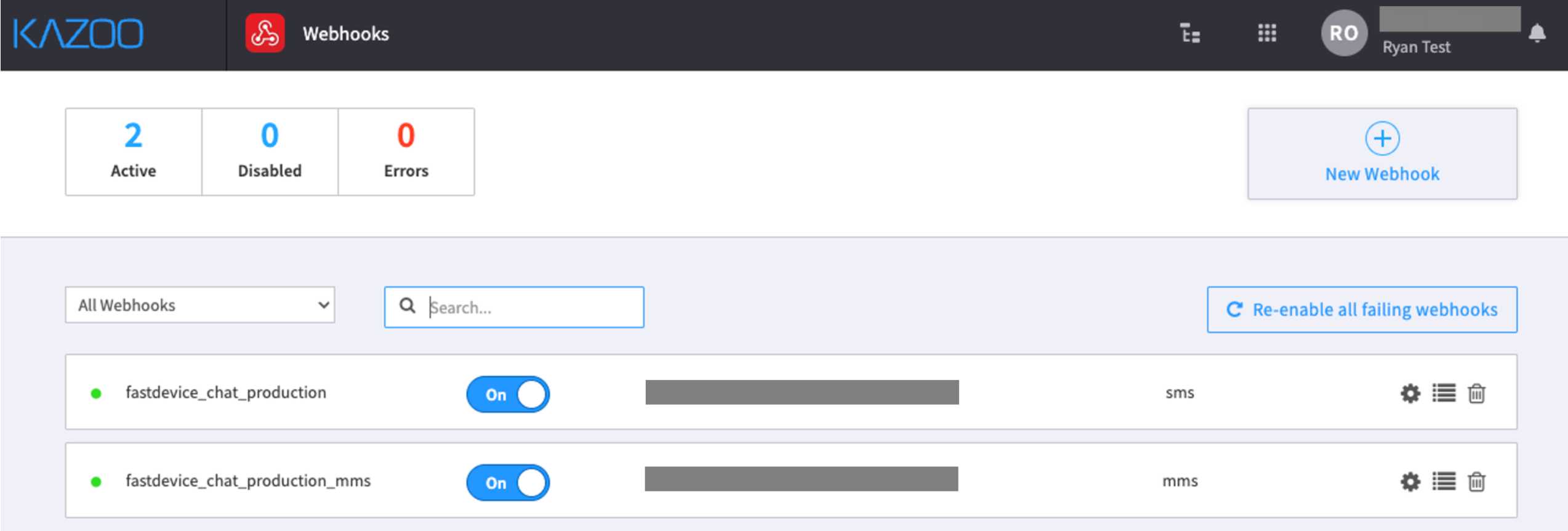
At this point, the connection is established and ready for use.
Was this article helpful?
That’s Great!
Thank you for your feedback
Sorry! We couldn't be helpful
Thank you for your feedback
Feedback sent
We appreciate your effort and will try to fix the article